
Members
Invite members, change roles, and remove access.
What it is
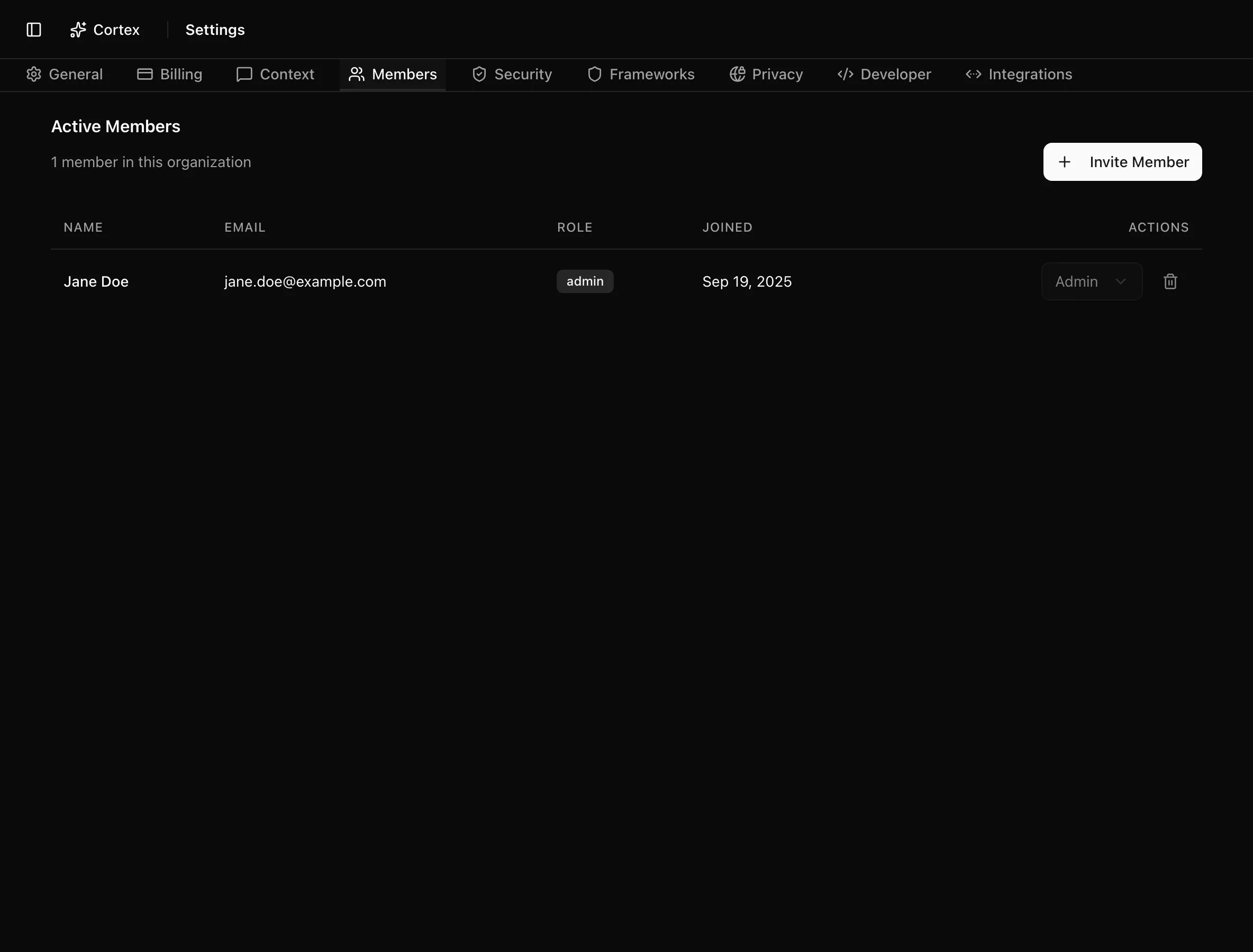
The Members tab controls who can sign in to the organization and what they can do once inside. Each member has one of three roles: admin, editor, or viewer. Invitations go out by email through the sign-in provider, and the resulting membership is mirrored into Noru, which is what permission checks actually read.
Membership is not the same as the Personnel directory. Members are people with a login; personnel are the people your compliance program covers, whether or not they ever open Noru.
Where to find it
SettingsMembers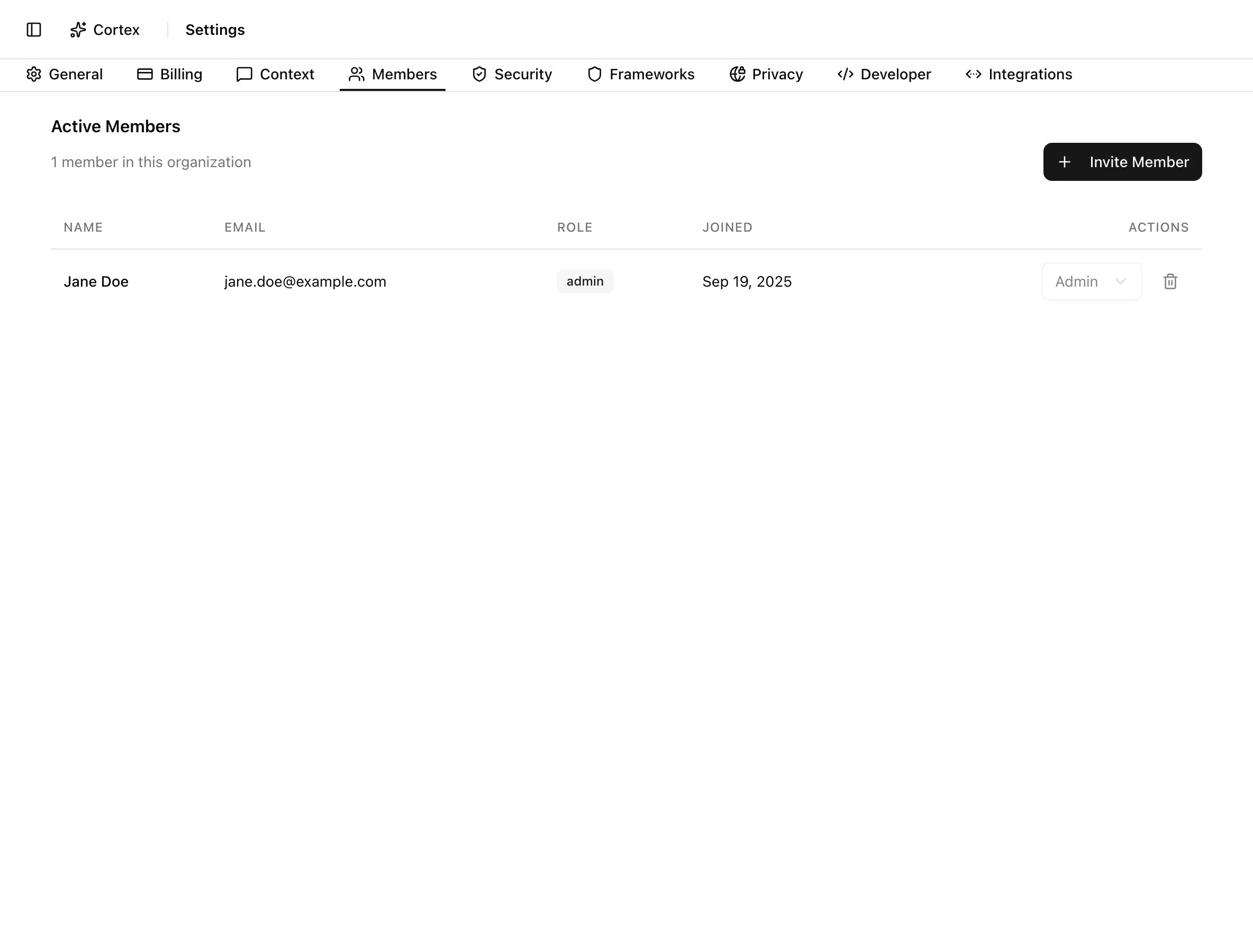
Key actions
Invite a member
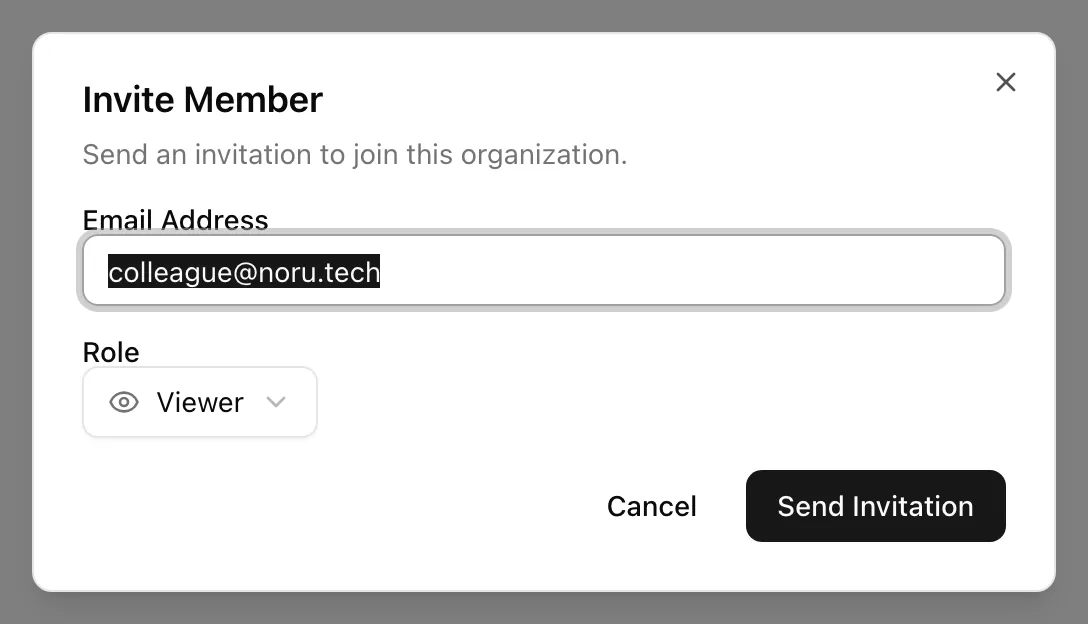
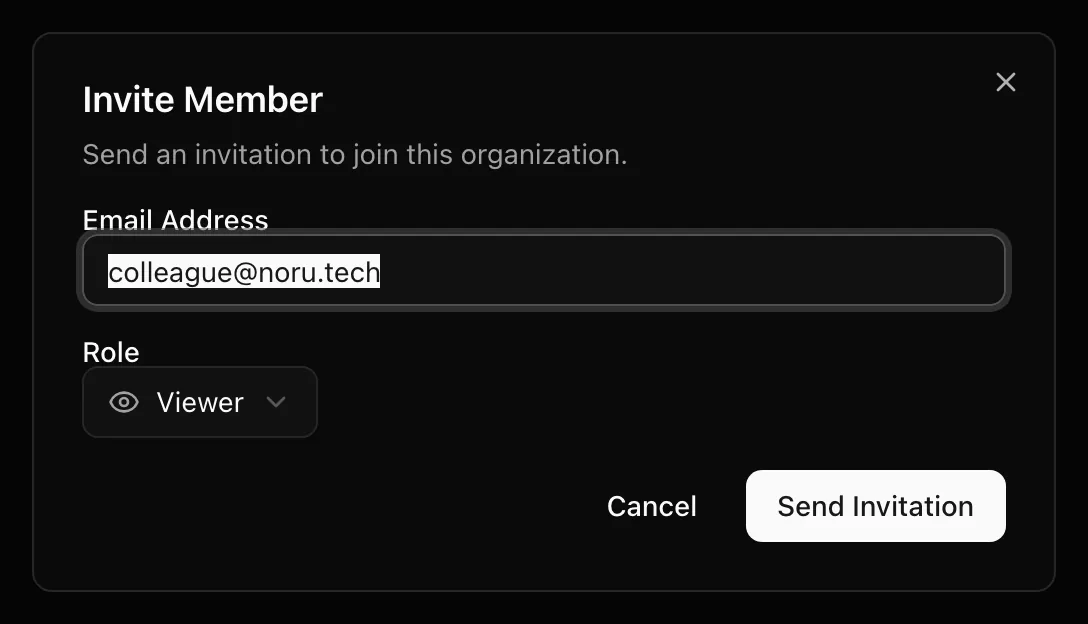
The invitee receives an invitation email from the sign-in provider. Until they accept, they appear in the Pending Invitations card with Email, Invited, and a Cancel action that revokes the invitation and shows "Invitation cancelled".
Change a role
Use the select in the Actions column. The toast "Member role updated" confirms the change. The select is disabled when the organization has only one member, and the server refuses any change that would leave the organization without an admin.
Remove a member
Click the trash icon in the Actions column. The toast "Member removed" confirms. The button is disabled for the last admin; attempting it shows "Cannot remove the last admin of the organization". Removal revokes access at the sign-in provider first, then removes the Noru membership.
Statuses and fields
| Status | Meaning | Set by |
|---|---|---|
Adminadmin | Full access to all organization features and settings | Invite role or a later role change |
Editoreditor | Can manage content and workflows, limited settings access | Invite role or a later role change |
Viewerviewer | Read-only access to organization data | Invite role or a later role change |
| Column | Meaning |
|---|---|
| Name | From the member's sign-in provider profile |
| Primary email | |
| Role | Shown as the raw value, for example admin |
| Joined | When the membership was created |
| Actions | Role select and remove button |
Tips and gotchas
Keep two admins
Noru blocks demoting or removing the last admin, but it cannot help if that admin leaves the company. Keep at least two admins so nobody is locked out of Settings and Billing.
The invite dialog under Settings defaults to Viewer. The Invite Team Member dialog used during onboarding defaults to Editor and adds an optional Custom Message. Both create the same kind of invitation.
The Active Members list can include people whose Noru membership is still marked invited if they accepted the invitation but have not opened the app yet. Their row looks like any other member's.
What Noru does not do
Noru does not sync roles back to the sign-in provider after they change in Noru, and it does not read the sign-in provider's organization role when deciding what a member may do. The role stored in Noru is the only one that counts for permissions, so change roles here, not at the sign-in provider. Noru also does not create a personnel record when someone joins; add them to the directory separately if they are in scope.
Related
Last updated on