

People directory
Maintain the canonical personnel list, merge identities, and track MFA, training, and signatures.
What it is
The people directory is one row per person, assembled from every identity source you have connected (HR system, identity provider, Google Workspace, GitHub, and so on) plus anyone you add by hand. Each row carries a derived status, the person's role and department, MFA posture, which sources know them, which groups and assets they hold, and how far they are through training and policy acknowledgements. It is the audience for training campaigns and the population that access reviews and offboarding checks run against.
Where to find it
PersonnelPeople Directory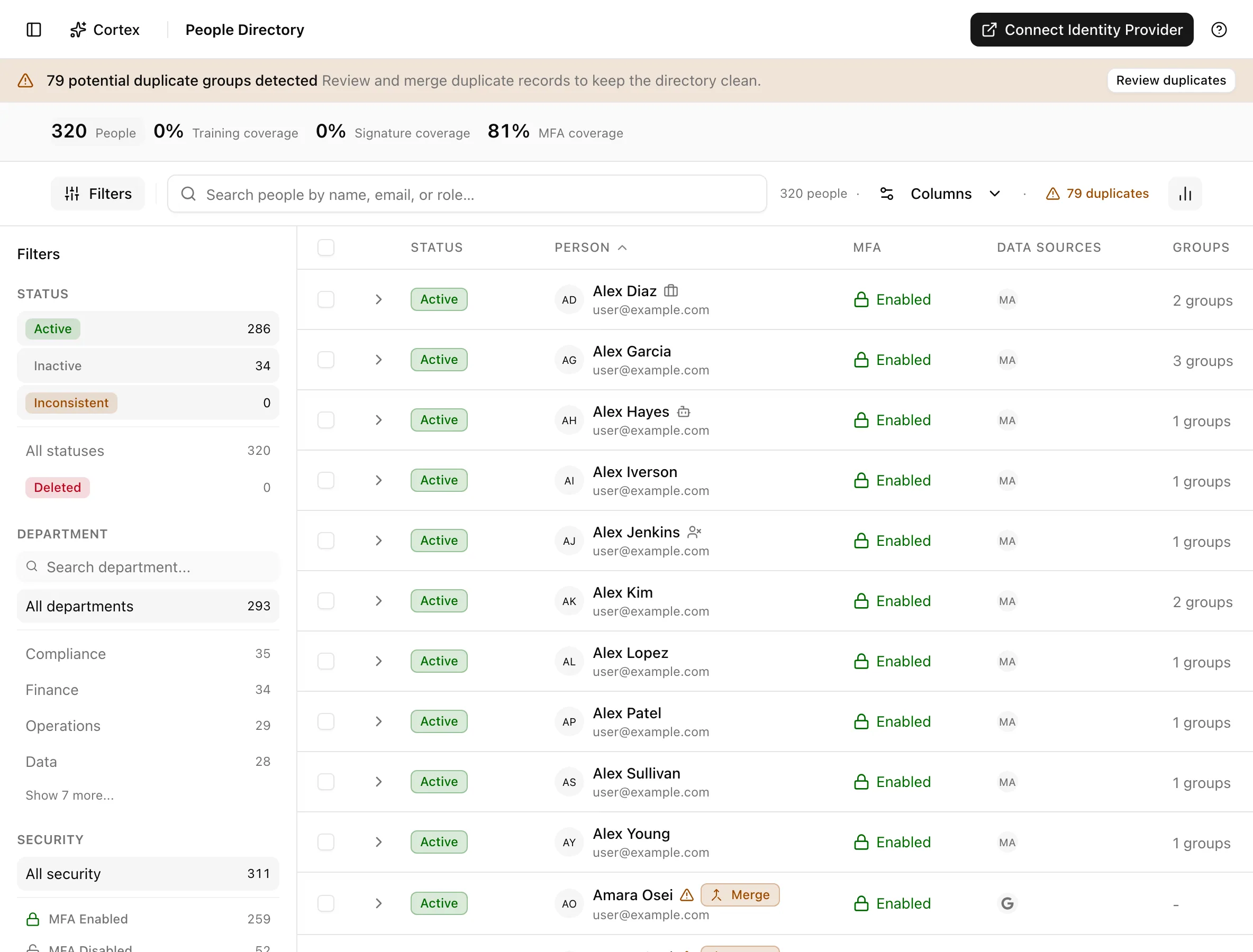
Key actions
Find a person
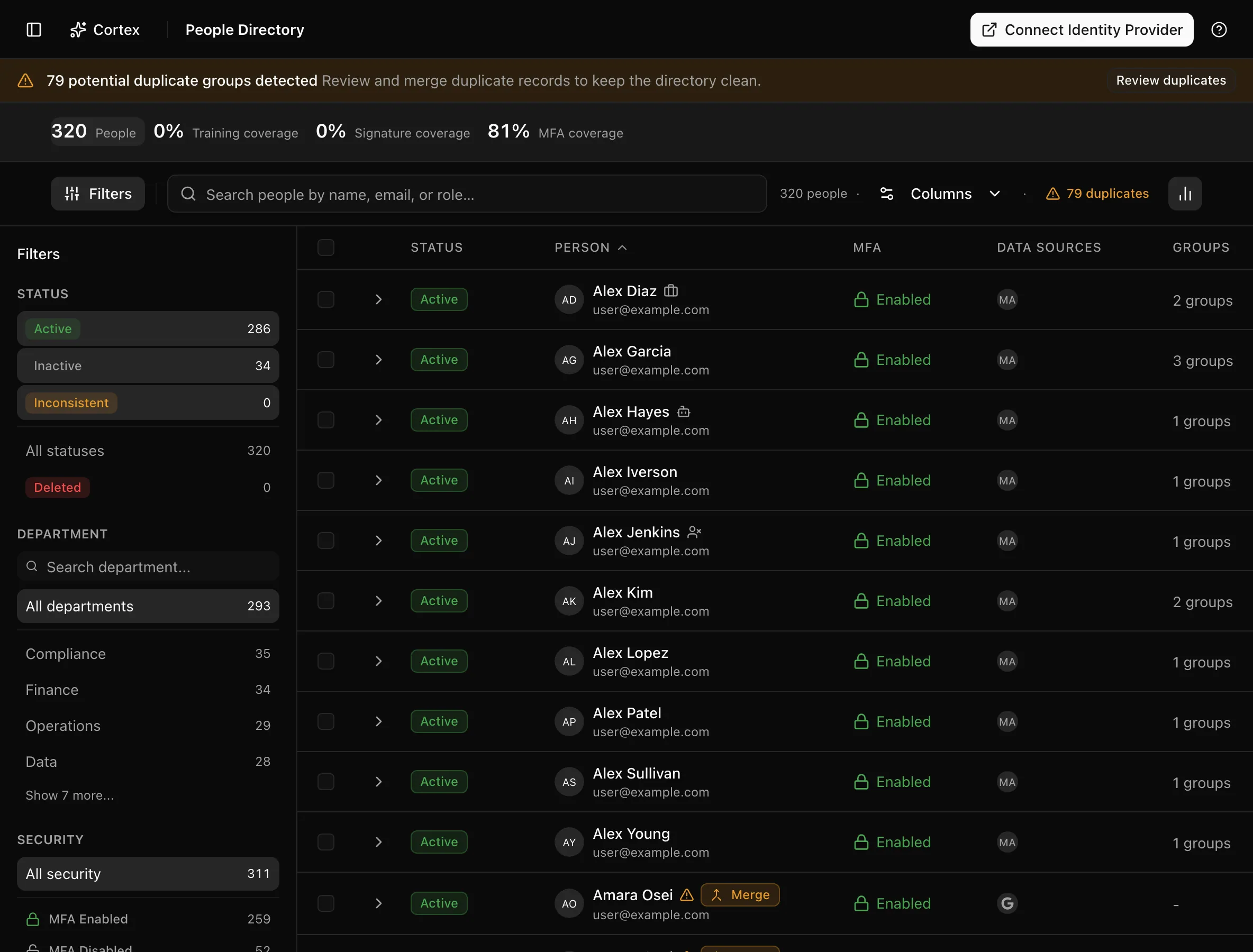
Search with "Search people by name, email, or role…" or filter by Status, Department, Security, and Source. The summary cards count People, Training coverage, Signature coverage, and MFA coverage. Row icons mark service accounts, contractors, and people who are not in compliance scope; the MFA cell reads Enabled, Disabled, or Exempt.
Open the drawer
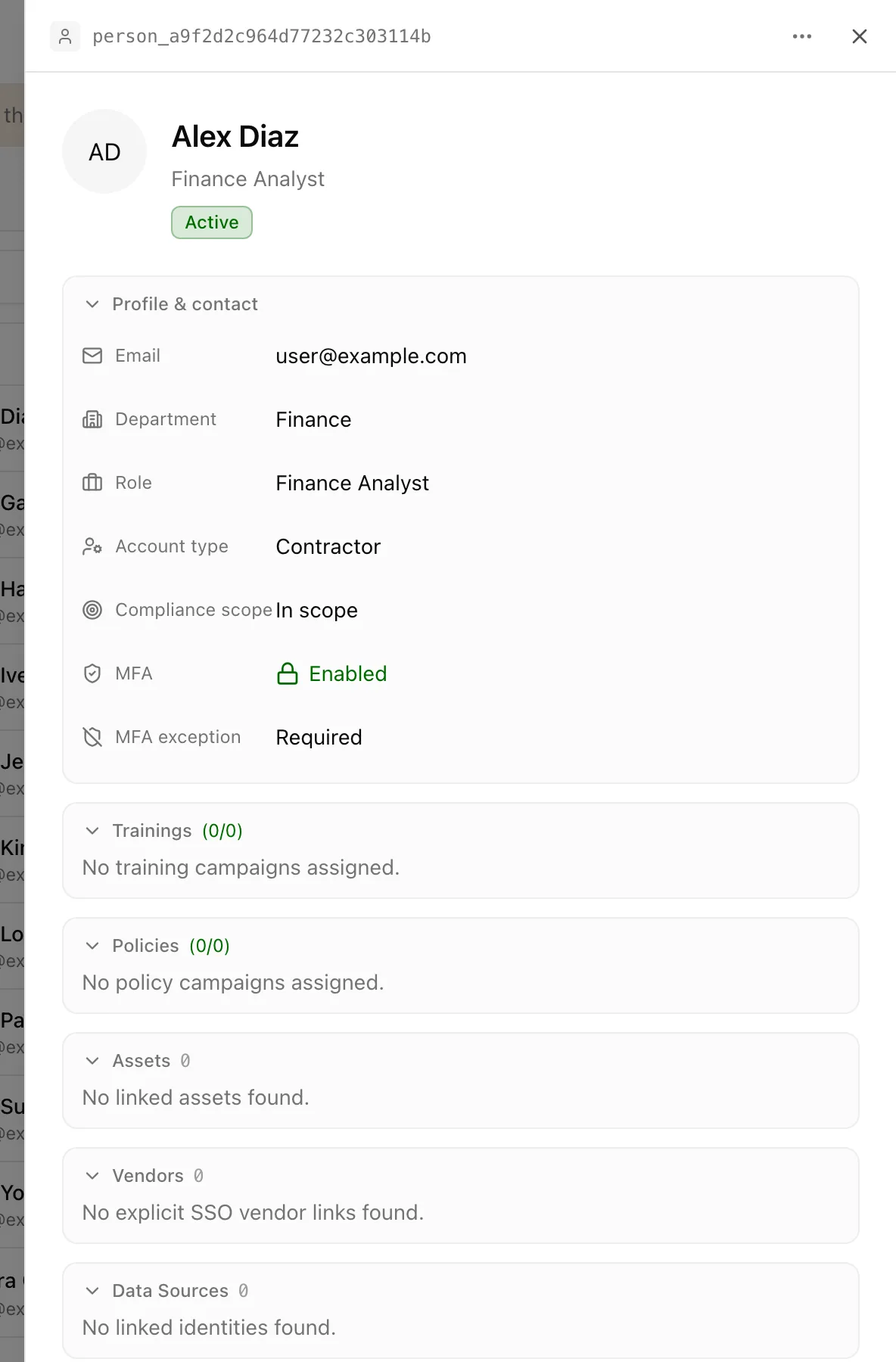
Click a row. The drawer shows Profile & contact (Email, Department, Role, Account type, Compliance scope, MFA, MFA exception, Justification), then Trainings, Policies, Assets, Vendors, Data Sources, and Groups. The drawer menu offers Copy ID, Edit all fields, and Delete.
Edit a person
Edits to a synced person hold until the next sync of that source rewrites the same field. Fix the source system when the value came from it.
Set scope, account type, and MFA exception
In Profile & contact: Account type is Employee, Contractor, or Service account; Compliance scope is In scope or Excluded; MFA exception is Exempt or Required with a Justification. An exempt person counts toward MFA-compliant coverage but not toward MFA-enabled coverage.
Merge duplicates


Send a reminder
In the drawer, each row under Trainings and Policies has Send reminder. Manual training completions recorded here can also be deleted from the same list.
Statuses and fields
| Status | Meaning | Set by |
|---|---|---|
Activeactive | At least one non-deleted source says active, and none says inactive. | Derived from sources |
Inactiveinactive | No source says active; at least one says inactive. | Derived from sources |
Inconsistentinconsistent | Non-deleted sources disagree (one active, one inactive), or a grouped record is itself inconsistent. Also raises a security finding. | Derived from sources |
Deleteddeleted | Every source has removed the person. | Derived from sources |
| Column | Meaning |
|---|---|
| Status | Derived as above; not editable inline |
| Person | Name and email |
| Role, Department | HaileyHR wins when connected; otherwise the first source that has a value |
| MFA | Enabled if any source reports it enabled; Disabled if any reports it disabled and none enabled; Exempt if an exception is set |
| Data Sources | Which connected sources contributed to this row |
| Groups | Identity-provider groups |
| Assets | Devices and accounts assigned to the person |
| Training, Signatures | Campaign completions and policy acknowledgements |
| Last Updated | Most recent change from any source or edit |
Account type resolves to Service account if any grouped record is one, then Contractor, otherwise Employee.
Tips and gotchas
Inconsistent usually means an offboarding gap: HR marked the person as left but an identity provider still has them active, or the reverse. Each one also creates a medium Identity Access finding titled "Cross-source status mismatch" that resolves itself once the sources agree.
Fix the source, not the row. A department typed here is overwritten by the next HR sync; a department corrected in HR flows everywhere.
There is no separate profile page. /personnel/[id] redirects to the
directory, and the drawer is the detail view; Copy ID gives you the id
for the API or MCP.
What Noru does not do
Noru does not deprovision anyone. An Inactive or Deleted status is a report of what your systems say, and a Deleted person is still visible so the audit trail survives. Duplicate detection suggests groups by matching normalised names, email addresses, email local parts, and external ids; it does not merge on its own. MFA posture is whatever the identity provider reports and is not tested.
Related
For logical access reviews, see User access reviews (UARs). The directory supports review evidence; it is not a per-application access certification queue.
Personnel notes
Use Edit Person → Notes to record internal context about a person or account. Directory sync does not overwrite these manually maintained notes. Notes belong to the individual personnel record; merging identities does not combine notes from multiple records.
API clients can update notes using PATCH /v1/personnel/{id} or MCP
updatePersonnel. Notes accept up to 10,000 characters. Omit the field to leave
it unchanged, or send null to clear it. Notes do not verify an identity match
or change the person's compliance scope.
Last updated on