
Notifications
In-app notifications, live updates, and per-user email preferences.
What it is
Noru tells you about two kinds of events: work assigned to you, and jobs the platform runs for you such as syncs and policy generation. Both arrive as in-app notifications in a modal opened from the user menu, pushed live over a server connection. A separate set of emails covers tasks, training, vendor questionnaires, account lifecycle, and welcome messages, each with its own toggle on your account page.
Where to find it
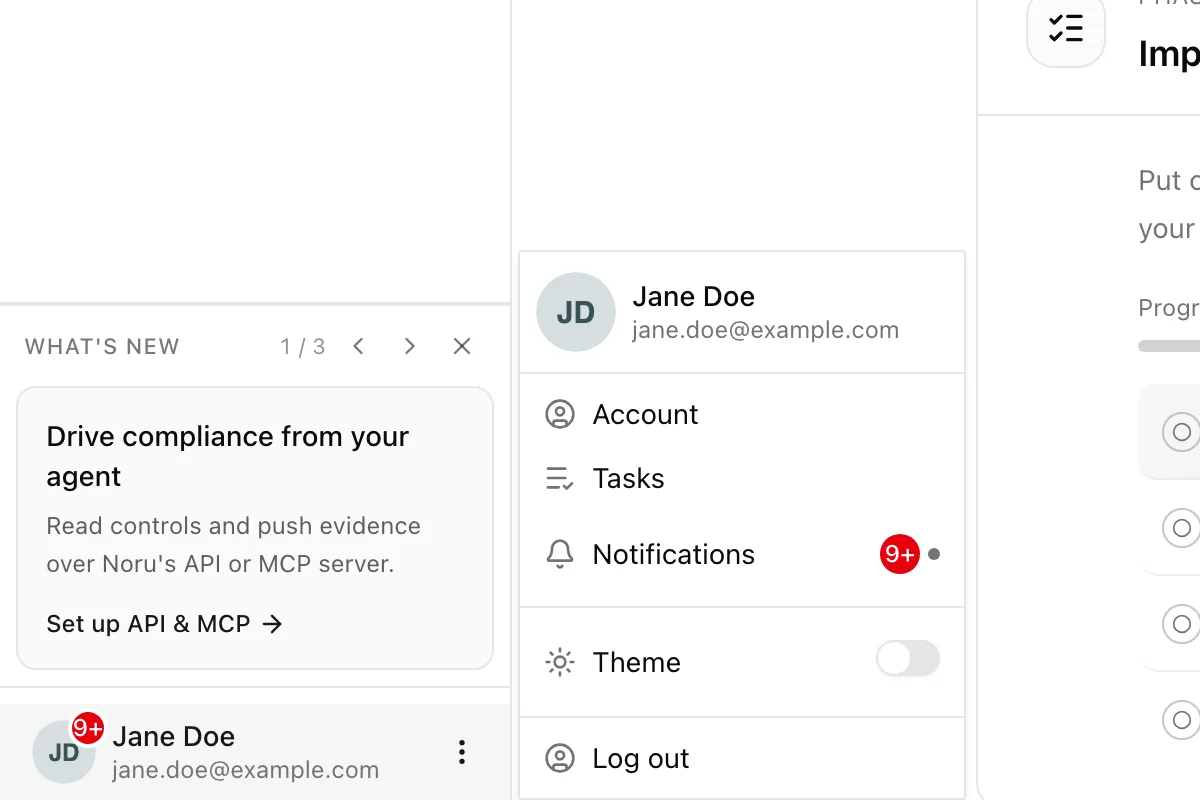
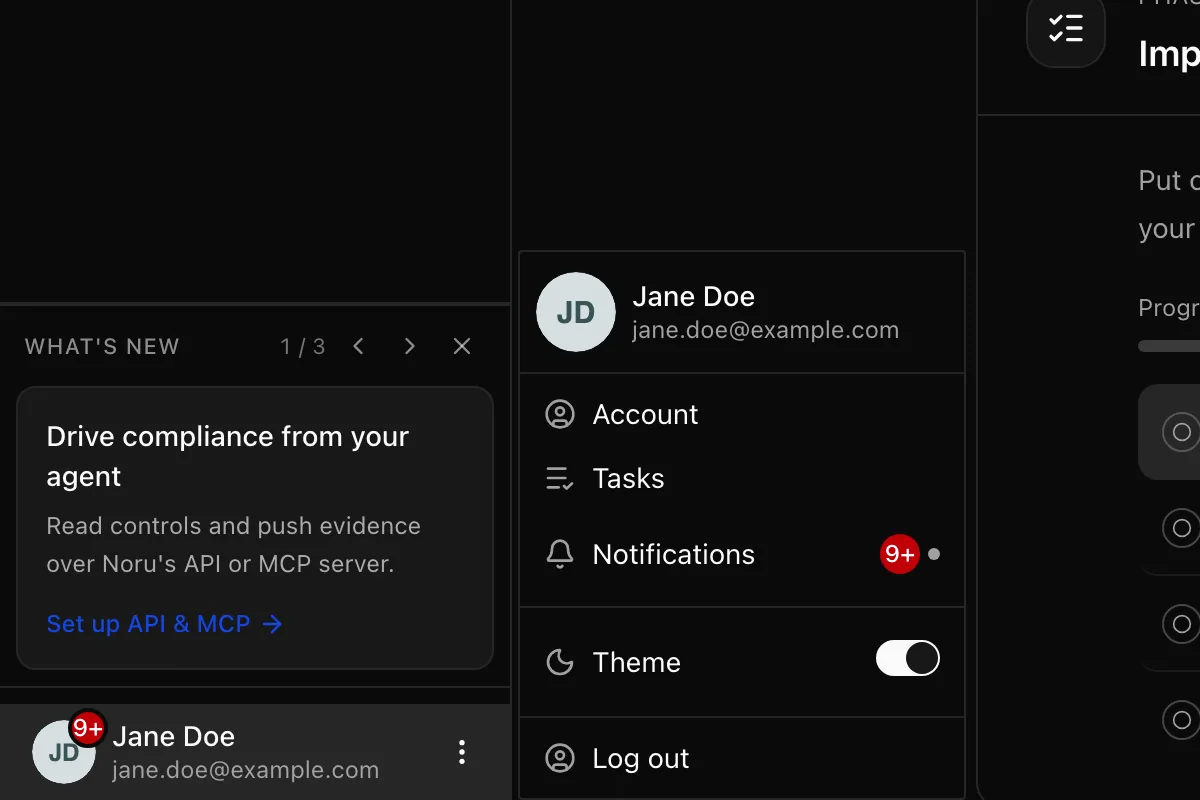
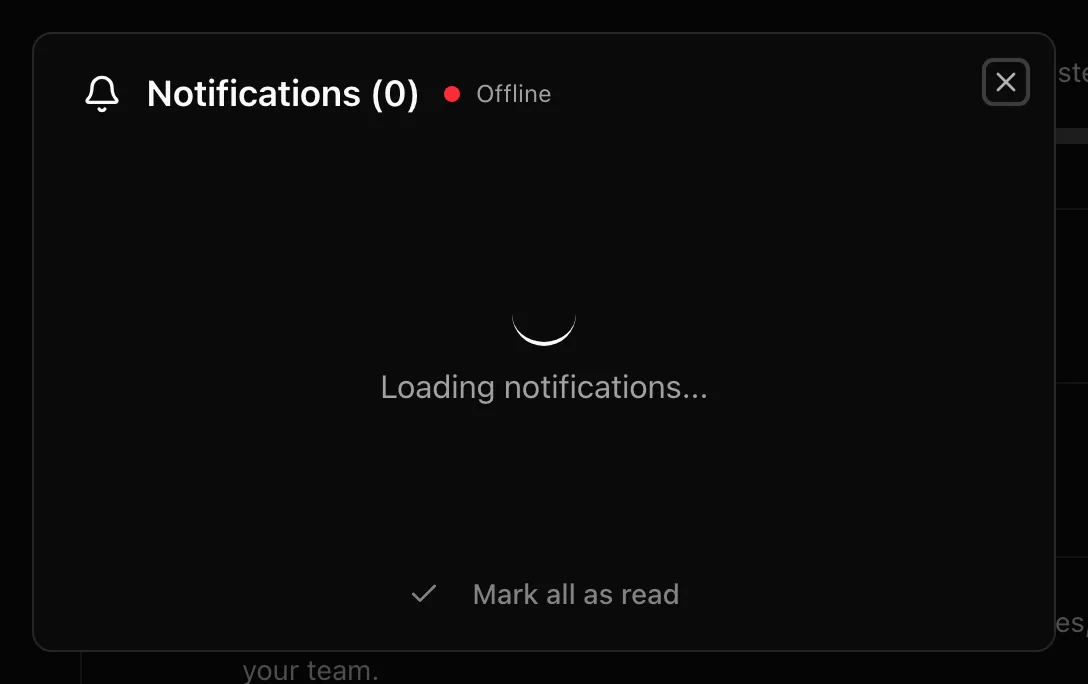
Sidebaruser menuNotificationsAn unread count shows as a red badge on your avatar and on the menu item; above nine it reads "9+". A small green dot means the live connection is up.
Key actions
Read and clear notifications
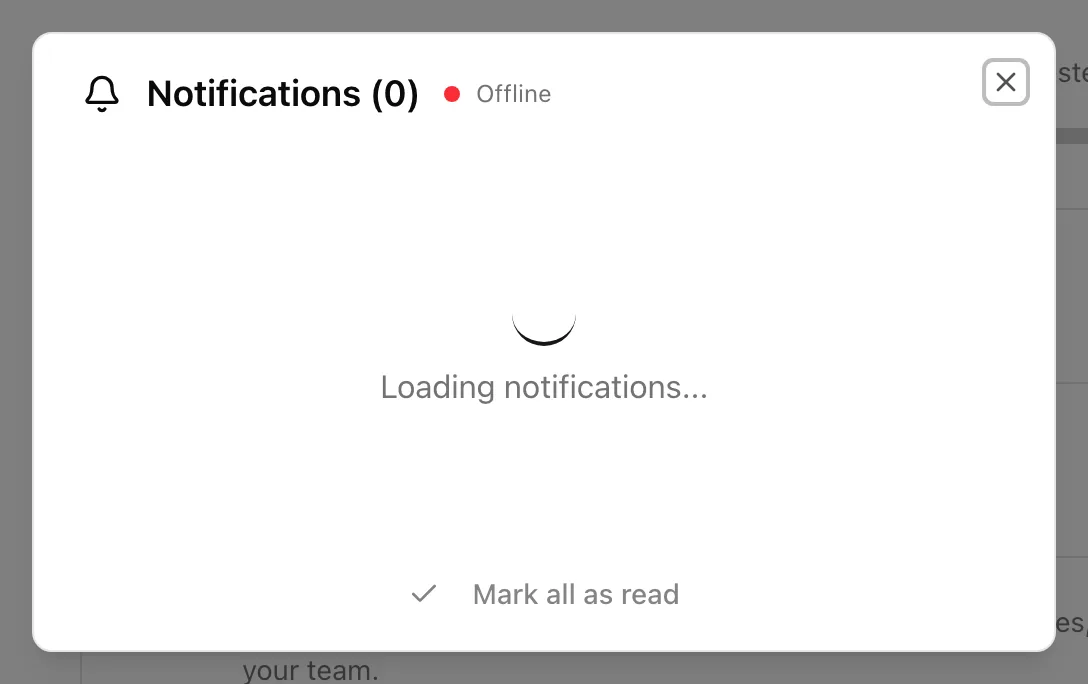
When nothing is left the modal shows No notifications and "You're all caught up!".
Cancel a running job
The Running Jobs section lists jobs in progress with a percentage. Click the cancel icon, read the Cancel Job dialog, and choose Keep Running or Cancel Job. Cancellation is a request; the job stops at its next safe point.
Choose which emails you get
Go to Your account and use the Email notifications card. Toggles save as you click them.
Statuses and fields
| Status | Meaning | Set by |
|---|---|---|
Infoinfo | An assignment or a job that started | Owner assignment or a job starting |
Successsuccess | A job finished | A job on completion |
Warningwarning | Something needs attention but did not fail | Services that raise warnings |
Errorerror | A job failed; the text includes the error message | A job on failure |
| Email toggle | Covers |
|---|---|
| Tasks | Daily task assignment emails and similar work reminders |
| Training | Training invitations and reminder emails |
| Vendor questionnaires | Questionnaire invitations and clarification requests you send |
| Lifecycle and billing | Account lifecycle notices for the organization |
| Welcome emails | Your onboarding and welcome emails from Noru |
All five are on by default and are per user, not per organization.
Tips and gotchas
If the header says Offline, the browser lost the stream. It reconnects on its own; if it stays offline, reload the page.
The stream reconnects periodically by design. A brief flicker of the green dot is normal and does not lose notifications, which are stored and fetched on reconnect.
What Noru does not do
Noru does not send in-app notifications for every record change, only for assignments and job events, and it does not push notifications to Slack or email for job failures. It does not send browser or mobile push notifications. Email toggles do not affect in-app notifications.
Related
Last updated on