
Overview dashboard
Read framework progress, work through the readiness plan, and use the privacy plan variant.
What it is
The dashboard is the home page after sign-in. It shows one plan per enabled framework, split into phases with a step list that completes itself from live counts of policies, controls, assets, personnel, and risks. It is also where Noru's in-app guidance lives: a welcome guide on first visit, a getting-started bar on most pages, a What's new carousel in the sidebar, and a nudge to complete the company profile. Organizations with only privacy frameworks see a different home page, described at the end.
Where to find it
Overview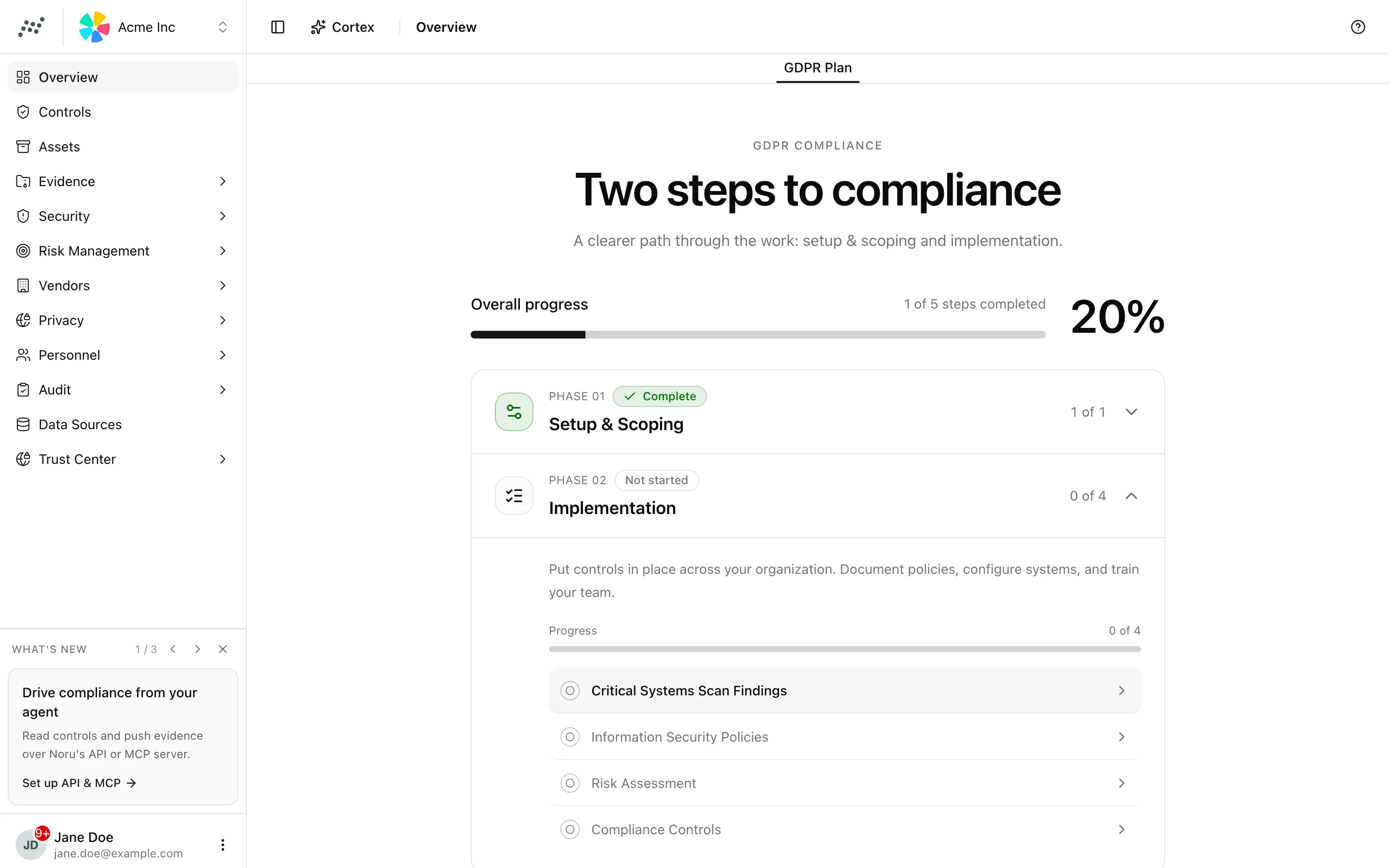
Key actions
Switch between framework plans
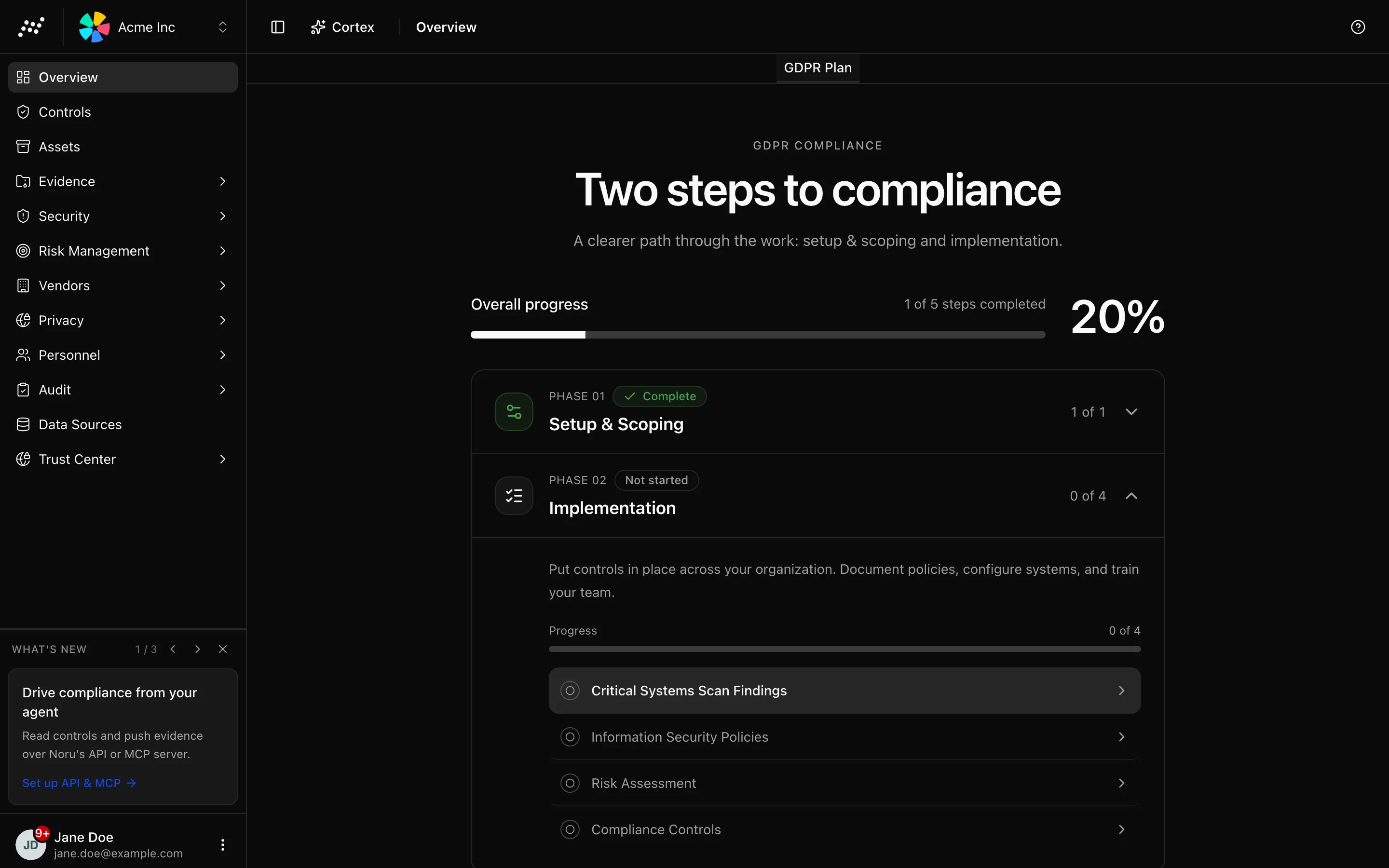
Each enabled framework gets a tab named after it followed by "Plan". ISO 27001 and ISO 27002 collapse into a single ISO 27001 tab. With no framework enabled there is one tab called Plan.
Read the phases
| Phase | What it holds | Shown for |
|---|---|---|
| Phase 01 Setup & Scoping | Company setup, seeded as done by the wizard and linking to Settings | All frameworks |
| Phase 02 Implementation | The six accordion steps below | All frameworks; regulatory ones keep four |
| Phase 03 Verification | Run an internal audit, complete when one internal audit exists | Auditable frameworks except CIS v8 |
| Phase 4: Certification | Complete when a trust page is published | Auditable frameworks |
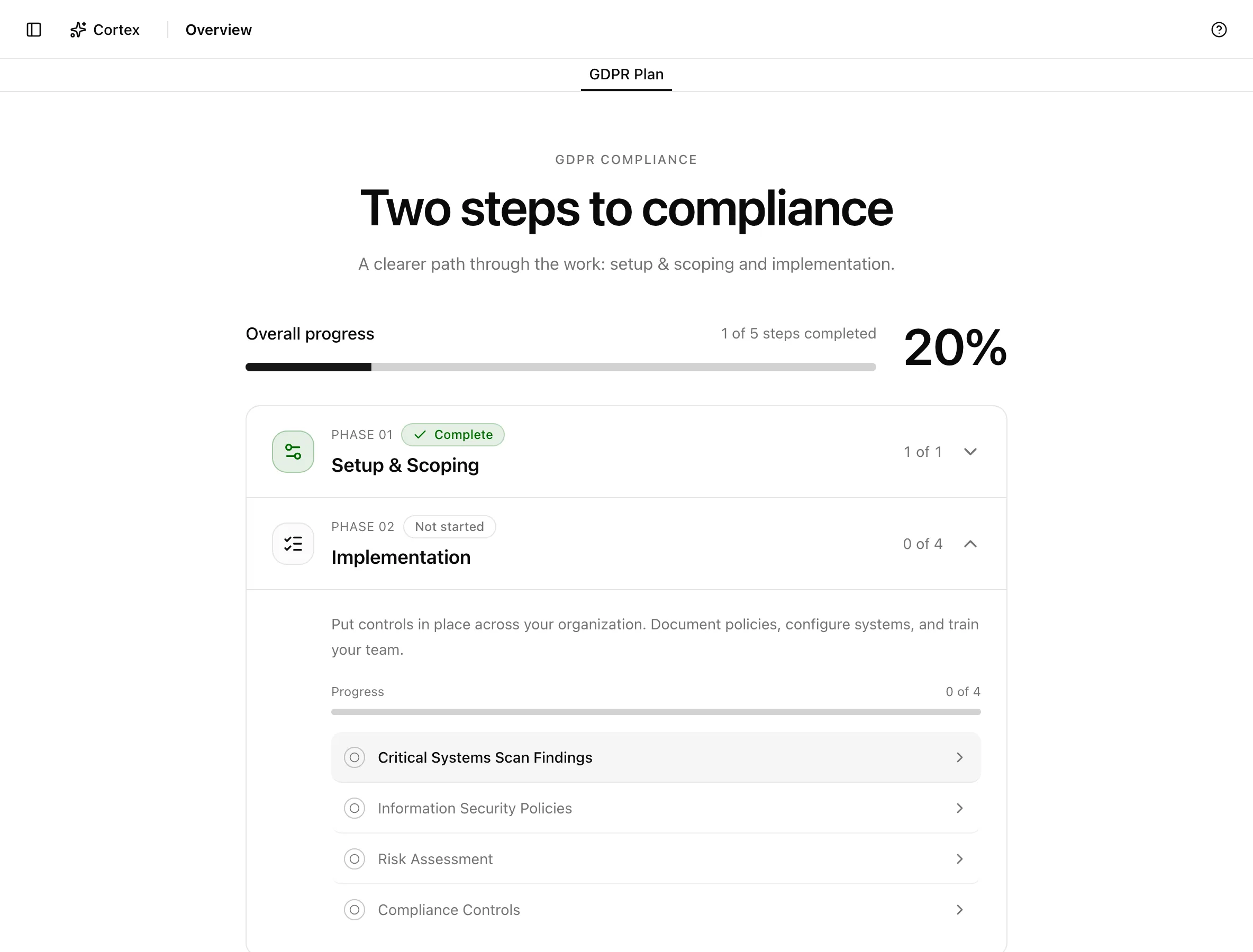
Work the implementation steps
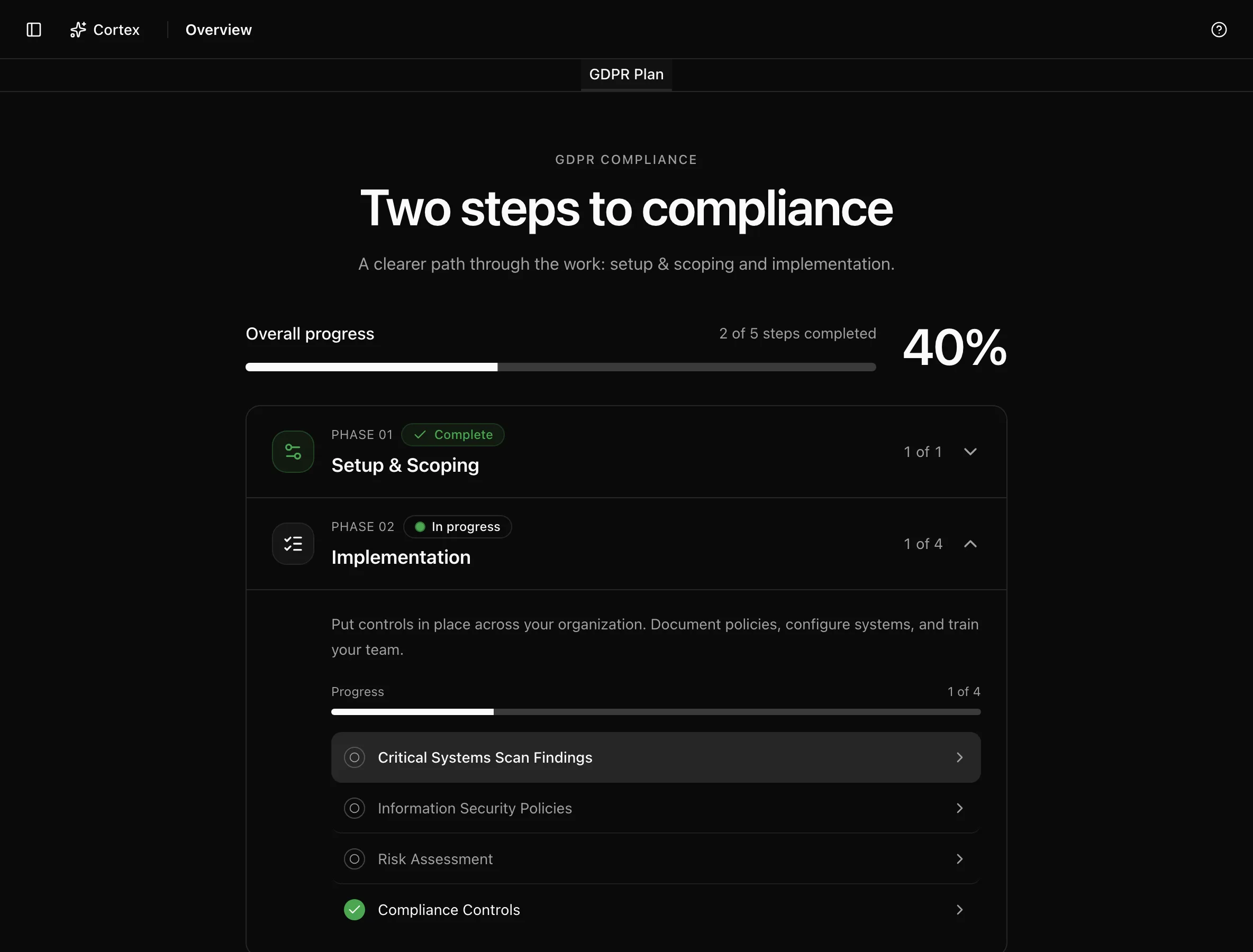
| Step | Metric |
|---|---|
| 1. Critical Systems Scan Findings | Findings from connected systems; has a Rescan Systems button |
| 2. Information Security Policies | "Policies approved" |
| 3. Compliance Controls | "Framework controls completed" |
| 4. Assets | "Assets with owner" |
| 5. Personnel | MFA, signatures, and training coverage, each to 100% |
| 6. Risk Assessment | "Risks reviewed", counting risks that have a treatment plan |
Expand a step for its metric, a "View all …" link to the page, and Mark as done. Undo reverses a manual mark. The Progress banner reads "Progress: N%". When Phase 2 completes, a Phase 2 complete card appears reading "You're audit ready!" for auditable frameworks, "You're implementation ready!" or "You're 100% compliant!" for regulatory ones, with Set up Trust Center and Contact Support buttons.
Use the welcome guide
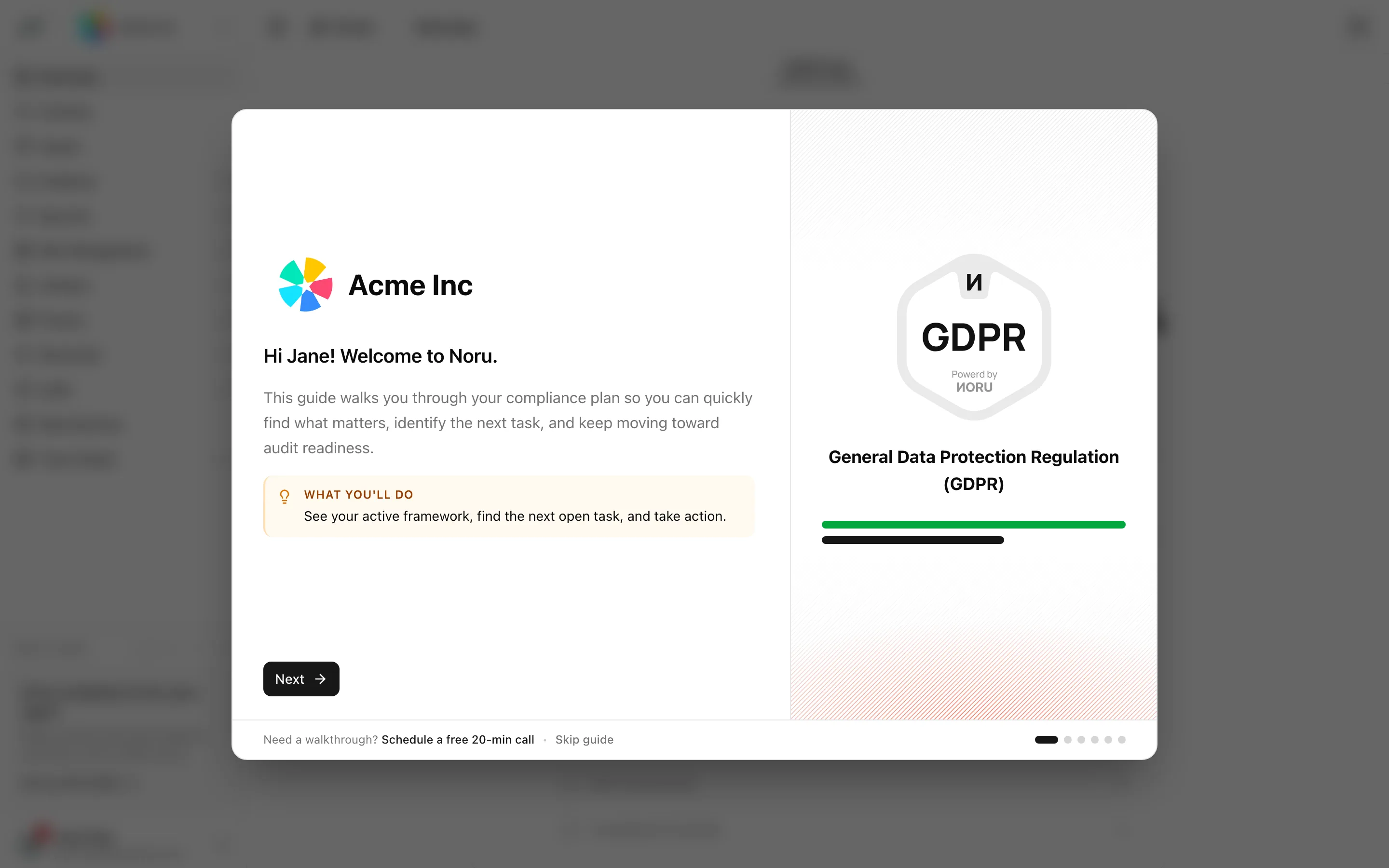
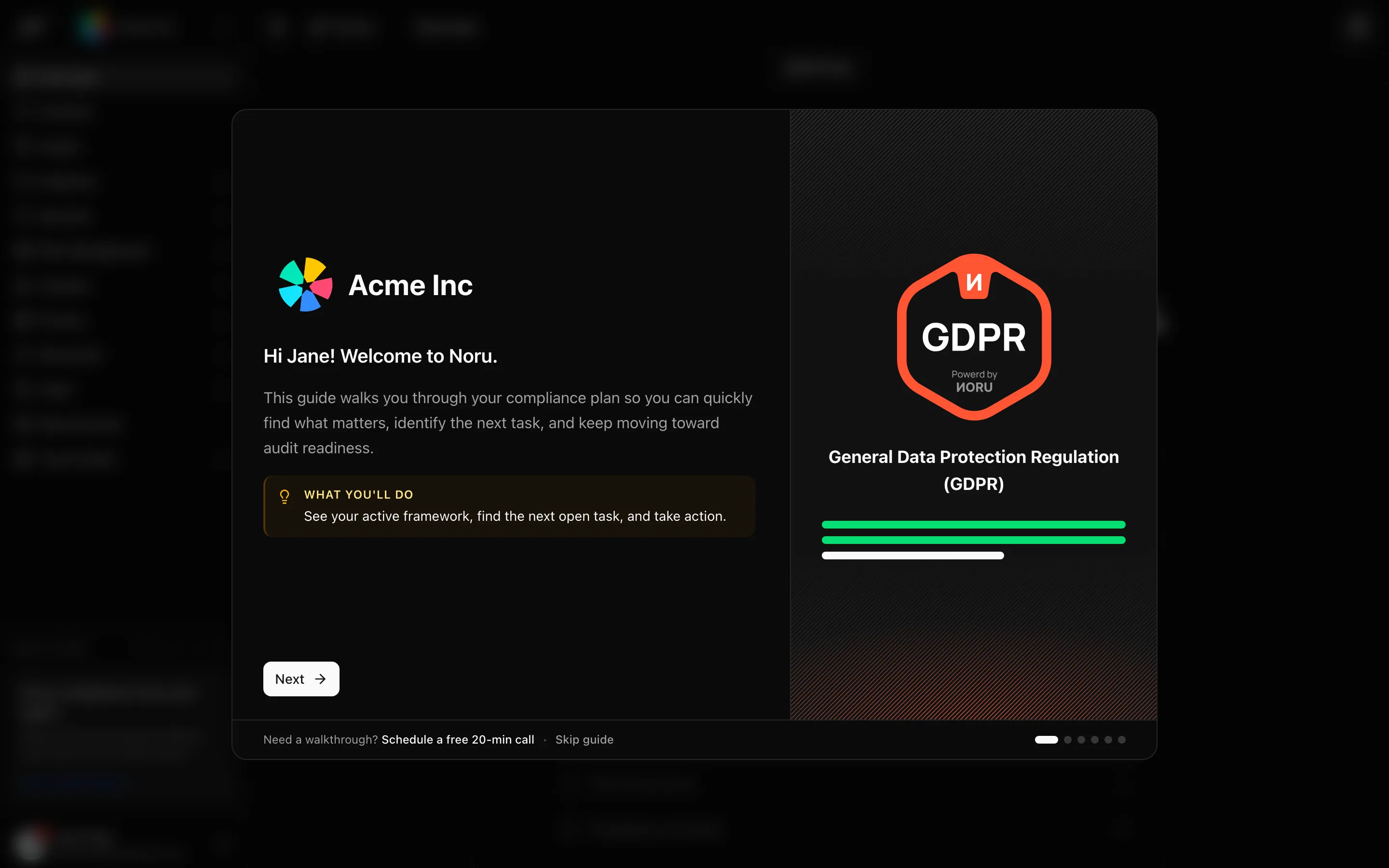
On first visit the dashboard opens a six-step modal that greets you by name ("Welcome to Noru."), lists the four phases, explains "Do the work — it marks itself done. Or mark it done yourself.", offers Invite team member, and ends on "Noru has already started the heavy lifting." Move with Back, Next, and Go to next step; leave with Skip guide or Close guide. A link offers to "Schedule a free 20-min call".
Open a page's getting-started guide
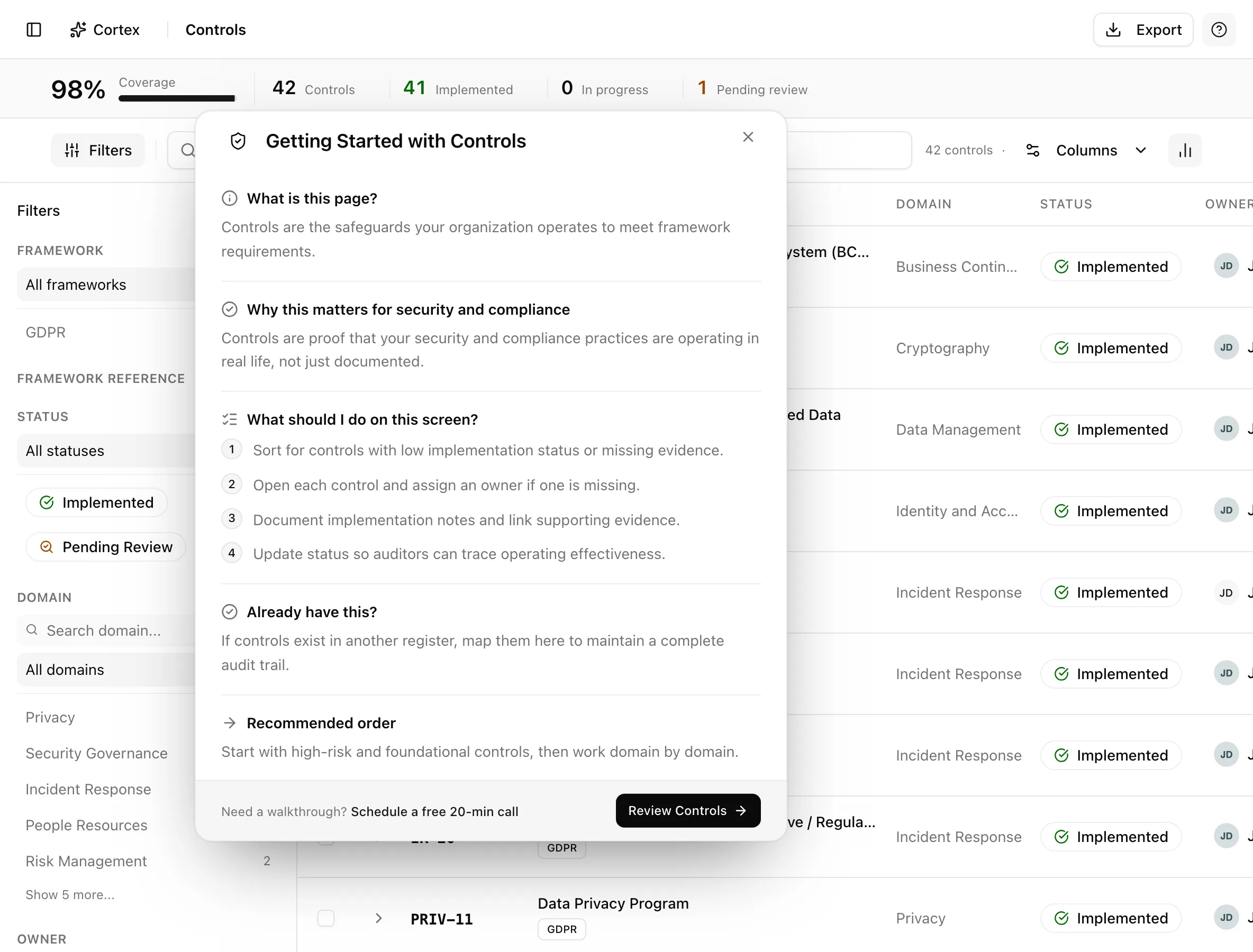
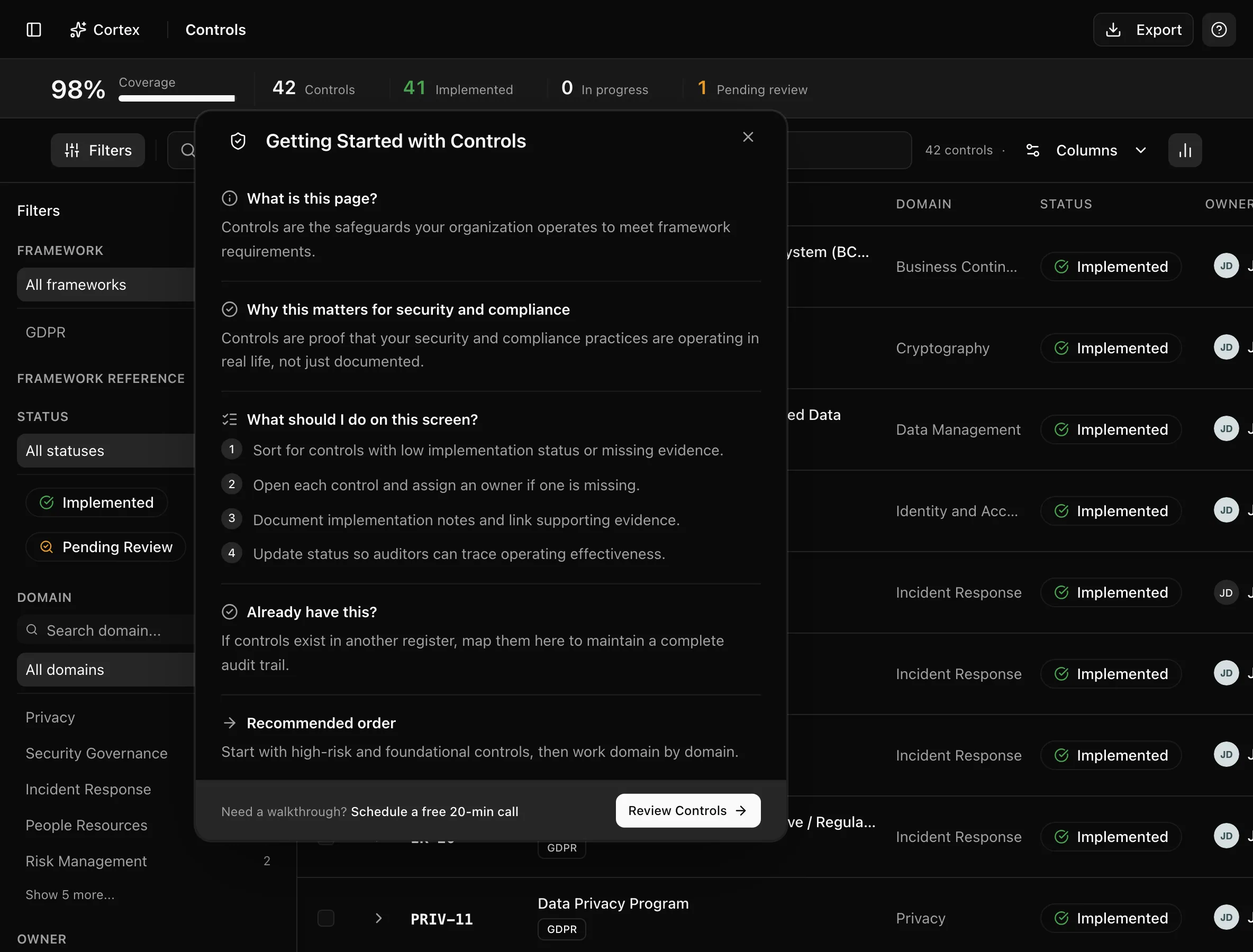
Most pages carry a collapsible panel titled "Getting Started with …" that explains what the page is, why it matters, numbered steps, what to do if you already have the content, and a suggested order. Some add a highlight, such as Automatic asset grouping on Assets, and a call to action such as Review Controls. The toggle is labelled "Open guide" and "Close guide"; the X, "Dismiss getting started guide", hides it for that page.
Use the sidebar prompts
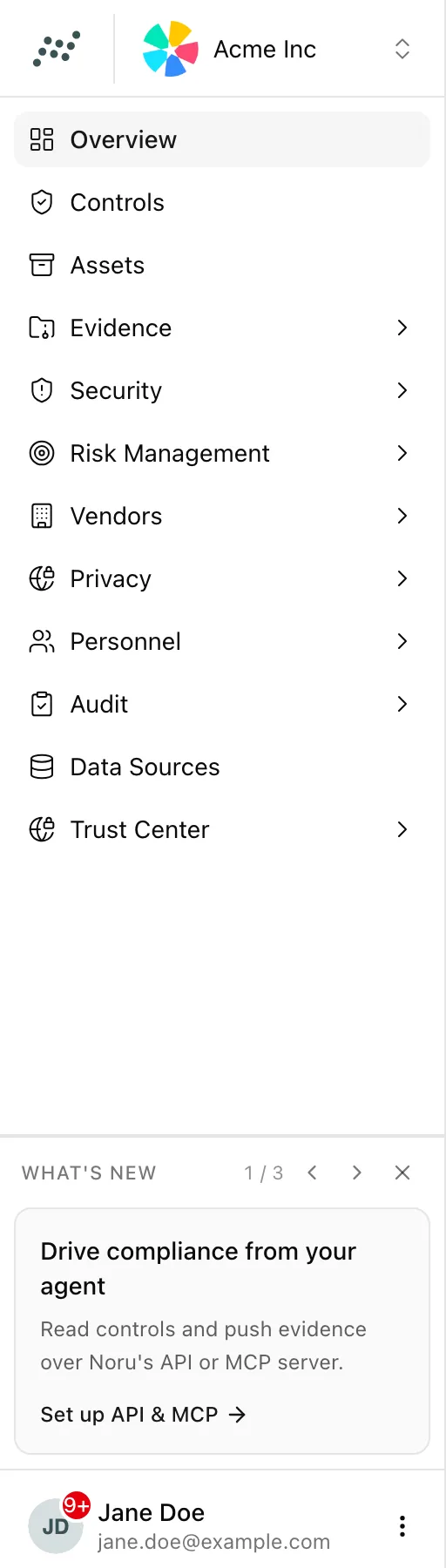
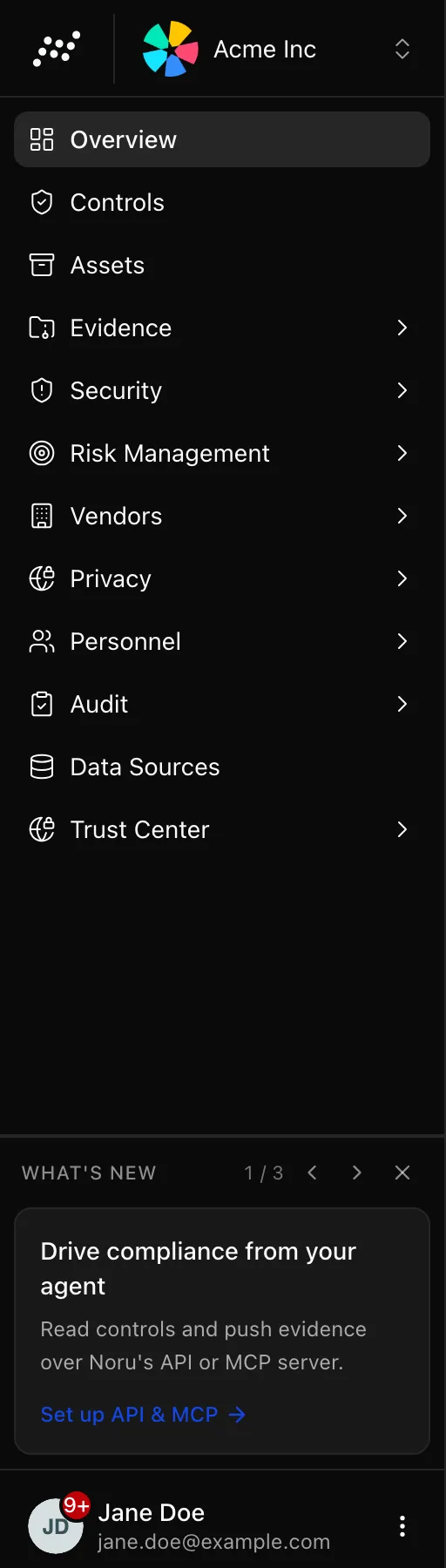
The sidebar's What's new carousel rotates three cards: "Drive compliance from your agent" with Set up API & MCP, "Let Cortex draft policies" with Open Cortex, and "Automate your stack" with Add data sources. Its X dismisses the whole carousel.
The purple Complete your profile card ("Help us understand your organization to provide better compliance automation.") appears only while the organization has no saved context. It opens Complete Your Company Profile and disappears for everyone once a context is saved.
The privacy plan variant
An organization whose enabled frameworks are all privacy frameworks gets a privacy home page instead. The sidebar item reads Privacy plan, the breadcrumb reads Overview, and the content is the privacy programme described under Privacy.
Statuses and fields
| Readiness | Formula |
|---|---|
| Auditable framework | 35 plus 60 times the Phase 2 completion ratio |
| Regulatory framework | 100 times the Phase 2 completion ratio |
Regulatory means GDPR, CCPA, and EU AI Act. CIS v8 is auditable but skips Phase 3.
Tips and gotchas
Dismissals and manual marks are per browser
Mark as done, guide dismissals, and the carousel's X are all stored in your browser only. Teammates see their own state, and clearing site data brings everything back.
The metrics update from live counts, so the fastest way to move the banner is to finish the sync-driven steps: connect sources, then assign asset owners in bulk.
The Company setup step is marked done by the wizard even if you skipped through the context questions. Revisit Settings → Context anyway.
What Noru does not do
A readiness percentage is not audit evidence and not a compliance claim. Noru does not check whether an approved policy is followed or whether an owner is the right person; it counts records. Rescan Systems re-reads connected systems; it does not fix what it finds.
Related
Last updated on