
Trust center builder
Configure branding, content, sections, and advanced settings, then preview and publish.
What it is
The builder is where you compose the public trust page: your logo and colours, the introduction, which frameworks and policies to show, the subprocessor list, and the domain it is served from. The left panel holds the configuration in four tabs; the right panel renders a live preview as you type. Nothing is public until you click Publish.
Where to find it
Trust CenterBuilderThe Trust Center group is available to organizations on the Compliance segment. Until a trust page has been published, the sidebar item carries a Preview badge.
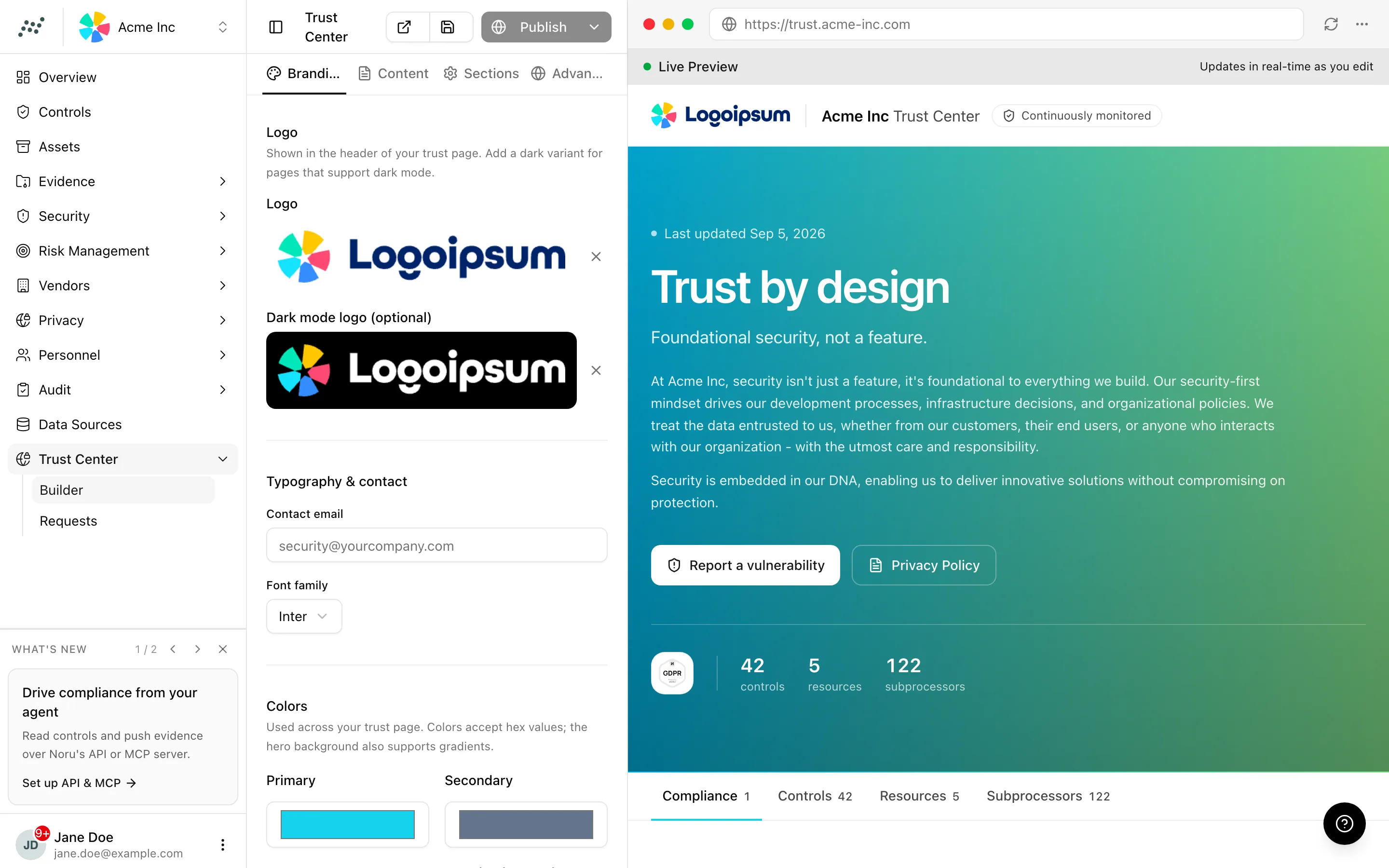
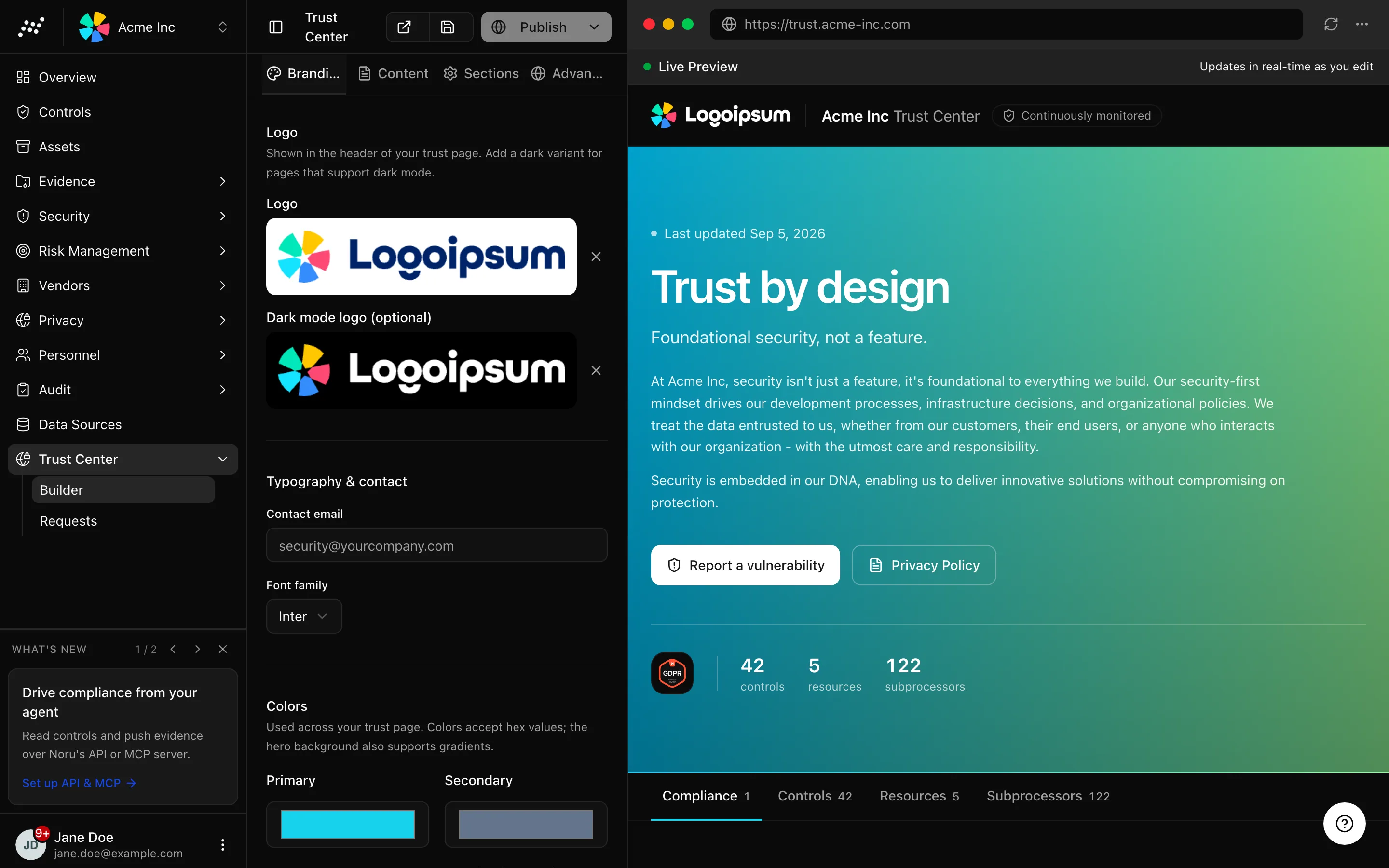
The header has four controls: an external-link icon button that opens the saved page in a new tab, a save icon button, Publish, and Unpublish. Both icon buttons need a saved page; the preview says "Please save the trust page first to preview it" otherwise.
Key actions
Editing and publishing need the editor or admin role.
Set the branding
Write the content
On Content, fill Hero content: Introduction title, Tagline, First paragraph, Second paragraph. Custom buttons adds a Primary button and Secondary button, each with Button text and Link URL. Resources lists approved policies shown as downloadable resources; availability follows your enabled frameworks, so a policy you have not approved does not appear.
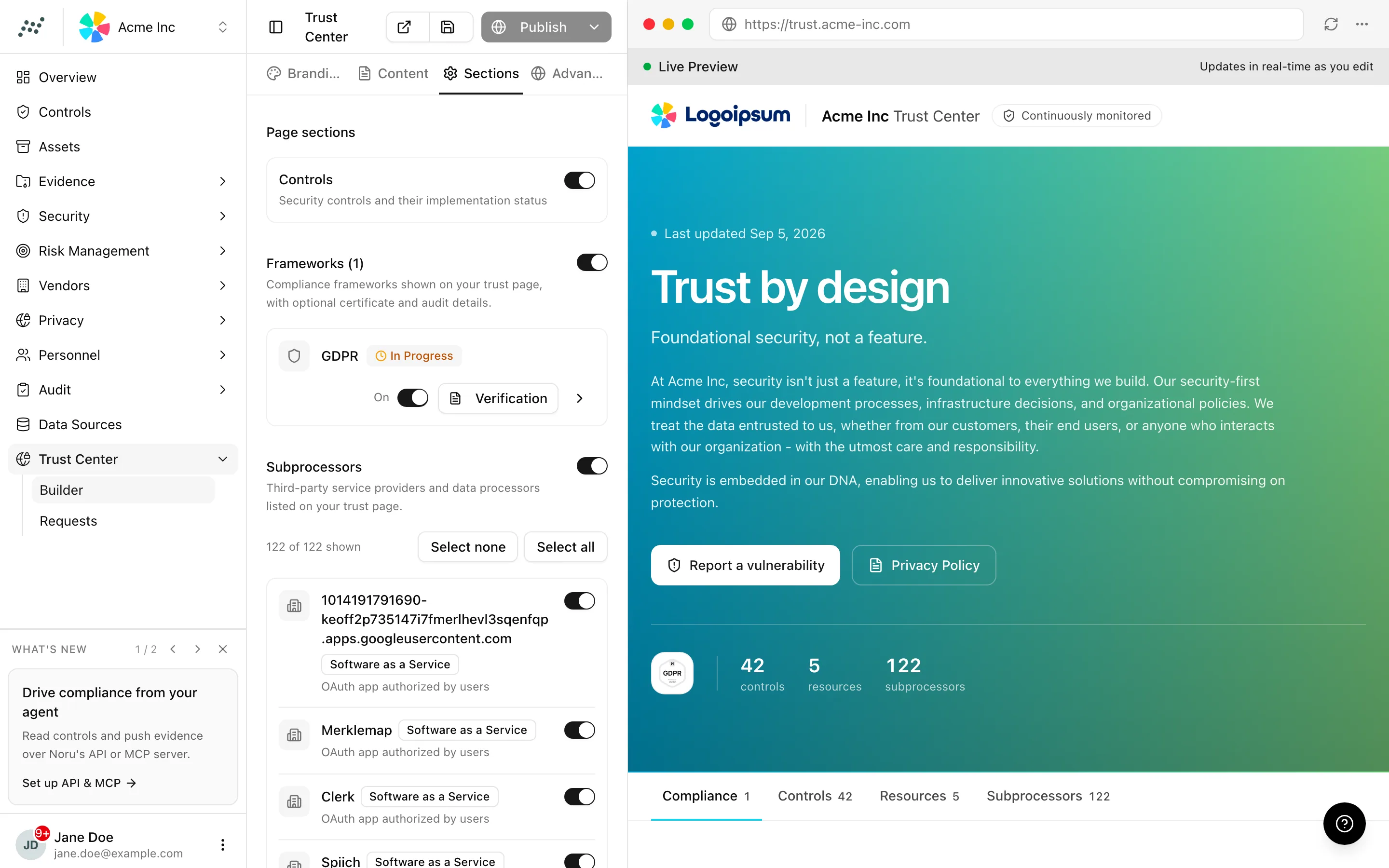
Choose the sections
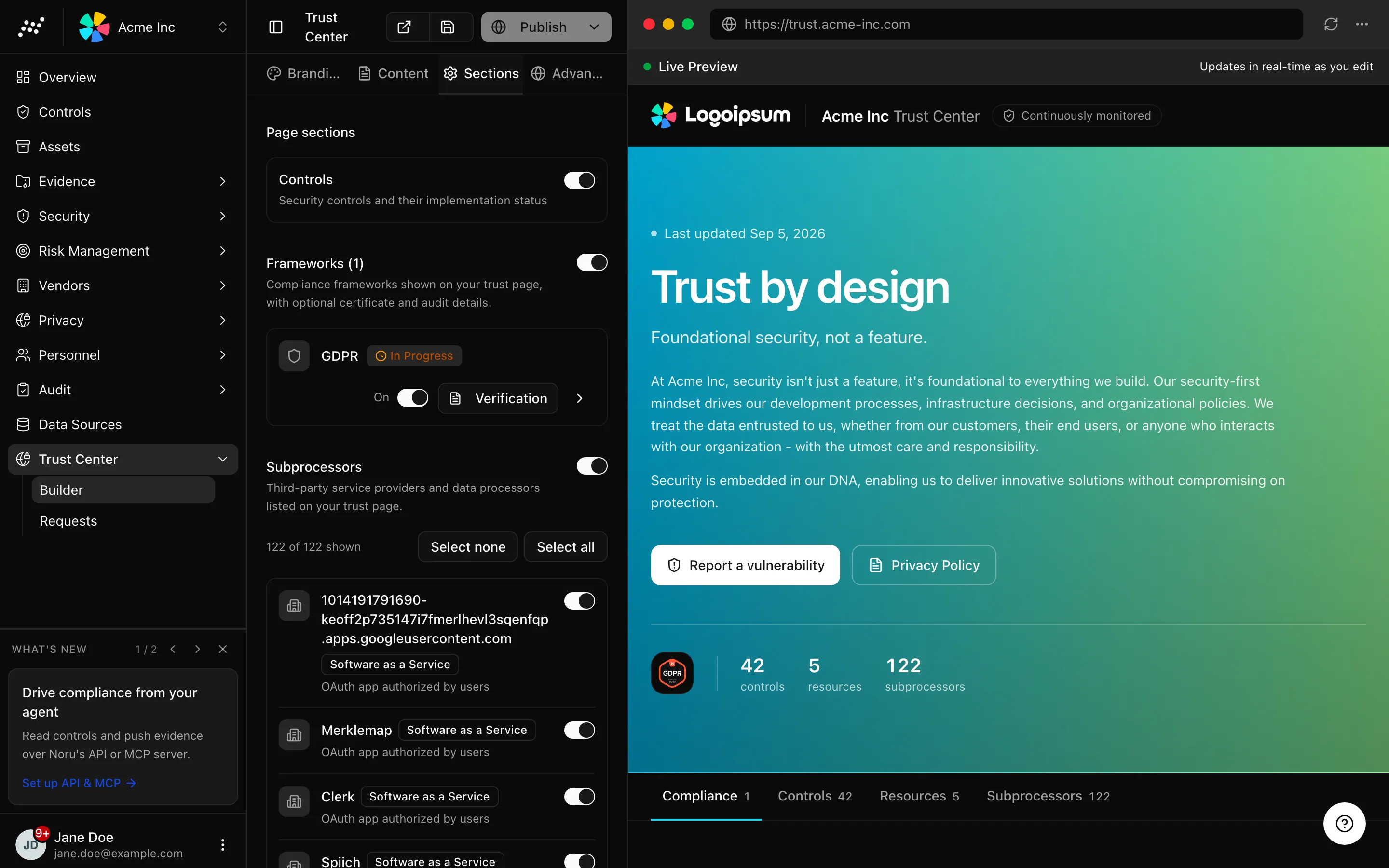
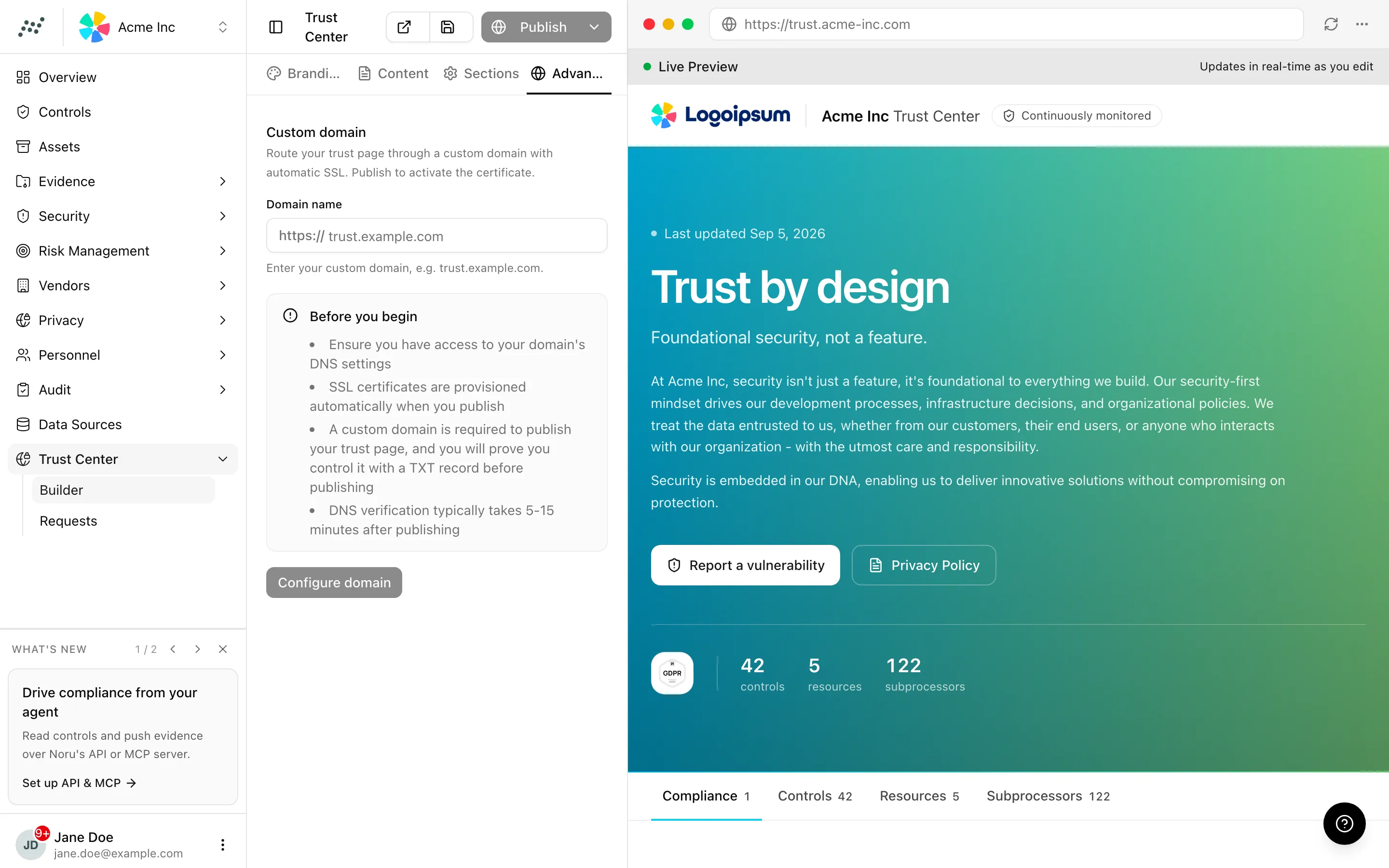
Configure the domain
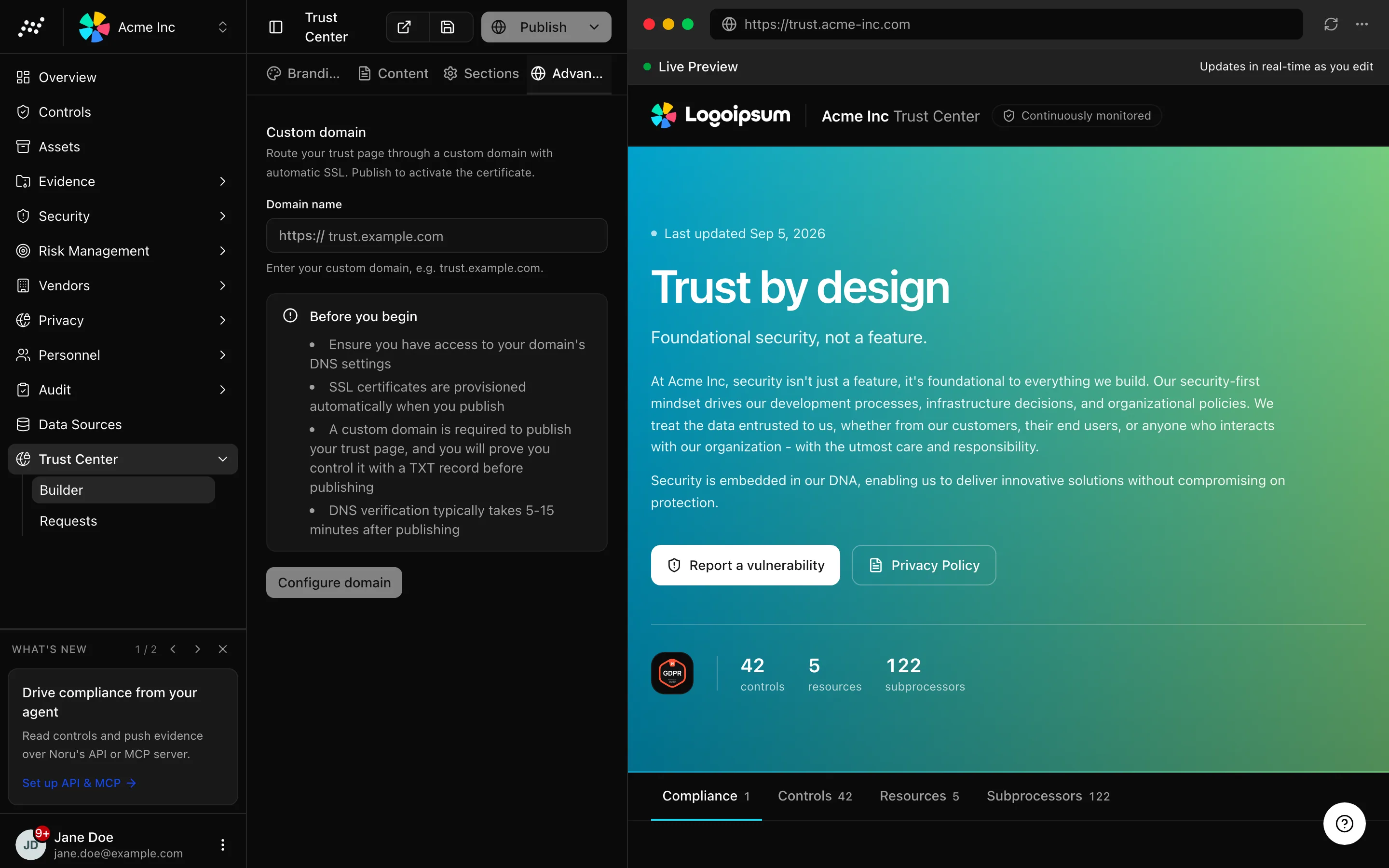
Advanced holds the Custom domain setup. It is required before publishing; the Custom domain guide covers DNS, ownership verification, and SSL.
Save, preview, publish
/trust/[trust-id] in a new tab and check the result.Unpublish takes the page down ("Trust page unpublished") and the sidebar badge returns. Validation runs before saving: the organization name, the Primary, Secondary, and Accent colours, and the Font family are all required, and each has its own error toast.
Statuses and fields
| State | Meaning |
|---|---|
| Preview badge in the sidebar | No trust page for this organization is published |
| Draft saved, not published | Members can open the preview; visitors get a 404 |
| Published | The snapshot is live and the custom domain serves it |
| "Please configure a custom domain before publishing" | Publish was clicked without a domain |
Tips and gotchas
Save early. Certificate files and the preview both need a saved page, and a save costs nothing publicly.
Publish pushes everything in the draft, not just the tab you edited. Check the preview across all four tabs first.
What Noru does not do
Noru does not verify a certificate number or the Verification status you enter; they print as you typed them. It does not translate the page, host it without a custom domain, or keep an old version live after Unpublish. Changes to vendors and policies reach the page only on the next publish.
Related
Last updated on