
Your account
Profile, organization access, and notification preferences.
What it is
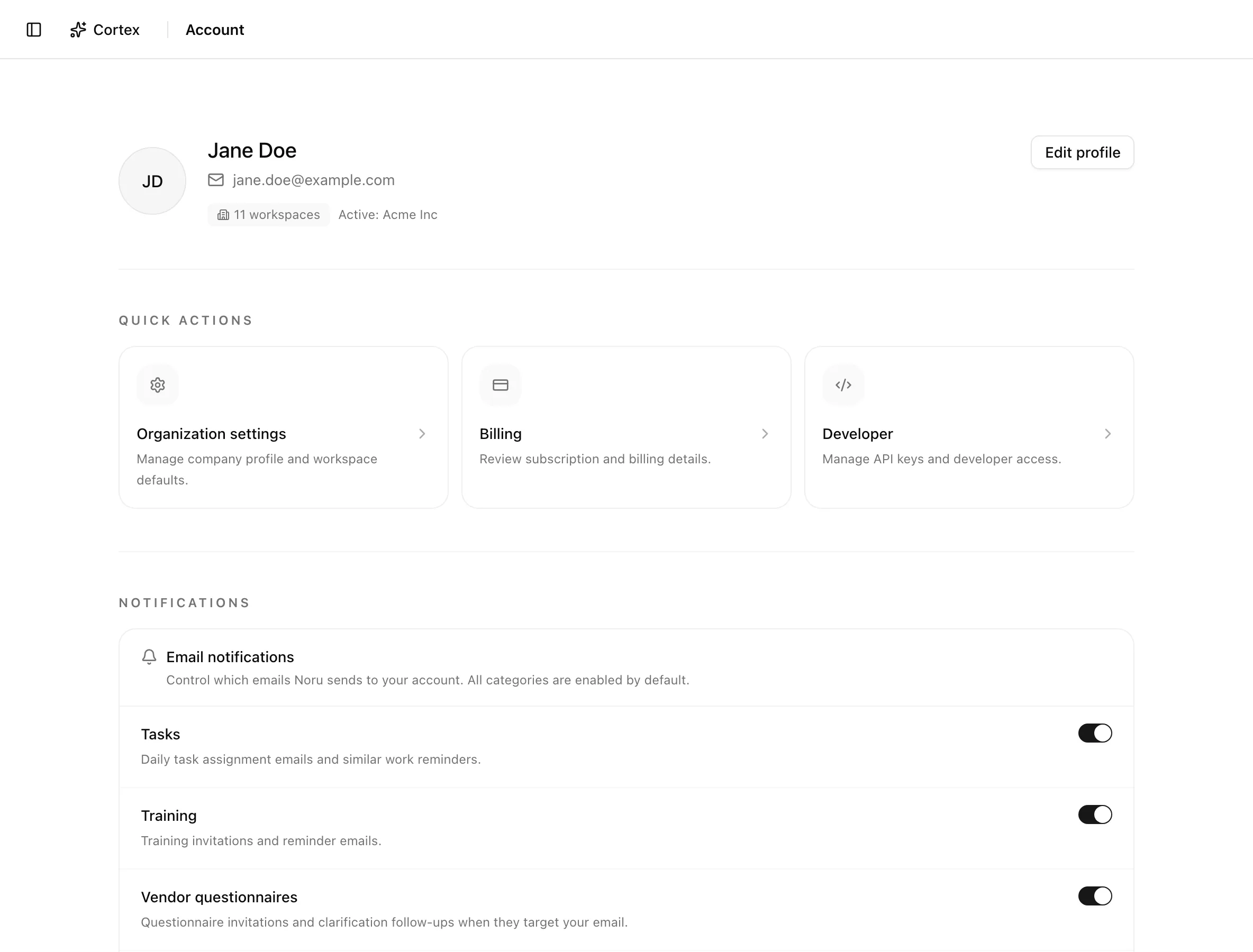
Your account page is about you, not the organization. It shows your profile, which workspaces you belong to, and which emails Noru may send you, and it links to the sign-in provider's profile where you change your name, email, password, and multi-factor authentication. Everything here follows you across organizations; the organization's own settings are under Organization settings.
Where to find it
Sidebaruser menuAccountThe user menu sits at the bottom of the sidebar and holds Account, Tasks, Notifications, Theme, and Log out.
Key actions
Edit your profile
/account/profile, the sign-in provider's profile embedded in Noru.Set up multi-factor authentication
/account/profile/security, either from the profile page or from the Configure account MFA button on the organization's Security tab.Once MFA is enabled, an organization that requires it lets you in without the holding page, and if you are an admin you can turn on the requirement under Security settings.
Choose your emails
Use the Email notifications card. Each toggle saves as soon as you click it; the toast "Notification preferences updated" confirms. The five categories are Tasks, Training, Vendor questionnaires, Lifecycle and billing, and Welcome emails, all on by default. The Notifications guide explains what each covers.
Switch theme
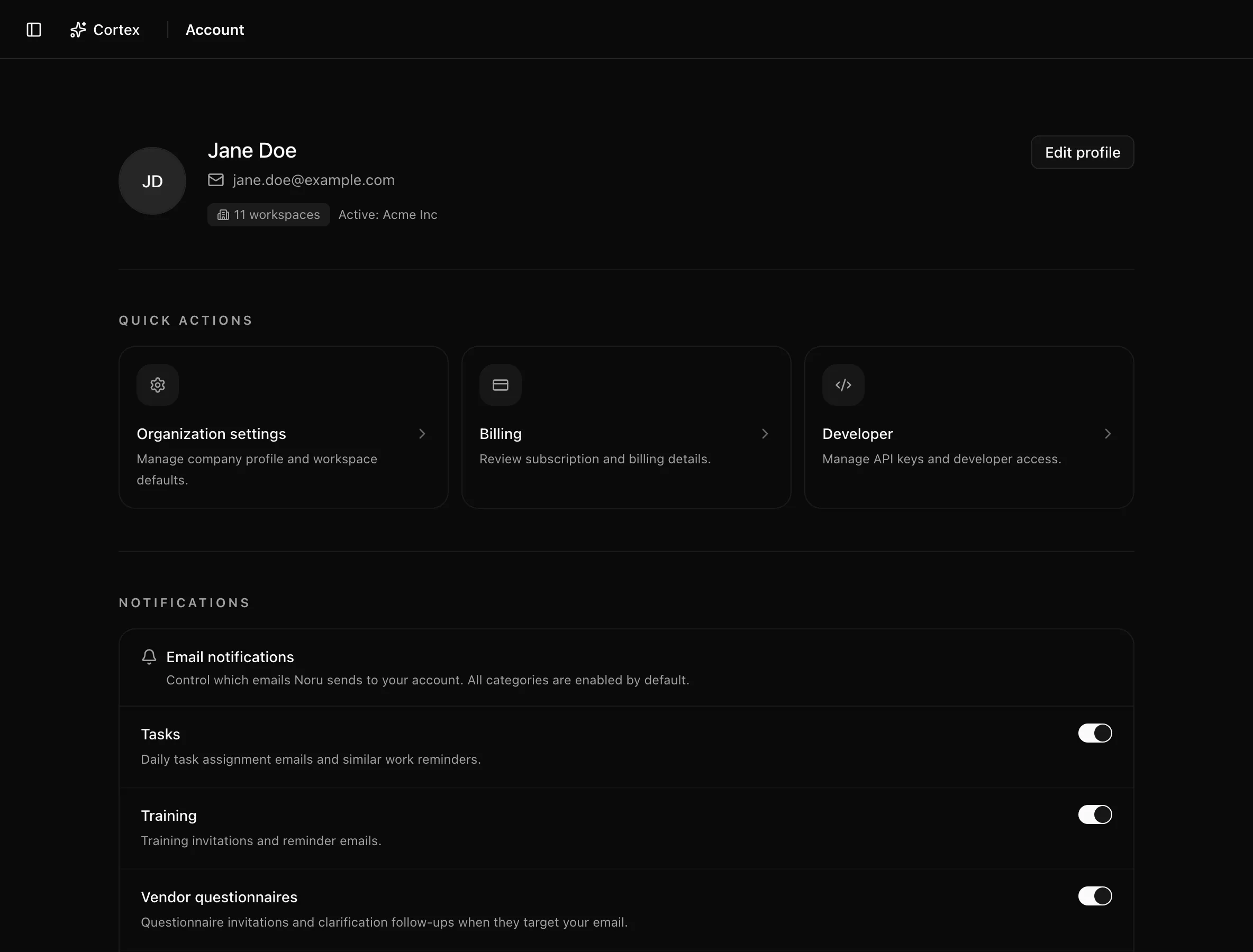
Click Theme in the user menu to switch between light and dark. The choice is stored in your browser.
Statuses and fields
| Element | Meaning |
|---|---|
| Avatar, name, email | From your sign-in provider profile |
| Workspaces badge | How many organizations you belong to |
| "Active:" line | The organization you are working in, or "No active workspace selected" |
| Quick Actions | Shortcuts to Organization settings, Billing, and Developer, shown only when a workspace is active |
Tips and gotchas
The three Quick Actions point at admin-only tabs. Editors and viewers who click them are redirected to the dashboard; the shortcuts are not a sign that you have access.
Any path under /account that Noru does not recognise sends you back to
/account, so an old bookmark still lands somewhere useful.
Email preferences are per user across every organization you belong to. Turning off Tasks silences task digests from all of them.
What Noru does not do
Noru does not let you delete your own account from this page or leave an organization; ask an admin to remove you under Members. It does not manage your role here either. Changing your email in the sign-in provider profile does not change the email a pending invitation was sent to.
Related
Last updated on