
Sign in and accounts
Create an account, sign in, meet the MFA requirement, and switch between organizations.
What it is
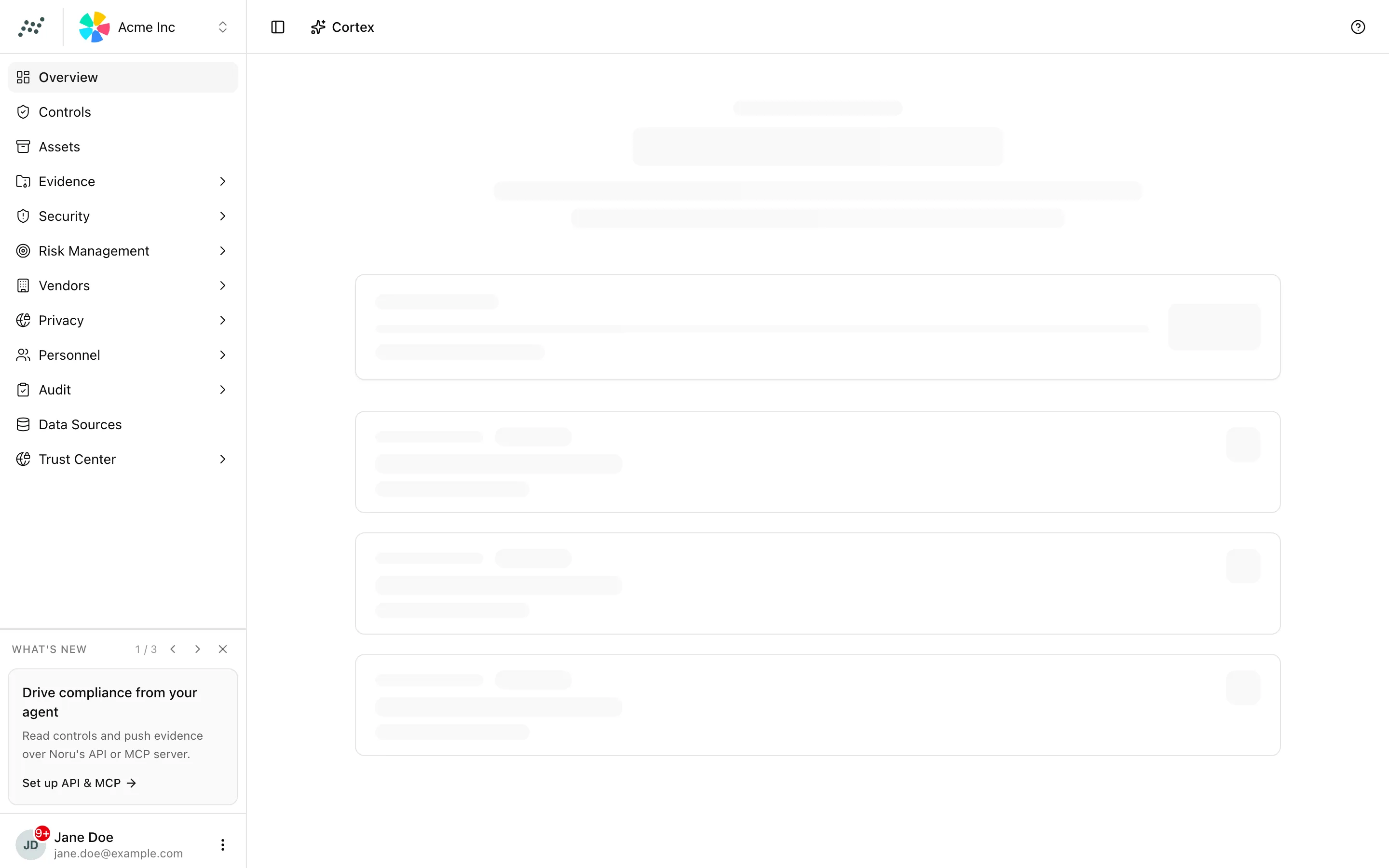
A Noru account is a personal login that can belong to one or more organizations. Signing in opens the organization you used last; if you belong to several, Noru asks you to choose. Sign-in itself is handled by a dedicated sign-in provider, while what you may do inside an organization comes from the role Noru records on your membership. This page covers the screens between opening the app and seeing the dashboard, plus the two menus that follow you everywhere: the organization switcher and the user menu.
Where to find it
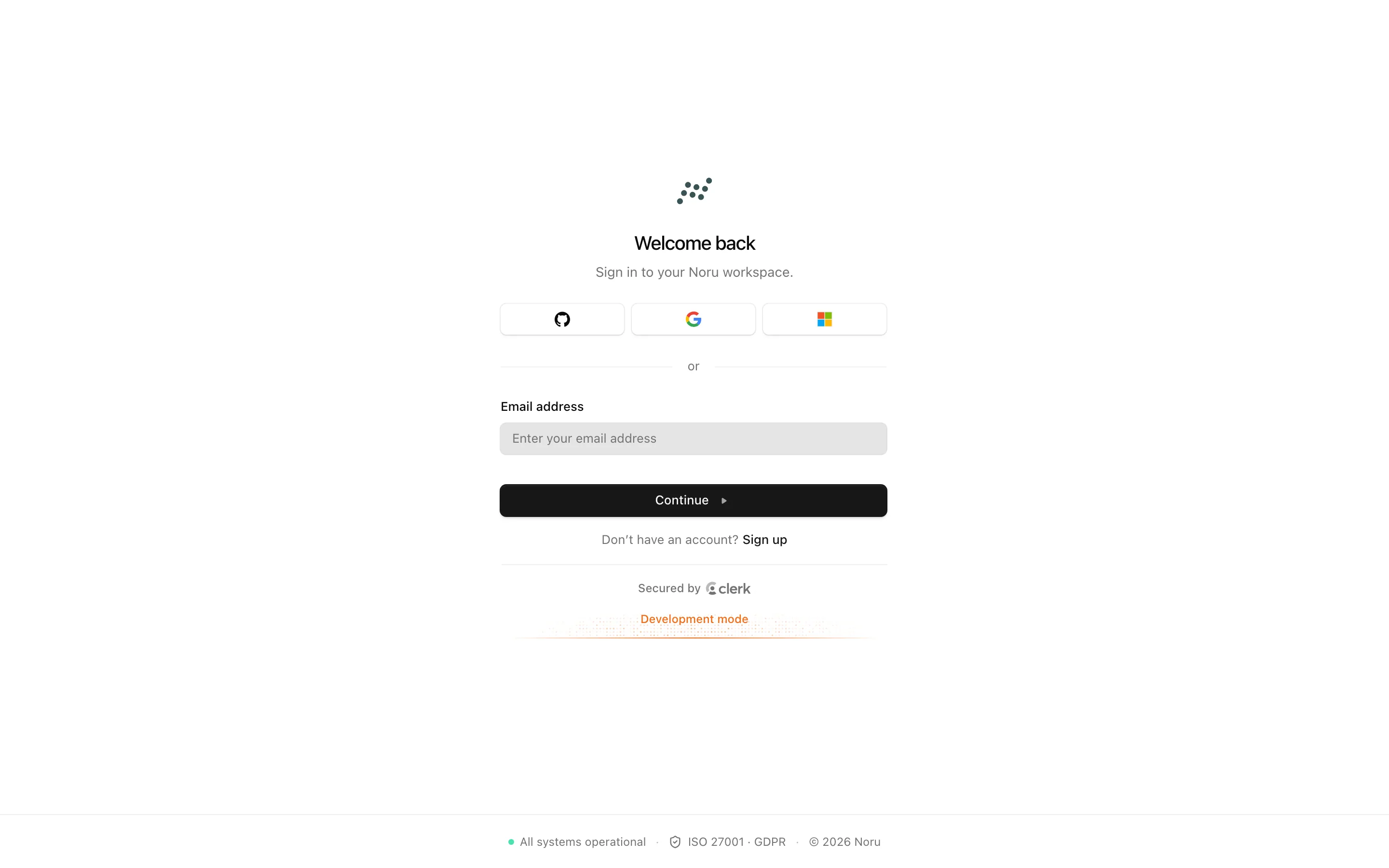
Open the app signed outSign in| Screen | Route | What you see |
|---|---|---|
| Sign in | /sign-in | Welcome back and "Sign in to your Noru workspace." |
| Create an account | /sign-up | Create your account and "Automate your compliance from day one." |
| Waitlist | /get-started | The public form for people who do not have access yet |
| MFA required | /mfa-required | Shown when the organization enforces MFA and your account has none |
| Choose an organization | /org/select | Shown when several organizations are available |
Both the sign-in and sign-up forms return you to / when they finish.
Key actions
Sign in
/sign-in and complete the form with the method your organization uses./org/select; with none you land on /org/new to create an organization.Meet an MFA requirement
An admin can require multi-factor authentication for everyone in the
organization under Settings → Security.
When that is on and your account has no second factor, every sign-in stops at
/mfa-required.
/; otherwise the page stays.The page redirects on its own when it does not apply: to /sign-in if you are
signed out, to /org/new if you have no organization, and to / if MFA is
already satisfied.
Choose an organization
/org/select shows the heading Choose an organization and "Select the
organization you want to open in Noru." Personal workspaces are hidden; only
organizations are listed. Selecting one opens /; the create option opens
/org/new. If you followed a link to an organization you no longer belong to,
the subtitle reads "You no longer have access to that organization. Select one
you belong to." When an organization is already active the page sends you to
/ instead.
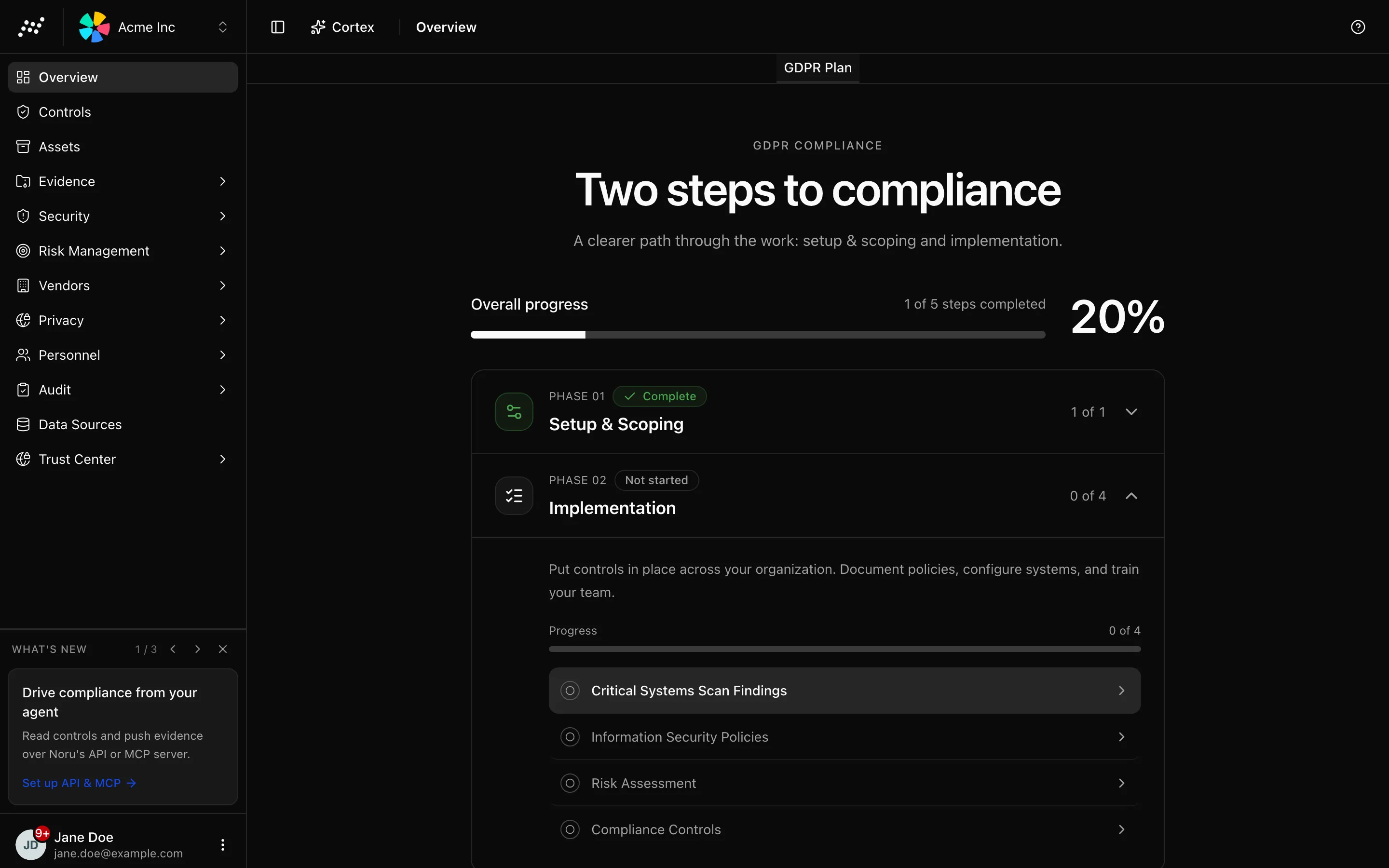
Switch organizations
/ inside the new organization.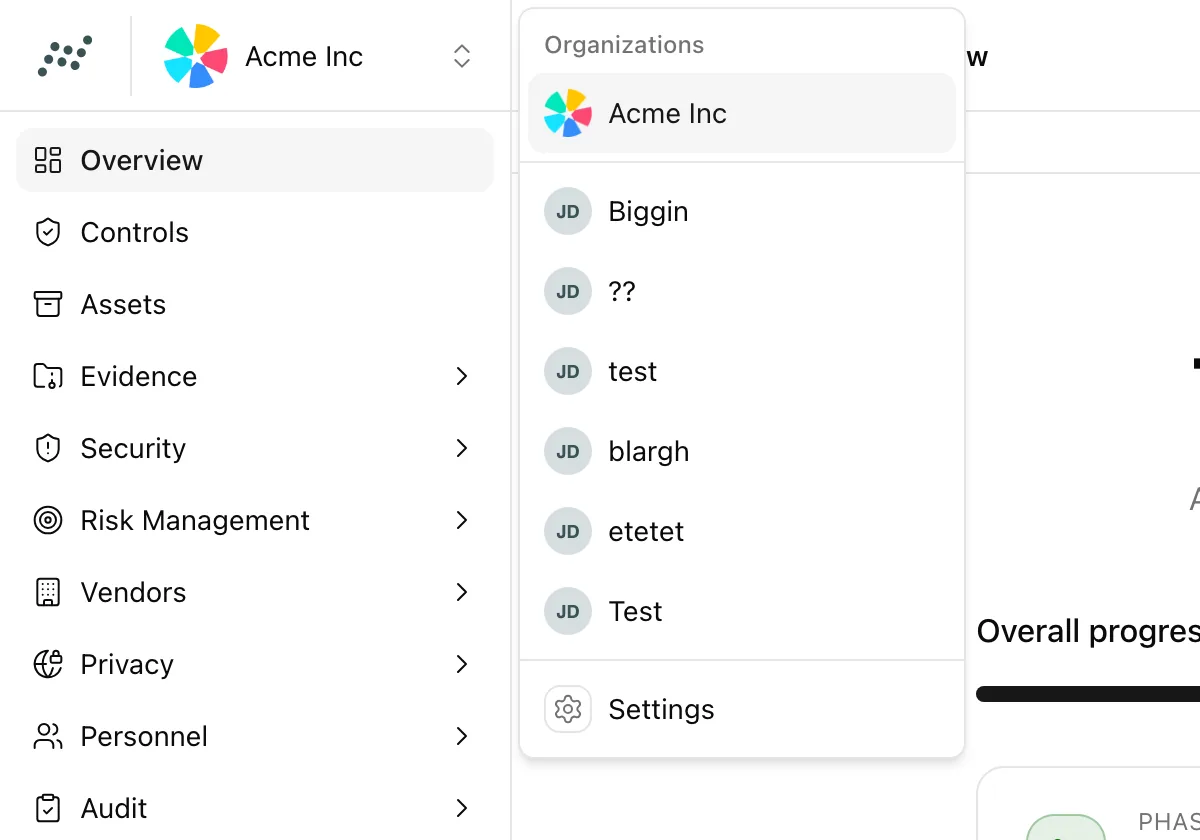
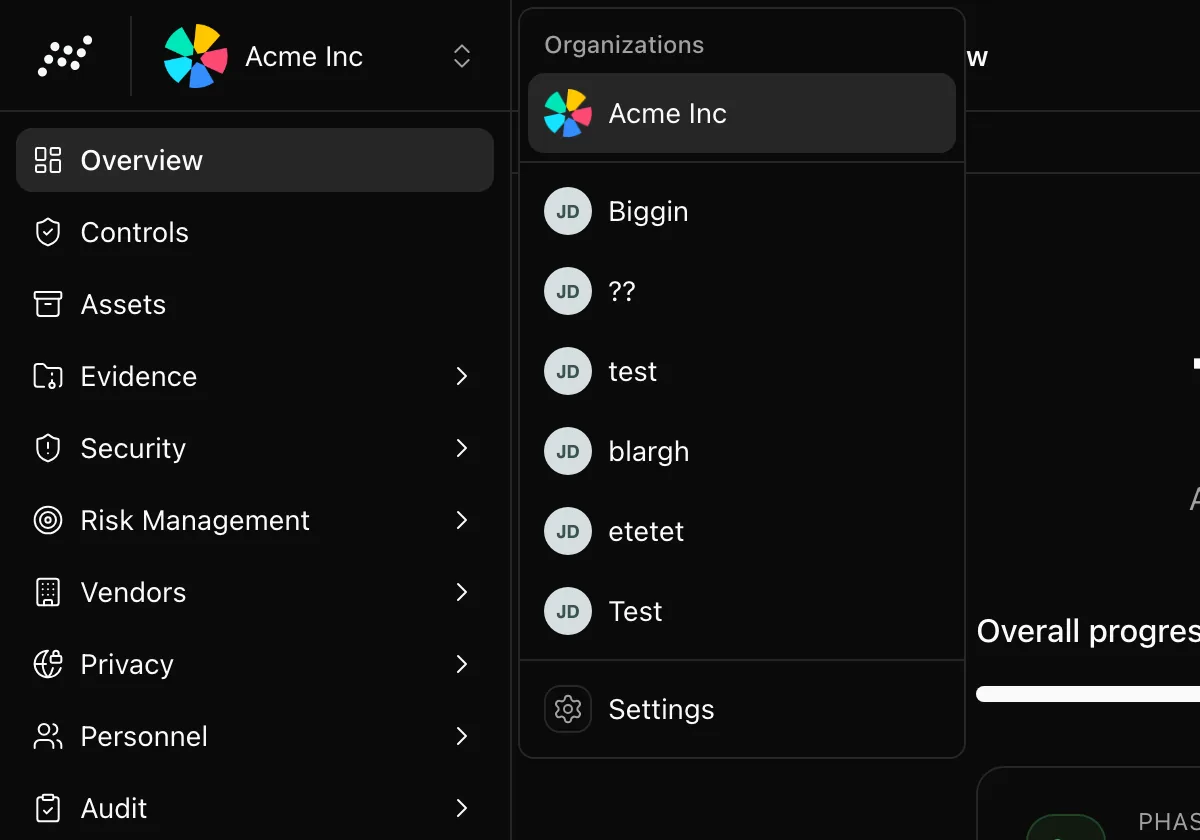
The menu's footer item Settings is disabled unless your role can manage settings. With no memberships at all the switcher reads No Organization Selected and "Get started with your first organization".
Use the user menu
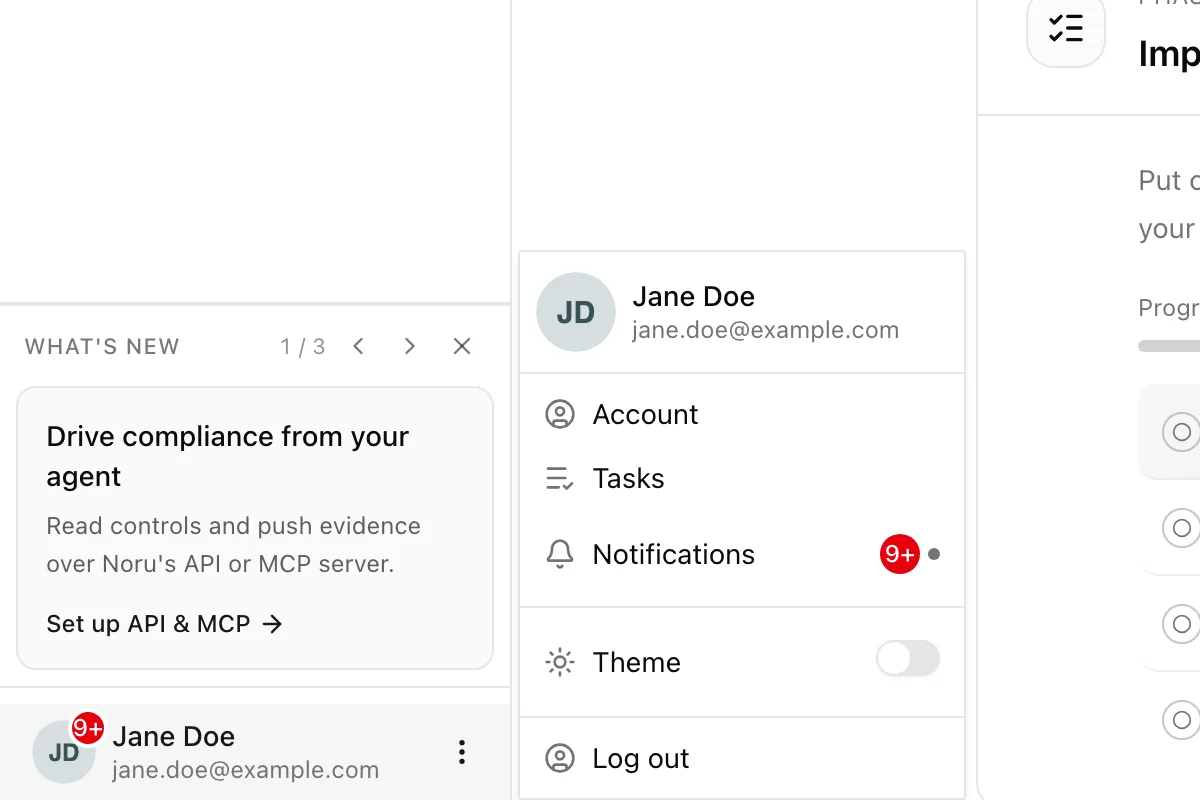
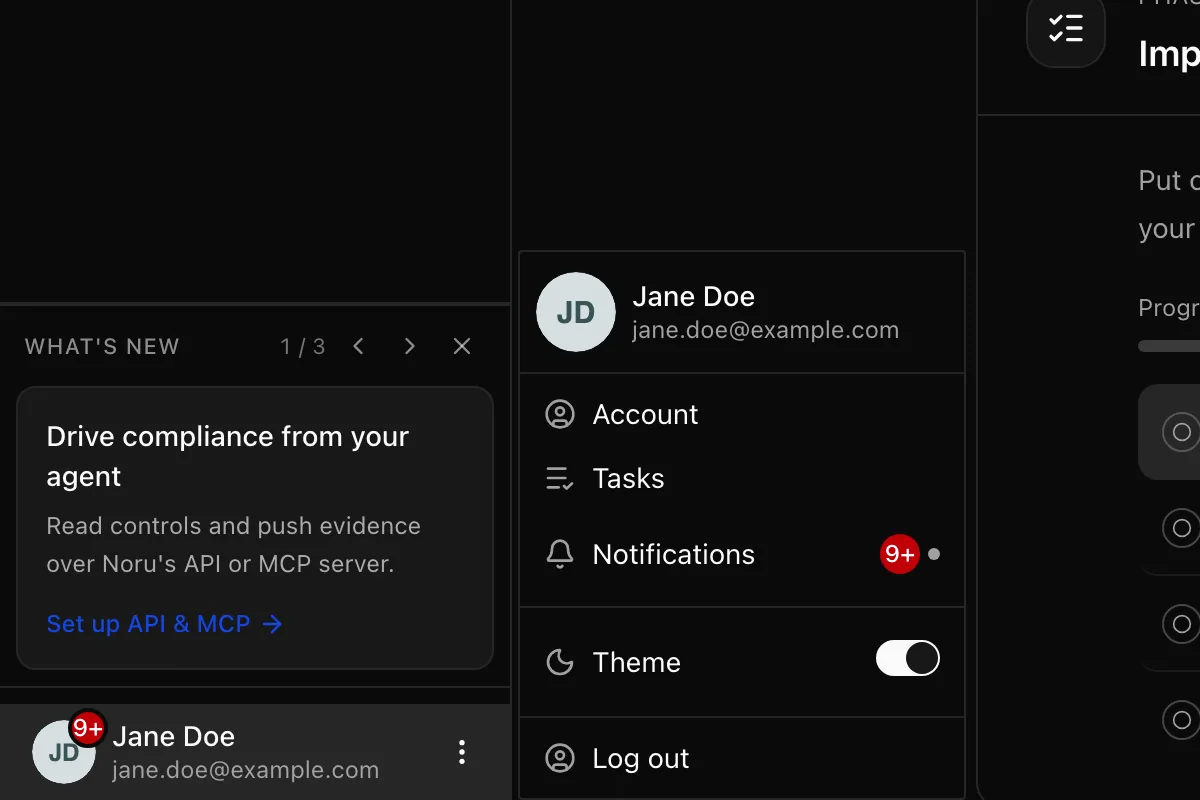
The menu at the bottom of the sidebar carries your avatar and five items.
| Item | What it does |
|---|---|
| Account | Opens /account: profile, security, and personal preferences |
| Tasks | Opens /tasks, the work assigned to you |
| Notifications | Opens the notifications modal. A red badge counts unread items and caps at 9+; a green dot means the live stream is connected |
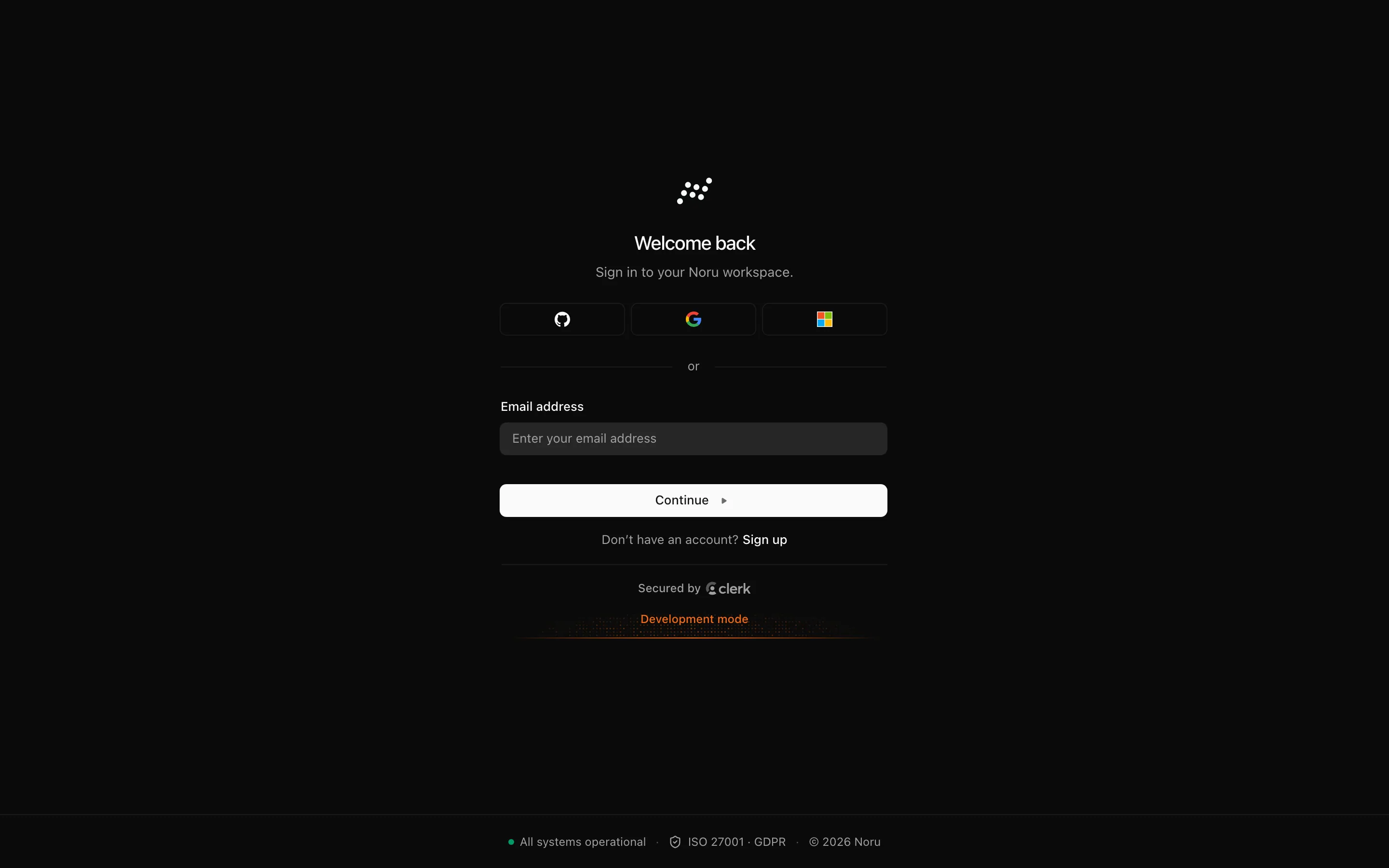
| Theme | Switches between dark and light |
| Log out | Ends the session and returns you to /sign-in |
Statuses and fields
Your role is per organization and decides what the app lets you change.
| Status | Meaning | Set by |
|---|---|---|
Adminadmin | Full access to all organization features and settings, including Settings and billing | The invite, or an admin later |
Editoreditor | Can manage content and workflows, limited settings access | The invite, or an admin later |
Viewerviewer | Read-only access to organization data; bulk bars show the text Read-only access | The invite, or an admin later |
Tips and gotchas
If you belong to exactly one organization you never see /org/select; the
membership is activated as soon as you sign in. The page only appears when
there is a real choice to make.
MFA here protects Noru only
The MFA requirement guards your Noru login. It does not enforce a second factor on the cloud accounts, identity provider, or repositories Noru connects to. Personnel MFA coverage on the dashboard comes from your identity provider, not from this setting.
Switching organizations is a full reload, so unsaved edits in a policy or a dialog are lost. Save first.
What Noru does not do
Noru does not store your password or second factor; the sign-in provider does. Noru does not read the sign-in provider's own organization role when deciding what you may do; the role recorded on your Noru membership is the one that counts, so change roles under Settings → Members. A record in the Personnel directory does not give anyone a login; membership does.
Related
Last updated on