

Invite your team
Add members, assign admin, editor, or viewer roles, and manage pending invitations.
What it is
Members are the people who can sign in to your organization. Each has one role, admin, editor, or viewer, which decides what the app lets them change. Invitations go out by email; until they are accepted they sit in a pending list you can cancel from. A compliance program needs more than one pair of hands, so this is usually the first thing to do after the wizard: control owners need write access, and auditors or leadership often want read-only access.
Where to find it
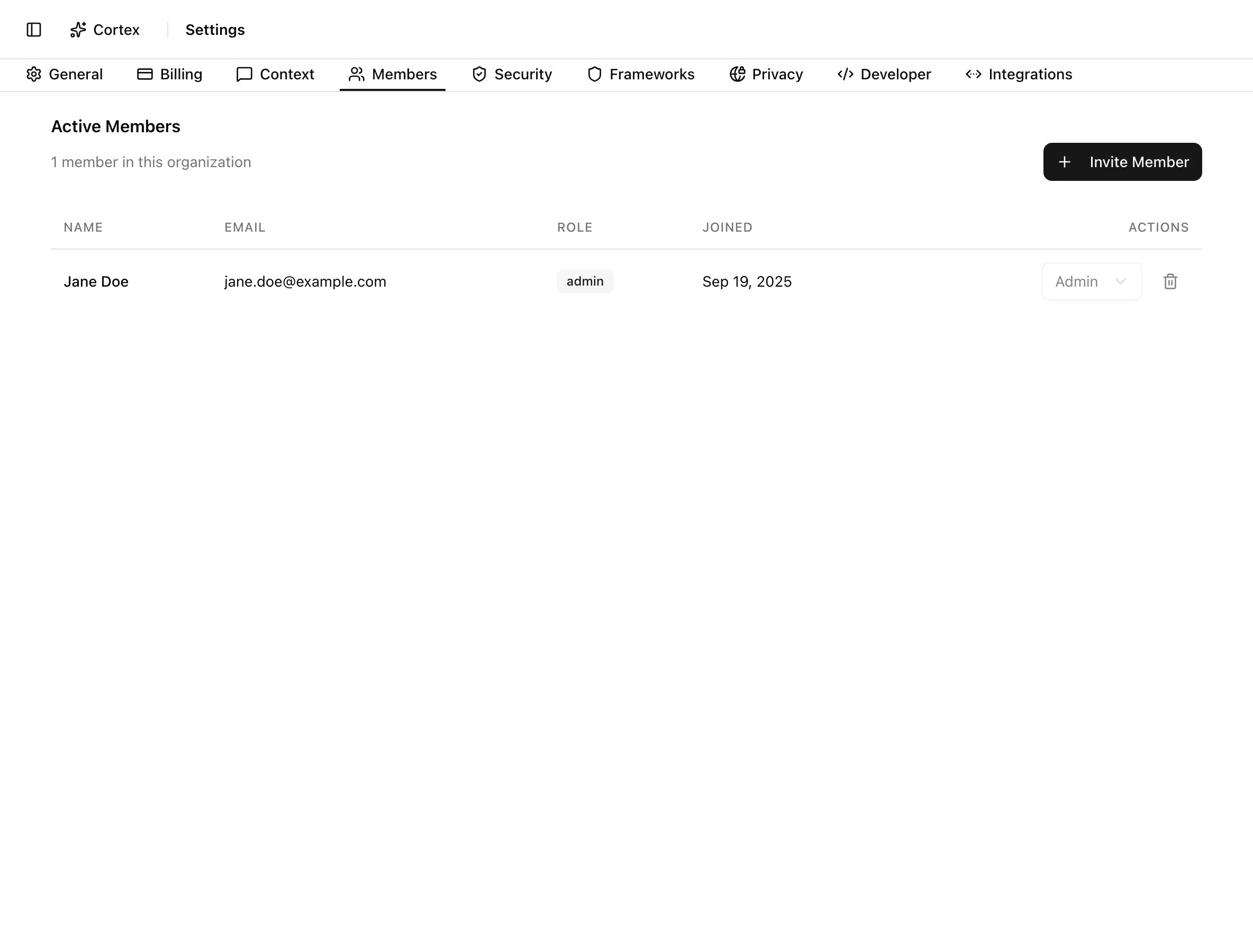
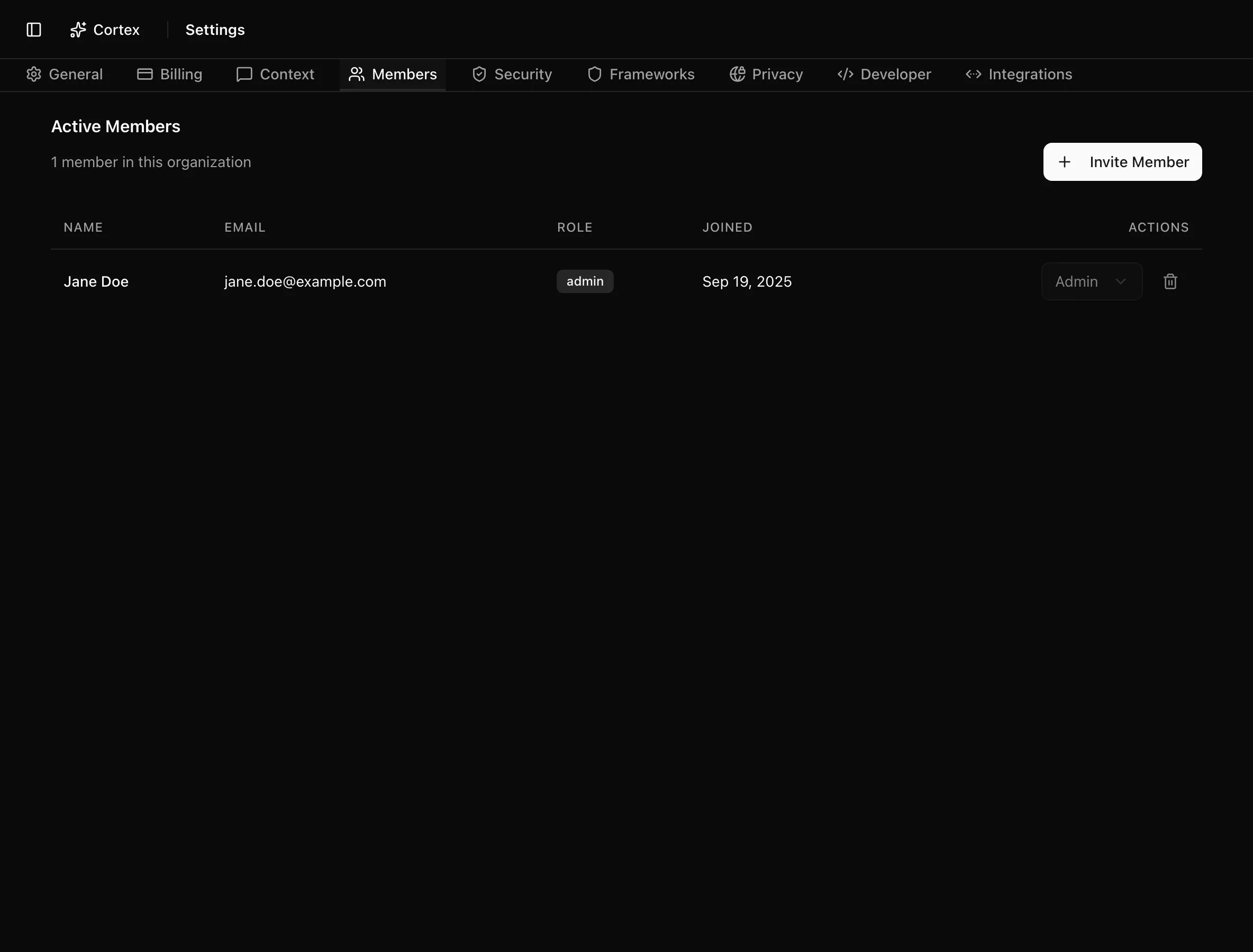
SettingsMembersOnly admins can open Settings. The tab has two cards: Active Members with columns Name, Email, Role, Joined, and Actions, and Pending Invitations with Email, Invited, and Actions.
Key actions
Invite a member
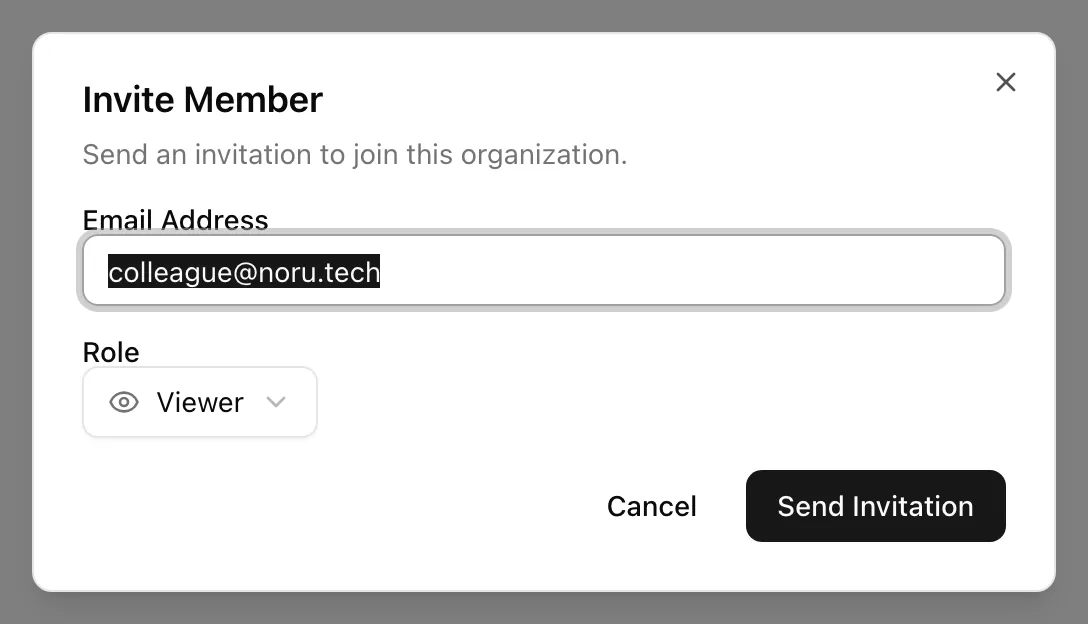
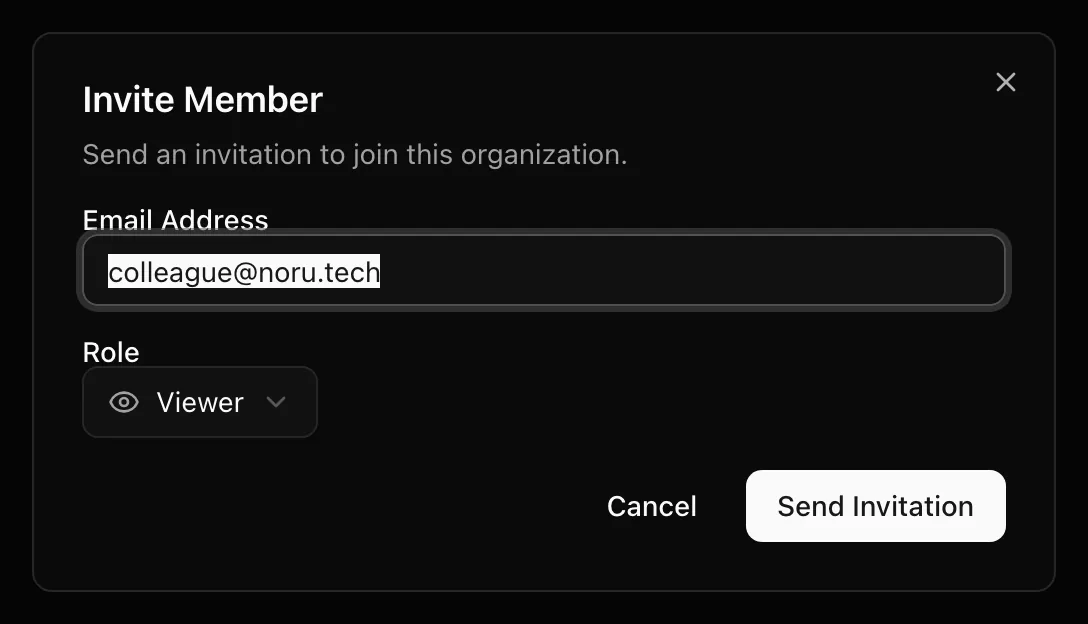
The same invitation can be sent from two other places: the Invite your IT admin card in the organization wizard opens Invite Your IT Admin, and the welcome guide's Invite team member button opens Invite Team Member with an optional message. All three create the same kind of invitation.
Decide who gets which role
| Person | Suggested role | Why |
|---|---|---|
| Whoever runs the program | Admin | Needs Settings, Frameworks, Members, and billing |
| IT or platform admin | Editor | Connects data sources and owns technical controls without needing settings |
| Control and policy owners | Editor | Set statuses, link evidence, edit and approve policies |
| Leadership, auditors, advisors | Viewer | See everything, change nothing |
Keep at least two admins. Noru blocks removing the last one, but it cannot help when that person leaves the company.
Cancel a pending invitation
In Pending Invitations, use the action on the row. The toast "Invitation cancelled" confirms it. Send a fresh invitation if the email went to the wrong address.
Change a role or remove a member
Use the role select in the Actions column to change a role, and the remove action to take someone out of the organization. Removing ends their access immediately. Both actions are refused for the last admin: the app shows "Cannot remove the last admin of the organization", and the server independently rejects "Cannot change the role of the last admin of the organization". The role select is disabled while the organization has only one member.
Statuses and fields
| Status | Meaning | Set by |
|---|---|---|
Adminadmin | Full access to all organization features and settings | The invite, or an admin later |
Editoreditor | Can manage content and workflows, limited settings access | The invite, or an admin later |
Viewerviewer | Read-only access to organization data | The invite, or an admin later |
| Capability | Admin | Editor | Viewer |
|---|---|---|---|
| Read every page | Yes | Yes | Yes |
| Create and edit records, set statuses, link evidence | Yes | Yes | No |
| Open Settings and manage frameworks, members, security | Yes | No | No |
| Billing checkout | Yes | Yes | No |
Viewers see the text Read-only access in place of bulk action buttons on
the controls, evidence, and assets pages.
Membership is not personnel
| Members | Personnel directory | |
|---|---|---|
| Where | Settings → Members | Personnel → Directory |
| Who | People with a Noru login | Everyone your program covers, synced from identity providers and HR |
| Used for | Access and permissions | MFA coverage, training, policy acknowledgement |
| Created by | An invitation | A data source sync or a manual entry |
Inviting someone does not add them to the directory, and a directory record does not let anyone sign in.
Tips and gotchas
Invite the IT admin before you connect data sources. Most connectors need someone with admin rights in the provider, and an editor can connect them without needing access to Settings.
Roles live in Noru
The role on the Noru membership is the only one permission checks read. Changing a member's role anywhere other than this tab does nothing in the app; change it here.
A member who accepted the invitation but has not opened the app yet still appears in Active Members. Their row looks like any other.
What Noru does not do
Noru does not sync roles back to the sign-in provider, does not read the sign-in provider's organization role at request time, and does not create a personnel record when someone joins. It does not offer per-page permissions; the three roles are the whole model.
Related
Last updated on