
Security findings
Triage findings by severity, assign owners, link risks and assets, and close them out.
What it is
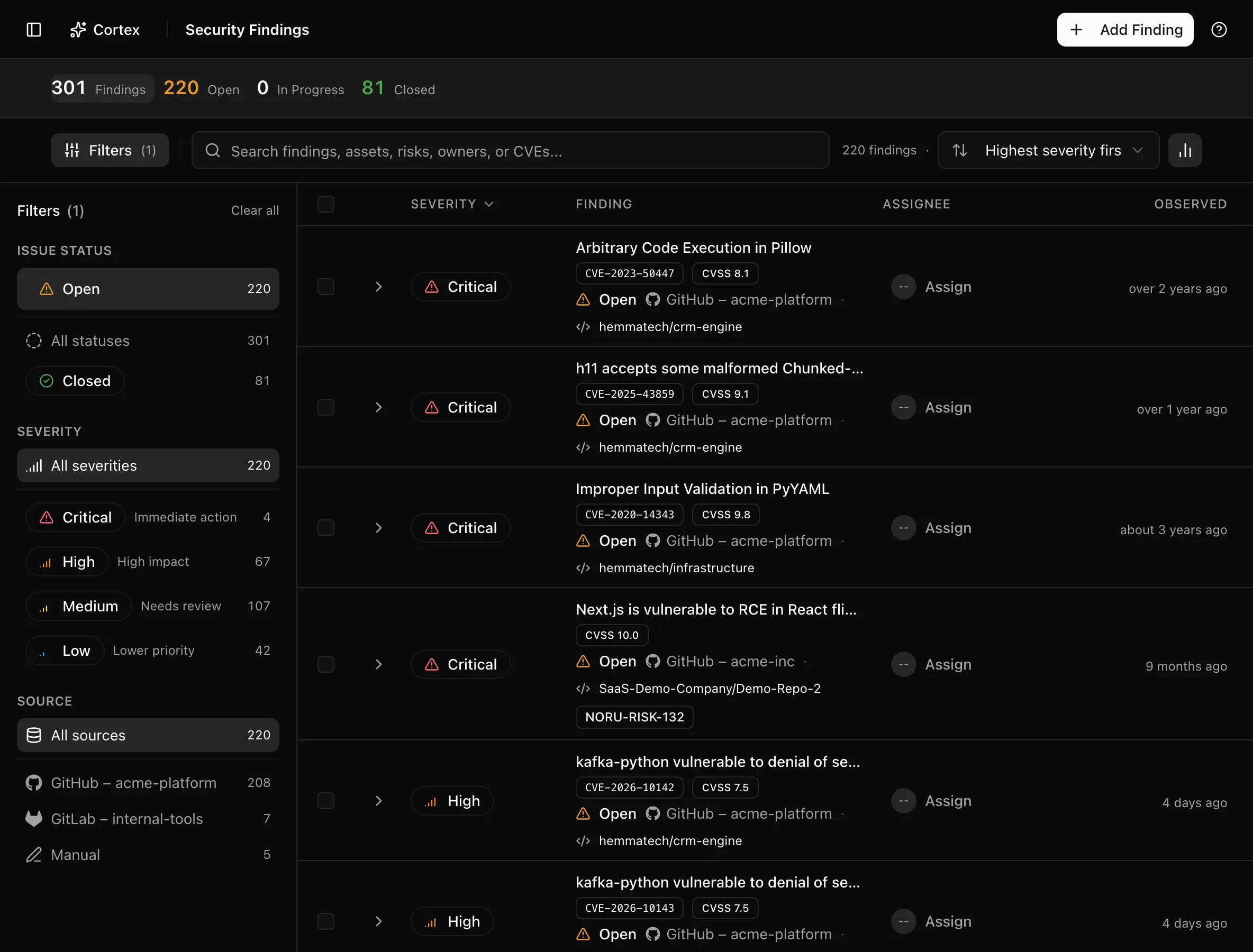
Security findings is the single queue for things that were observed to be wrong: vulnerabilities from scanners, misconfigurations from cloud syncs, expiring certificates, identity mismatches between HR and your identity provider, and anything you record by hand. Each finding has a severity, a status, an optional owner, and can be linked to an asset and to a risk so that remediation is traceable from the observation to the register.
Where to find it
SecurityFindings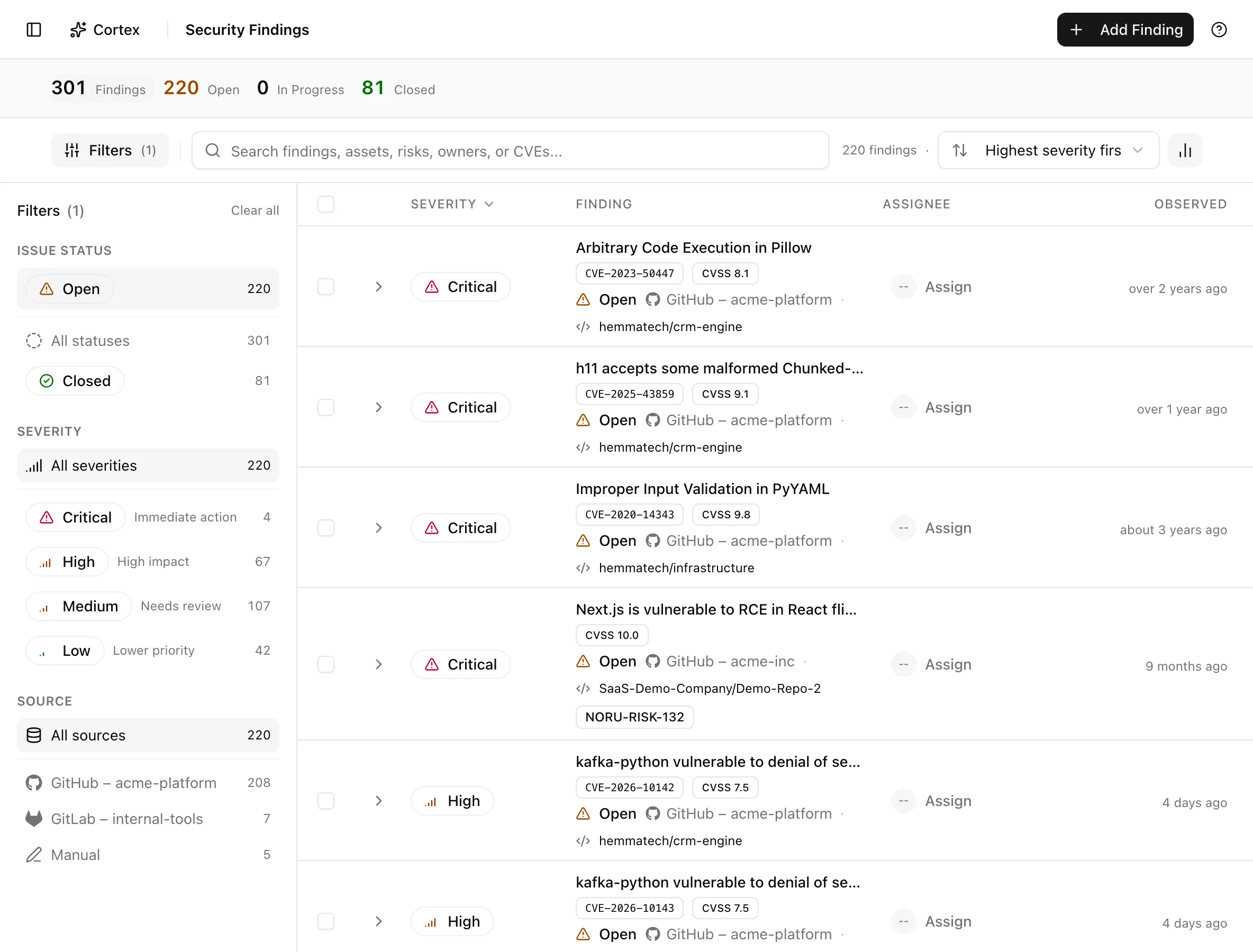
Key actions
Triage from the list
The insight strip counts Findings, Open ("Findings requiring remediation or triage"), In Progress ("Findings currently being worked"), and Closed ("Resolved, accepted, or marked false positive").
Change status
Each row offers the transitions that make sense for its state: Start work, Resolve, Accept, Reopen, and False Positive. Select several rows to apply a status change to all of them from the bulk bar.
Assign an owner
Select rows and click Assign findings. Pick a member under "Select an owner", or choose Unassigned to clear, then click Assign.
Link findings to a risk
The reverse direction works too: on the detail page, Link Risk to Finding attaches a single finding, and the risk register shows a Finding ID column that links back.
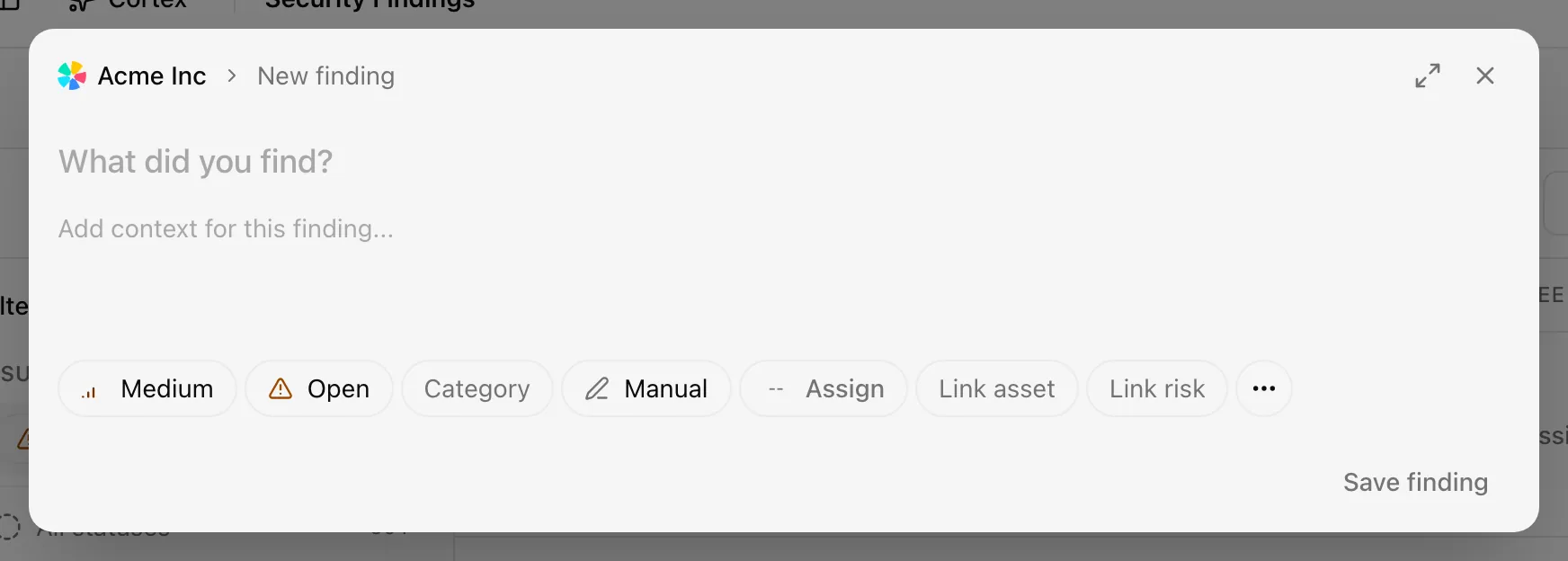
Create a manual finding
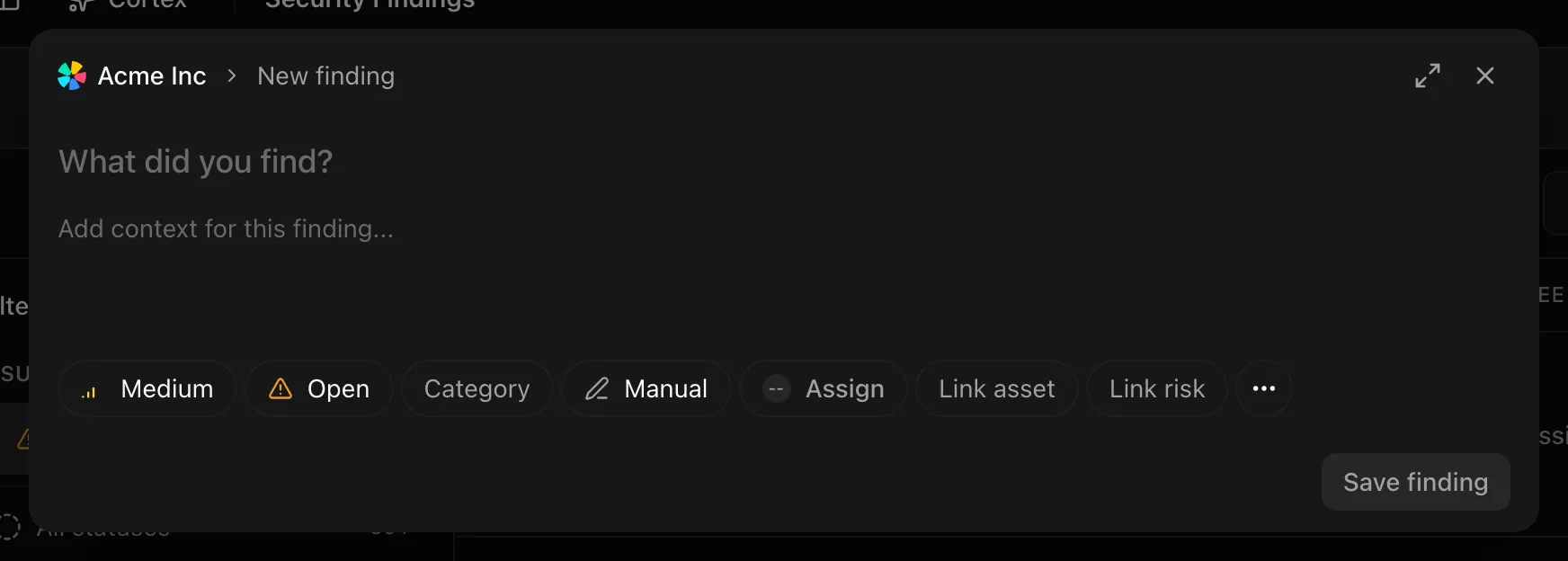
Create tickets in Linear or GitHub
Noru can create a ticket for a finding in the tracker your team already works in. The finding stays the record of truth: the ticket's status is shown on the finding, and closing the ticket does not close the finding unless you choose that. The same tracker can also raise tickets for evidence; see Evidence.
Set it up in SettingsTask tracker (you need to be an admin), in two steps. Noru works with one tracker at a time.
Step 1: choose the tracker. Settings lists every tracker. Connected means it is the tracker in use; the others show Not in use, Needs reconnecting or Not connected, with a note on their data source. Use Connect or Reconnect to go to Data sources, then Use to pick one. While one tracker is in use the others cannot be connected or used. Linear asks you to grant write access to the same connection, and GitHub asks you to confirm. Then choose the Linear team or GitHub repository where every ticket is created. To use a different tracker, choose Disconnect on the one in use: its settings are cleared and Noru stops showing its tickets, but they stay in the tracker and the data source stays connected for evidence.
Step 2: choose where to use it. Switch tickets on for each part of Noru separately: Security findings and Evidence. Tickets only appear in a part you have switched on, and each has its own settings:
- Create tickets. When someone asks, or automatically.
- Assign to. Nobody, or one person chosen from the people in your tracker. The list is read from the tracker when you open it. If that person later leaves the tracker, tickets are created unassigned.
- Labels. Labels you list, plus an optional severity label for findings.
- When severity changes (findings). A comment is always added. You can also have Noru update the ticket's priority (Linear) or severity label (GitHub).
- When the ticket is closed (findings). Leave the finding open, or mark it resolved.
The Tickets panel only appears on a finding once a tracker is set up and tickets are switched on for Security findings. To create a ticket by hand, open a finding and choose Create ticket in it. A finding that already has a ticket shows its key and the tracker's status instead, and the key links straight to the ticket. The same link appears on the finding's row in the list.
Noru syncs ticket status from the tracker every few minutes, so the Tickets panel shows the status as of the last sync. If a ticket is deleted in the tracker, the panel shows it as Deleted after the next sync. Tickets that are already closed are checked again about once a day, so one deleted after it was closed is noticed too. The finding is left as it is, you can create a new ticket by hand, and an automatic ticket is not created again for it.
To remove a ticket from Noru yourself, use the trash can beside it. This breaks the link completely: Noru forgets the ticket, and the ticket itself stays in your tracker, untouched. You can then create a new ticket by hand. With automatic tickets on, Noru may create one itself at the next sync if the item is eligible and has none.
Automatic tickets are off by default. When you turn them on, every finding that arrives afterwards gets a ticket, or only those at or above a severity you choose. Findings that already exist are never ticketed automatically, however the setting is changed later. Switching it off and on again starts from that moment.
When a ticket is closed, Noru leaves the finding as it is and reminds you to review it. In settings you can instead have Noru mark the finding resolved, which skips the human check, so it is off unless you choose it. You can also have Noru close a finding's ticket when the finding is resolved, accepted, or marked a false positive (Close ticket when done, under Keep in sync). This applies to every ticket for that section, whether it was created by hand or automatically. Noru adds a comment, closes the ticket, and shows the status the tracker gives it. This happens on the next sync, so it can take a few minutes.
GitHub tickets are opt-in. Evidence collection stays read-only; writing issues needs the Noru GitHub App to be allowed to read and write issues, and Noru asks an admin to confirm it before anything is written. If your organization installed the app before this feature, an owner of your GitHub organization has to approve the updated permissions first. The settings show whether GitHub has approved it yet. See GitHub.
Edit the detail page
The detail page groups everything about one finding. Properties holds Status, Severity, Category, CVE, CVSS, Provider alert, Owner, First observed, Closed, Closed by, and Closure reason. Asset ("Link an asset from the register.") opens Link Asset to Finding; Linked risk opens Link Risk to Finding. Raw Payload keeps the original provider payload "for traceability and debugging". Delete security finding at the bottom opens the Delete Security Finding confirmation.
Statuses and fields
| Status | Meaning | Set by |
|---|---|---|
Openopen | Observed and not yet worked. Counted in the Open bucket. | You, a sync, or a scan |
In Progressin_progress | Someone is remediating it. Preserved across re-scans. | You |
Resolvedresolved | Fixed. A scan that still sees the issue reopens it. | You, or a scan |
Acceptedaccepted | Known and tolerated. Preserved across re-scans. | You |
False Positivefalse_positive | Not a real issue. Preserved across re-scans. | You |
| Severity | Use it for |
|---|---|
| Critical | Exploitable now or already expired; fix immediately |
| High | Serious weakness with a clear path to impact |
| Medium | Should be fixed in the normal cycle |
| Low | Hygiene, hardening, or informational |
| Category | Typical source |
|---|---|
| Identity Access | Identity provider and HR syncs, including "Cross-source status mismatch" findings from the People directory |
| Vulnerability | Scanners such as Detectify, dependency alerts |
| Configuration | Cloud and SaaS posture checks |
| Compliance | Certificate coverage and other policy checks |
| Endpoint Posture | Device management syncs |
Findings are numbered NORU-FND-n and are unique per organization, source,
and external id, which is how a re-sync updates a finding in place instead
of duplicating it.
Tips and gotchas
Fix synced findings at the source. The next sync upserts the finding from what the provider now reports, so the record follows the fix; manual findings are the ones whose status you must move by hand.
Deleting a synced finding is temporary. Syncs upsert by external id, so the same finding returns on the next run. Use Accept or False Positive instead; those statuses survive re-scans.
The Closed filter bucket combines Resolved, Accepted, and False Positive. Filter by Issue status to see them separately, and remember that viewers see "Read-only access" in the bulk bar instead of actions.
What Noru does not do
Noru does not fix findings, verify a fix, or re-test. It records what a source reported and what you decided. Severity and CVSS come from the source or from you; Noru does not re-score them. Linking a finding to a risk does not change the risk's likelihood or impact.
Related
Record a decision reason
On a finding's detail page, use Decision reason to explain acceptance, a
false positive or another disposition, then save. You can also send
decisionReason alongside status through PATCH /v1/security-findings/{id}
or MCP updateSecurityFinding.
The reason accepts up to 10,000 characters and its changes are captured with
the actor in the change history. Omitting it preserves the last recorded reason,
including through later status changes; sending null clears it. Status-only
updates remain supported. A reason records context; it does not constitute a
separate approval or risk-acceptance workflow.
Last updated on