

Privacy monitoring
Watch public sites for consent, cookie, tracker, and transport issues and read scan results.
What it is
Monitoring scans your public websites the way a visitor meets them: it loads the page without interacting, then rejects, then accepts the consent banner, and optionally repeats with Global Privacy Control set. Each scan records the banner, the cookies set before consent, trackers, transport security, policy documents, and per-regulation findings, and grades the site. Every monitor is re-scanned daily, so the grade is a trend rather than a snapshot.
Where to find it
PrivacyMonitoring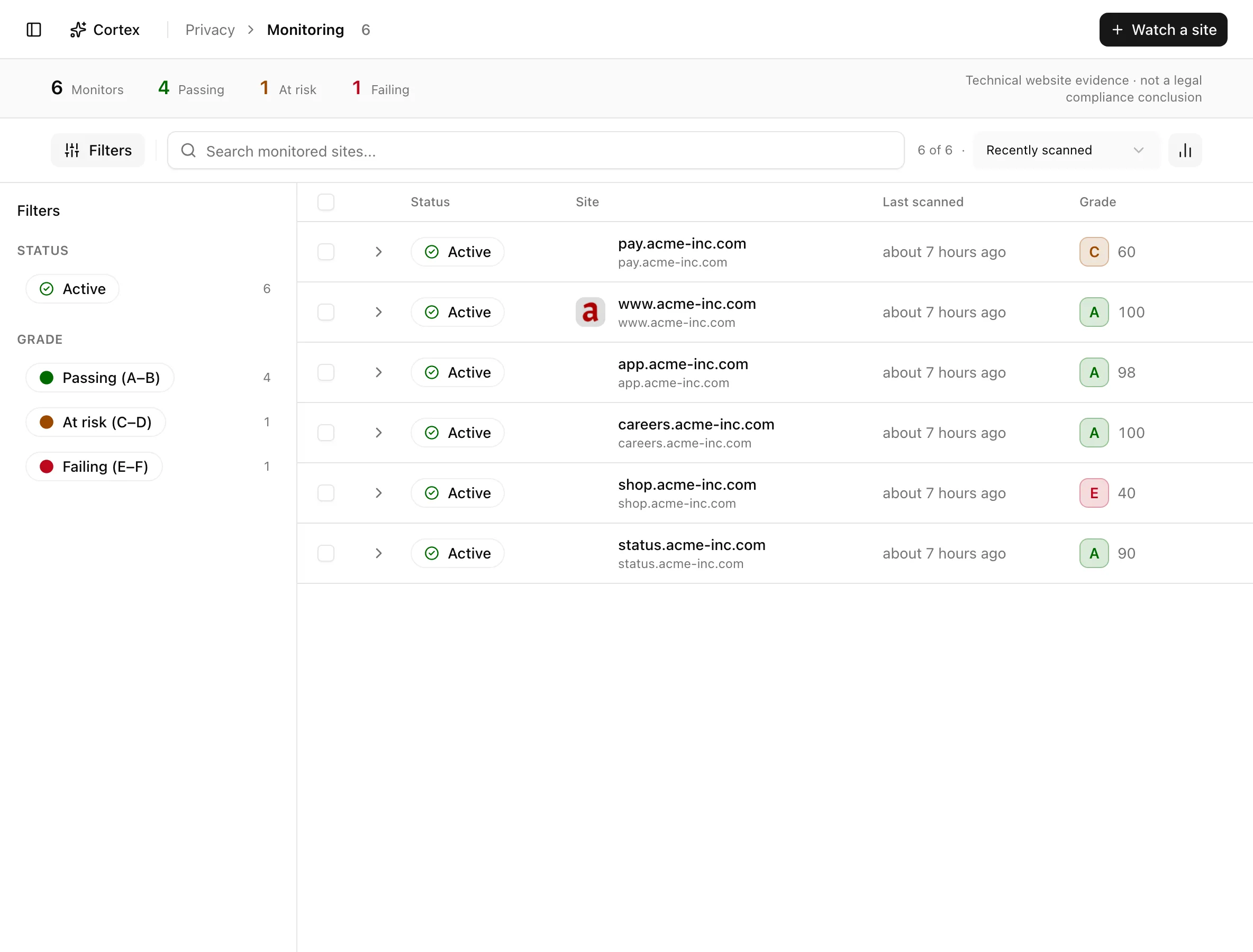
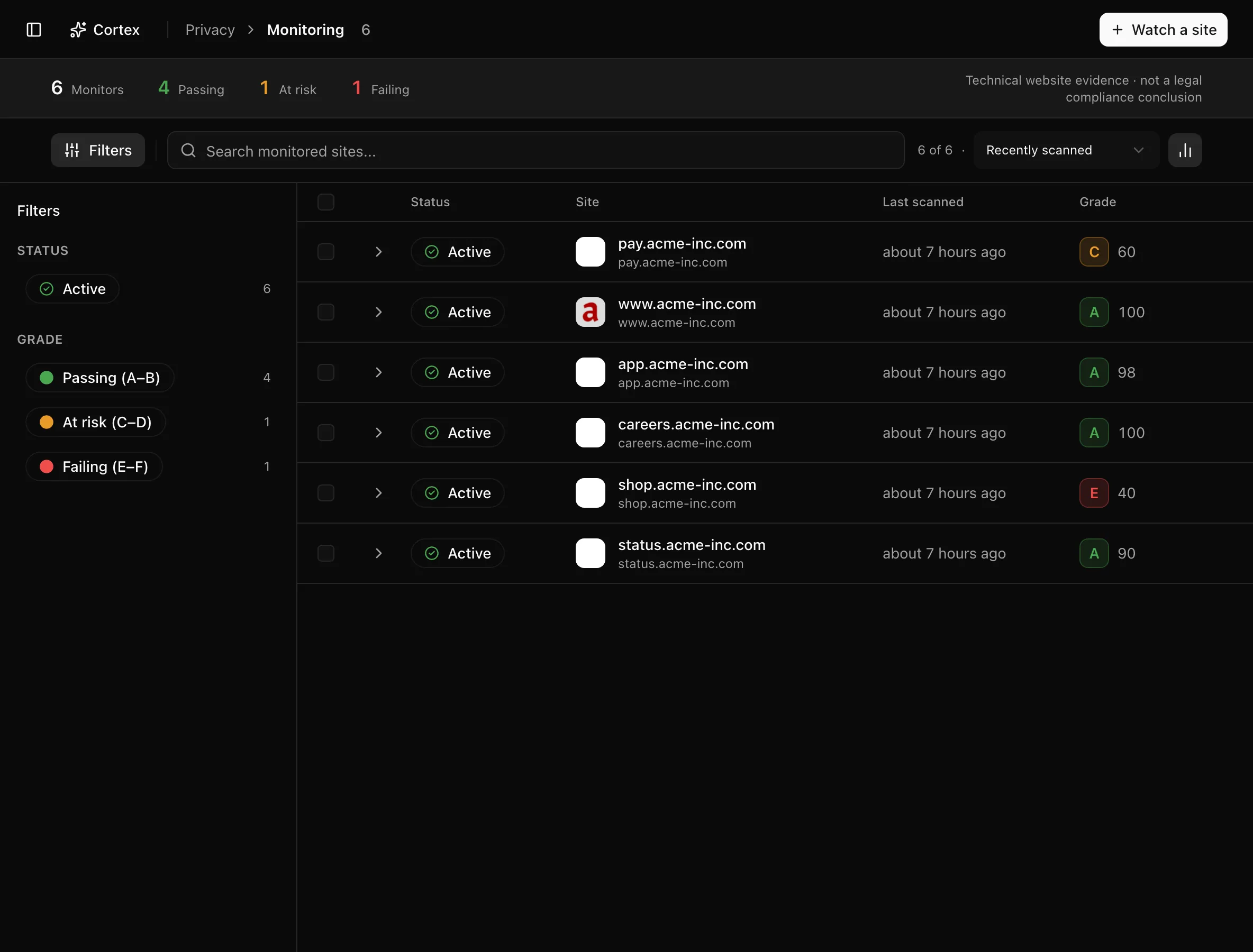
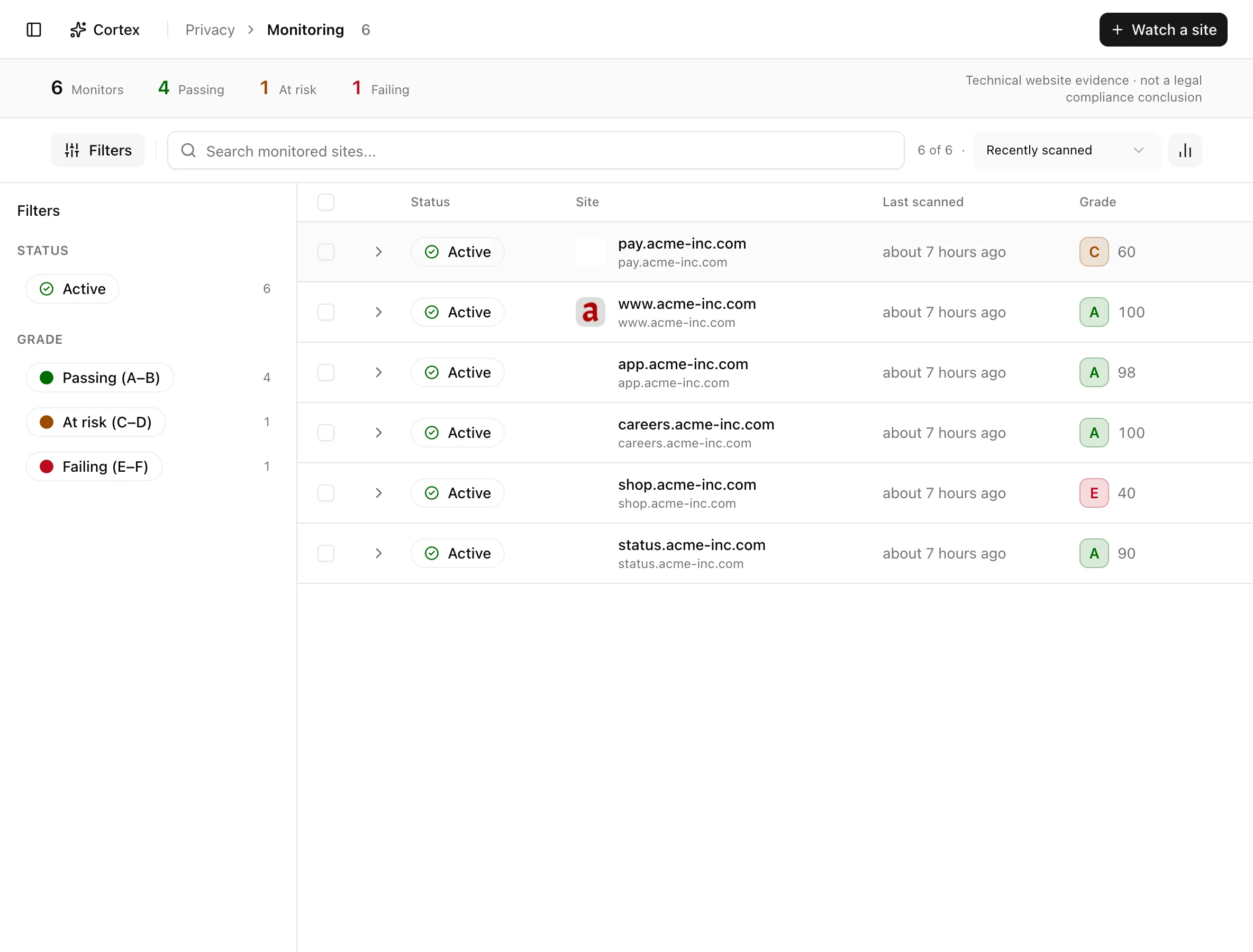
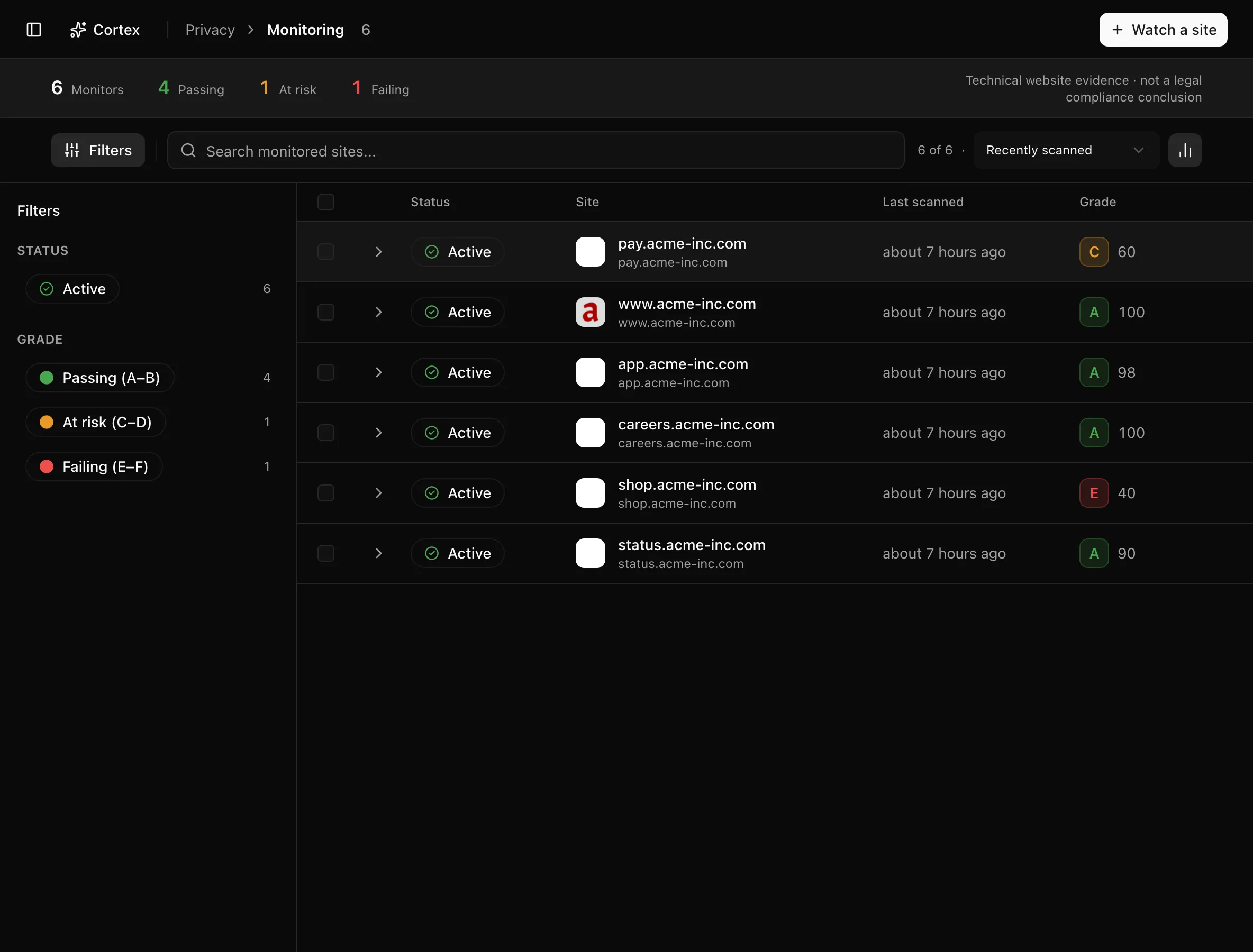
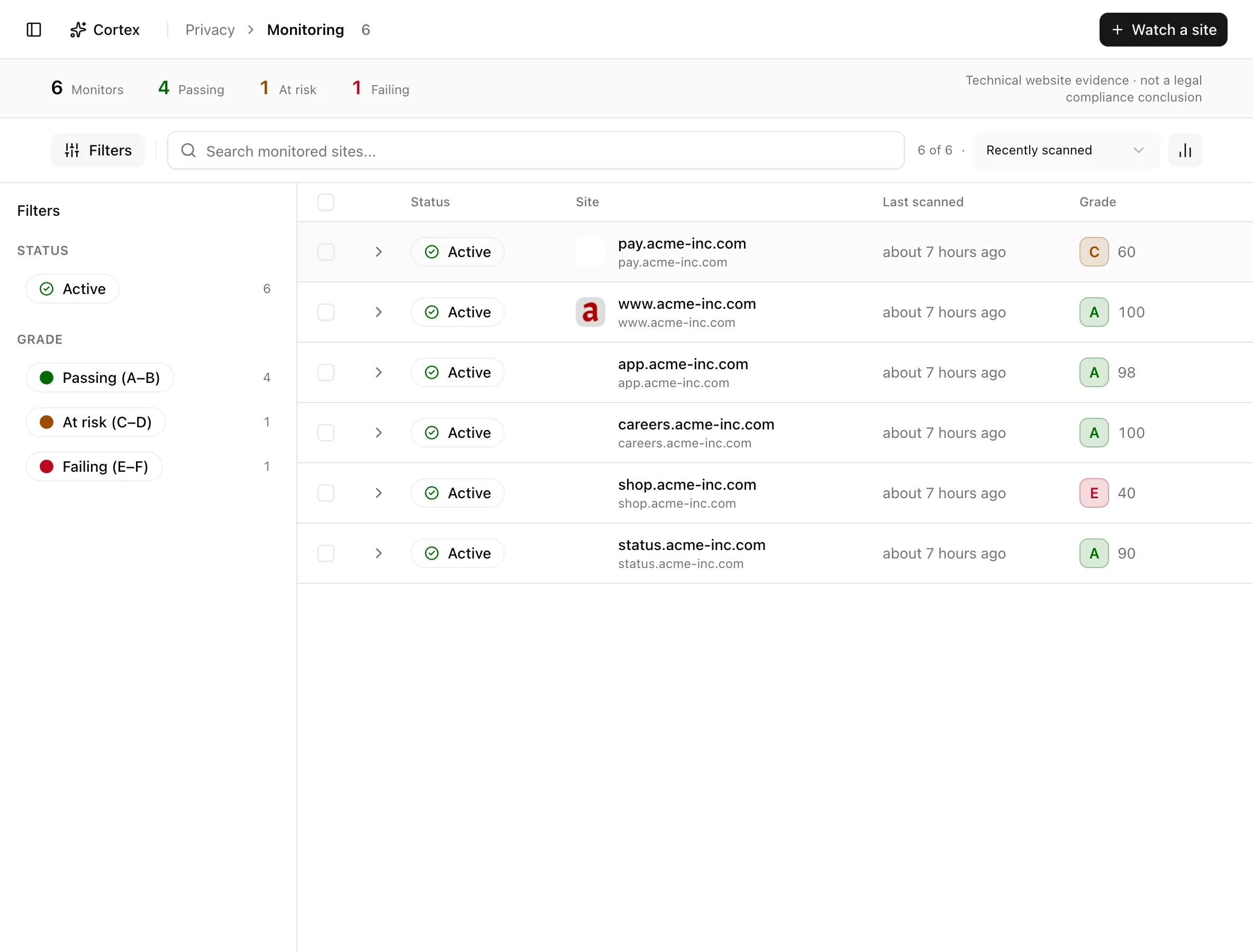
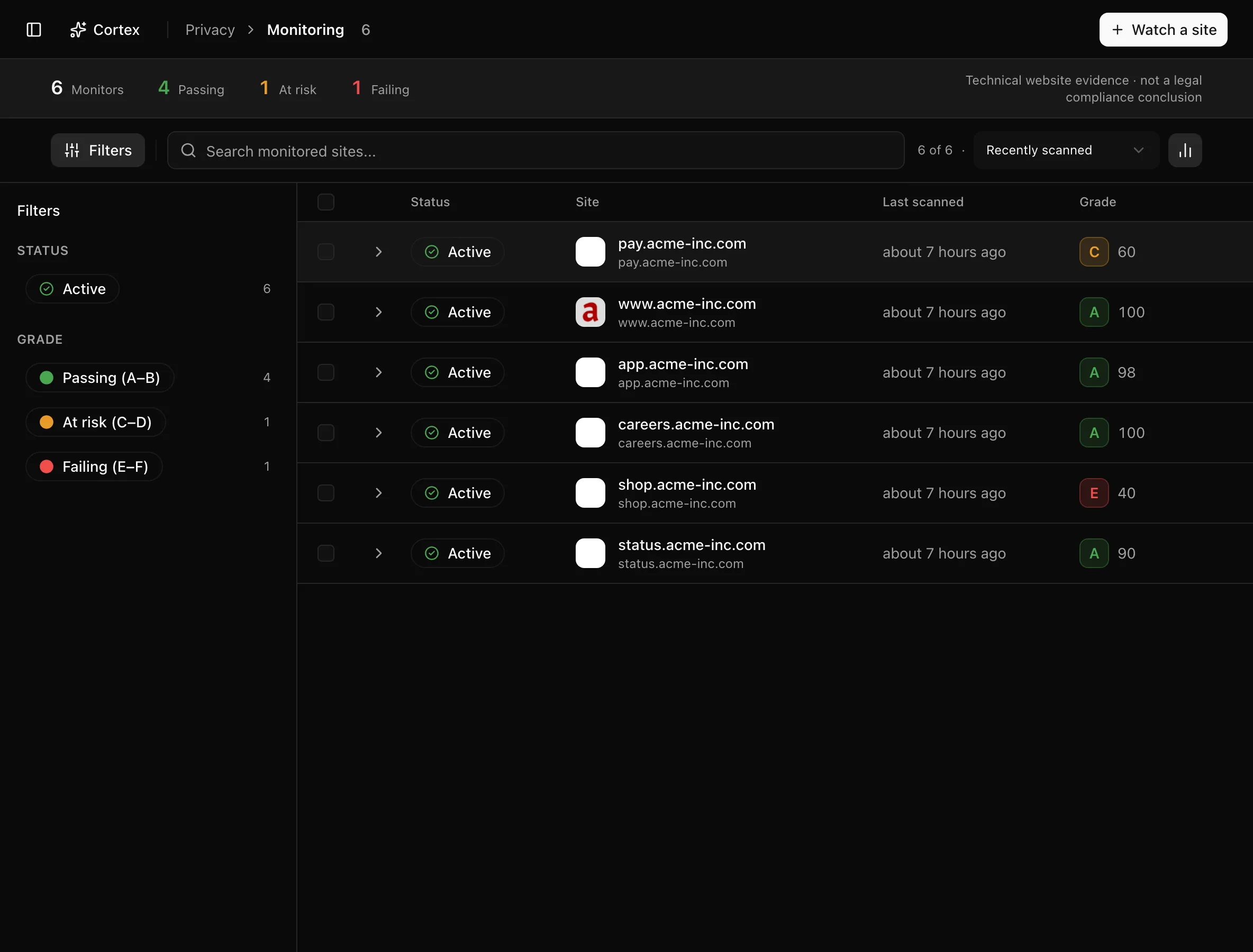
The insight strip counts Monitors, Passing, At risk, and
Failing. Sort by Recently scanned, Worst grade first, or Site
A–Z; the sidebar filters by status (Active, Scanning, Scan
failed, Paused, Awaiting scan) and by grade bucket. The overview's
Sites at risk links here with ?grade=failing. Columns are Status,
Site, Last scanned, and Grade; an expanded row adds Latest
grade, Added, and Recent scans.
Key actions
Adding, rescanning, and deleting need the editor or admin role.
Watch a site
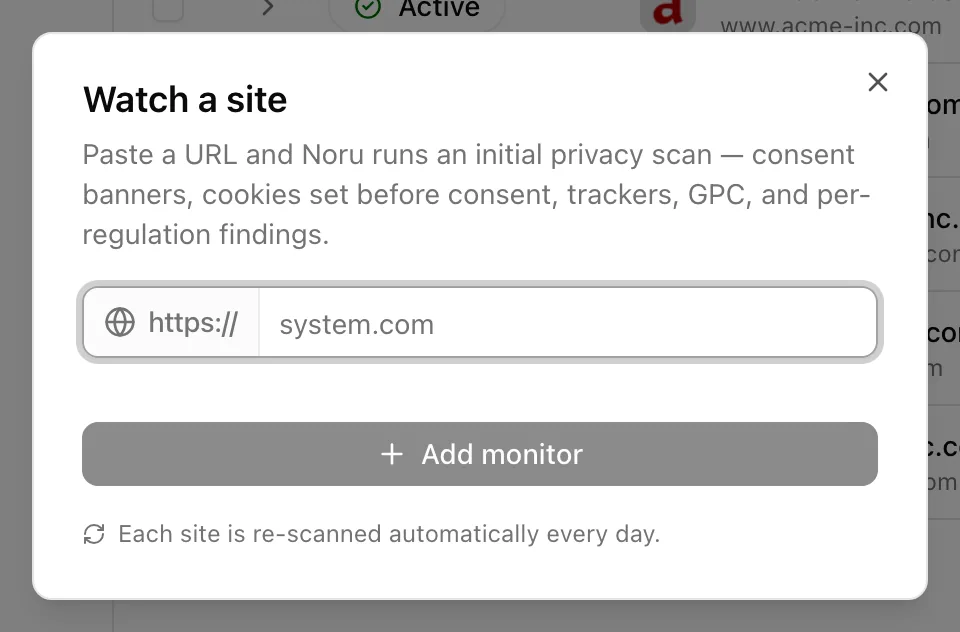
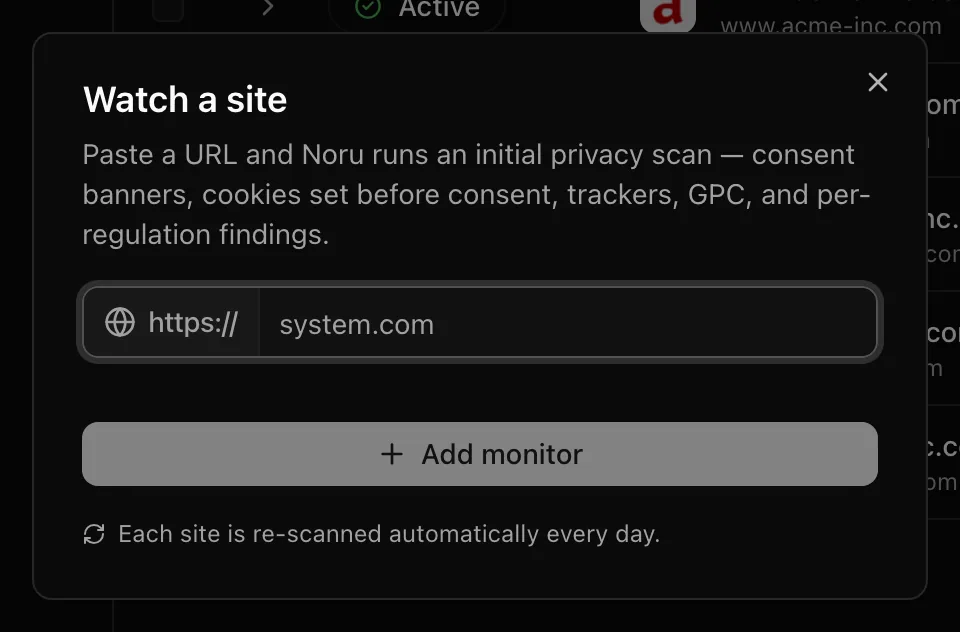
Read a monitor
Click a site. The monitor page has a Latest scan link, Run scan, an overflow with Visit site and Delete monitor, and a Scans timeline. Each scan shows its trigger (Initial, Scheduled, Manual) and status (Completed, Failed, Running, Pending). The sparkline covers one compatibility segment: a change to the ruleset, detectors, route, locale, viewport, or scope starts a new segment rather than mixing scores.
Read a scan
The sections below the findings show what the scanner saw: Journey coverage (Preference layer, Artifact lifecycle), Consent behaviour (Consent platform, IAB TCF), Trackers & connection (First request, Cookies without the Secure flag, Global Privacy Control), Policy documents (Privacy policy, Cookie policy, Terms, Do-not-sell / privacy choices), policy-to-cookie alignment (Matched evidence, Observed, not in extracted list, Manual review, Listed, not observed), disclosure coverage, consent bundling patterns (No per-purpose choice on the banner, One tick, several purposes, Consent folded into the terms, Consent required to continue, Pre-ticked consent, Every advertising purpose already consented), and vendor reconciliation against your register (Loaded before consent, Recipient outside the EEA, No transfer recorded, Stores data outside the EEA, No DPA recorded, Not in the vendor register).
Rescan or delete
Run scan on a monitor or scan page queues a manual scan ("Scan started — it will appear here when it finishes"); the list offers rescan per row and in bulk. Delete monitor removes the monitor and its entire scan history and cannot be undone.
Statuses and fields
Five signals summarise each scan:
| Signal | Values |
|---|---|
| Banner | Detected, Not found, Not detected |
| Cookies | N flagged, None flagged |
| Trackers | Count observed before consent |
| GPC | Not tested, Not comparable, No testable baseline, Reduction observed, No change observed, Increase observed, Mixed change, Legacy comparison |
| HTTPS | Secure, Not secure |
The overview's watched-sites posture is Healthy, At risk, Failing, Not assessed, or Awaiting scan. A failed scan states its reason: an HTTP error, a blank page, a bot challenge, a consent wall, or missing evidence.
Tips and gotchas
Set the regulations under Privacy settings before reading findings. Legal scope on every scan links there, and a site judged against the wrong regimes produces the wrong fixes.
There is no pause action. Paused is a status bucket you may meet, but stopping scans for a site means deleting the monitor and its history.
What Noru does not do
The scanner sees one route, one persona, one region, and only what is public. It cannot see lawful basis, retention, or contracts; it reads notice contents only by static extraction; it does not log in, follow server-side transfers, or retain raw page bodies. Regional and per-visitor variance, Google's consent-mode behaviour among them, can produce a different page than the one your customers see. A grade is a technical posture, not a finding of compliance.
Related
Last updated on