

Vendor register
Add vendors, set owners and status, gather security documents, and merge duplicates.
What it is
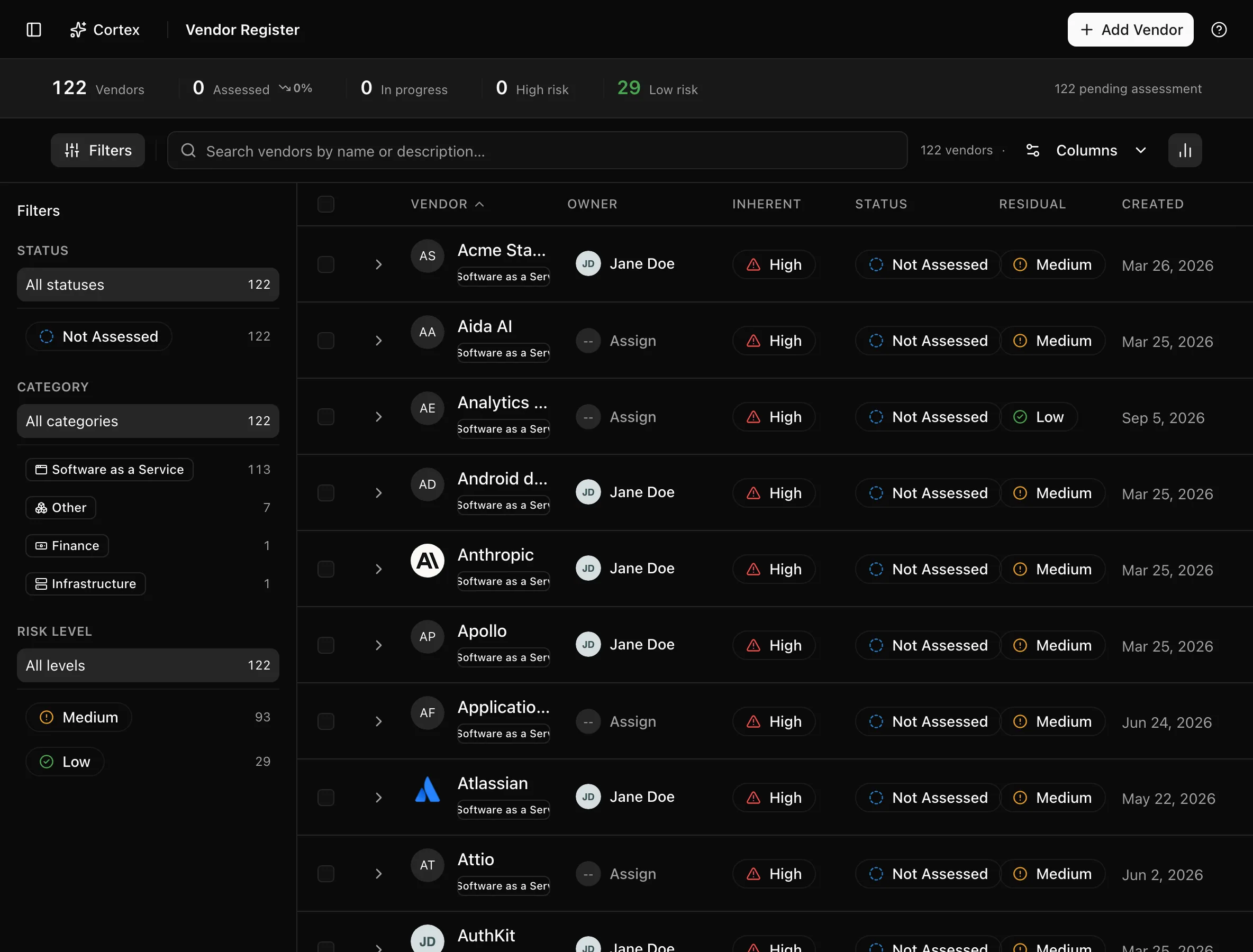
The vendor register is your list of third parties: who they are, who owns the relationship, how risky they are before and after mitigation, and how far along their assessment is. From here you add vendors, send questionnaires in bulk, and tidy duplicates. Everything deeper (risk narrative, privacy terms, evidence, assessments) lives on the vendor detail page.
Where to find it
VendorsVendor Register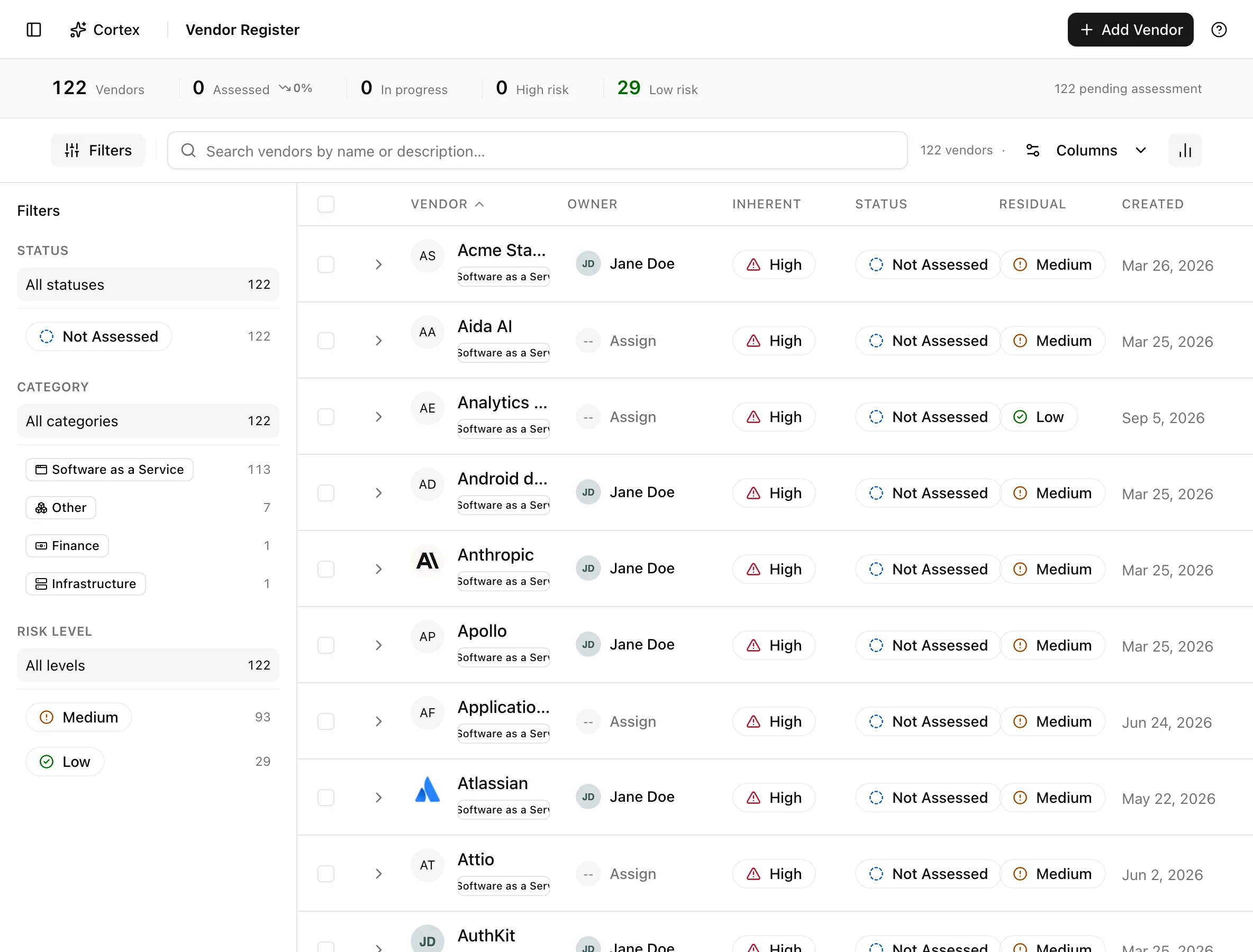
Key actions
Add a vendor
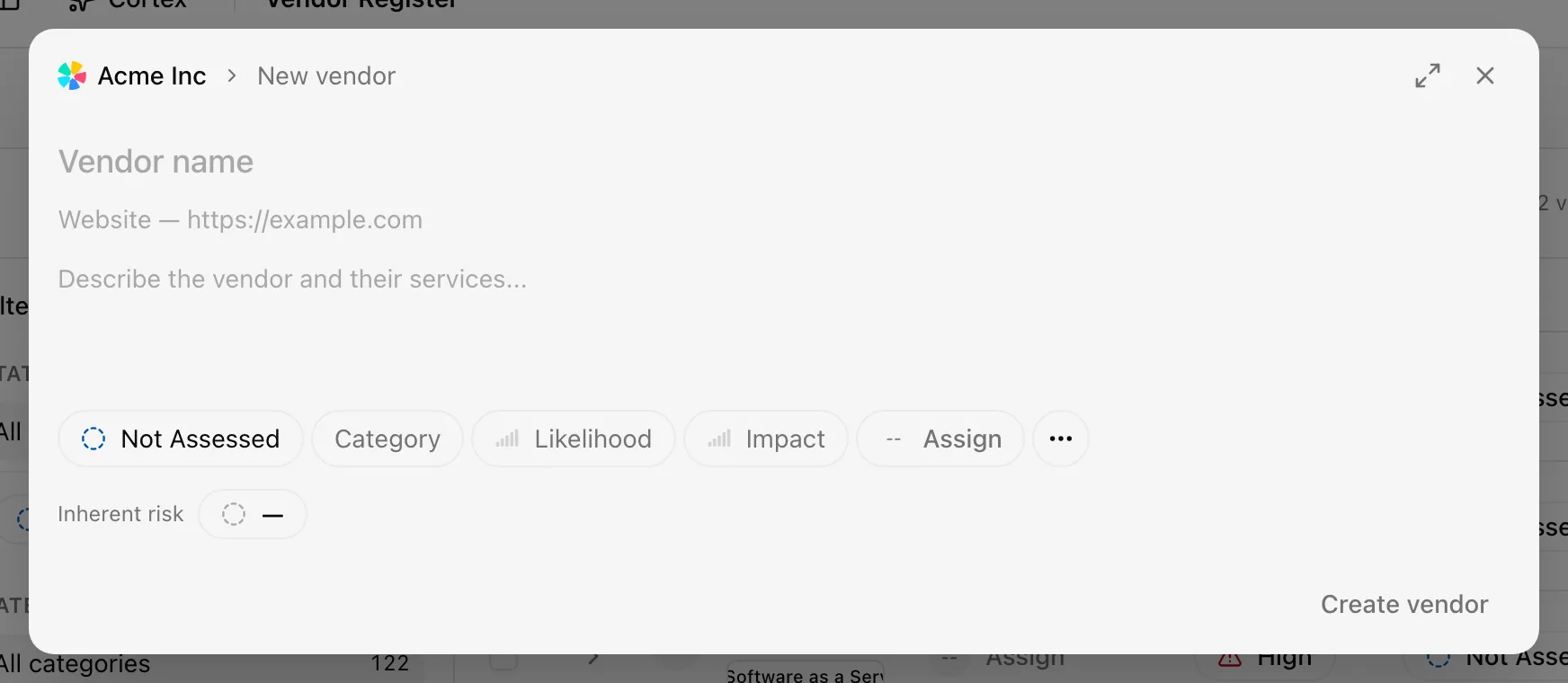
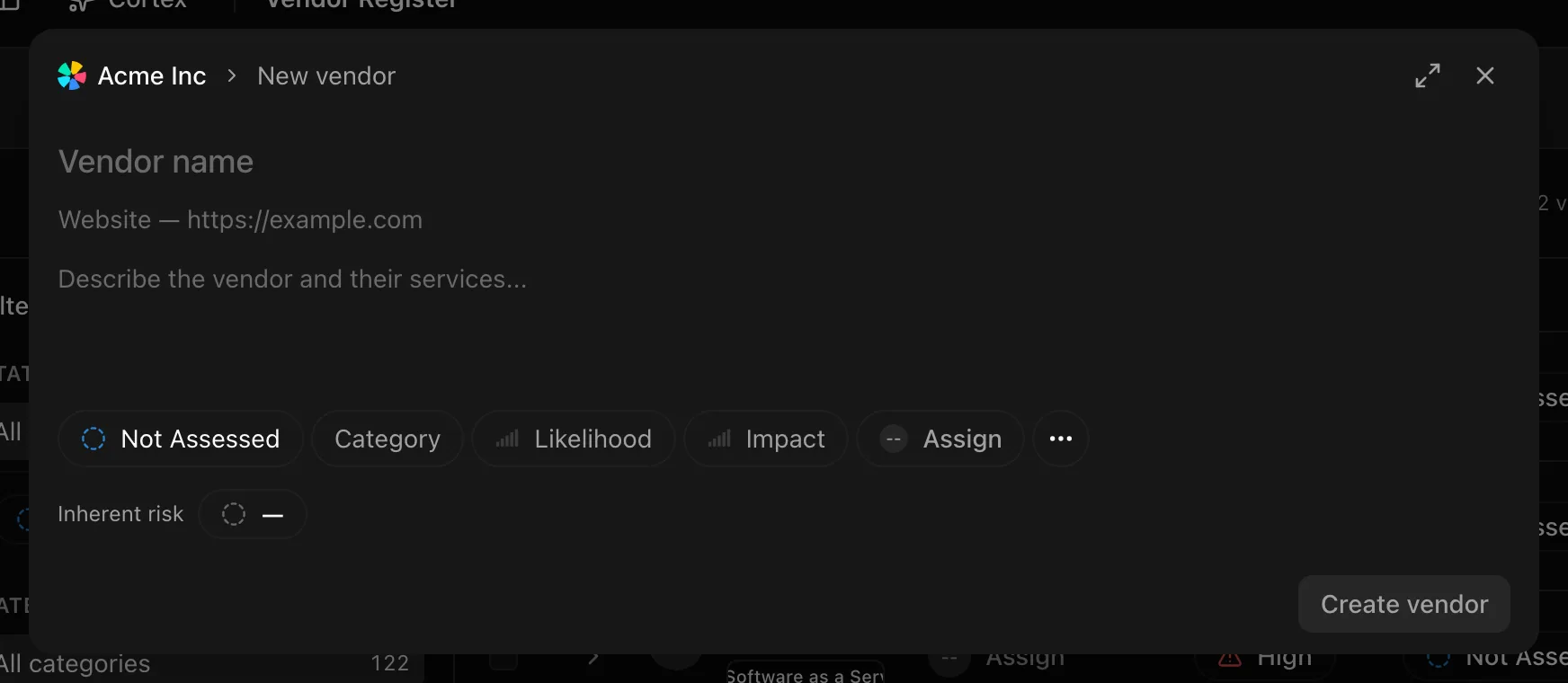
The empty register reads "No vendors yet" with an Add Vendor button.
Set the owner
Click the Owner cell in a row and pick a member. Editors and admins only.
Send an assessment to several vendors
Vendors without contacts fail in a bulk send. The bulk path cannot pick individual recipients or set a message; open the vendor's Assessments tab for that.
Merge duplicates
To undo, open Merged Vendors from the hero menu and click Unmerge vendor; the toast "… is now a separate vendor" confirms. Opening a merged vendor's old id shows "This vendor includes the merged record …" and lands on the primary.
Regenerate AI risk context
Regenerate risks in a vendor's hero menu queues a background run that gathers the vendor's public security documents first and then drafts the risk text you see on the Risk tab from those documents and your organization context. The same run also assesses vendors that are still unassessed.
Delete vendors
Select rows and click Delete for the Delete Vendors dialog, or use the single-vendor Delete Vendor dialog, which requires typing the vendor name.
Statuses and fields
| Status | Meaning | Set by |
|---|---|---|
Not Assessednot_assessed | Added, no assessment done. | Default on create |
In Progressin_progress | An assessment or review is underway. | You |
Assessedassessed | Assessment complete for this cycle. | You |
Risk level for vendors uses the same 1–5 likelihood and impact scales as the risk register but different thresholds:
| Vendor risk level | Score (likelihood × impact) |
|---|---|
| High | 15 or more |
| Medium | 8–14 |
| Low | 7 or less |
Columns: Name & Description, Owner, Inherent Risk, Status, Residual Risk, Created. An expanded row adds Category, Website, Updated, Contacts, and the full Description. The insight strip counts Vendors, Assessed, In progress, High risk, and Low risk; filters are Status, Category, and Risk level.
Tips and gotchas
Add contacts before anything else. Bulk assessment sends, reminders, and clarification requests all need a contact email; a vendor without one silently drops out of bulk sends.
Merging moves records. Evidence, assessments, contacts, and personnel observations from the secondary attach to the primary, and the secondary disappears from the register until you unmerge. Check the comparison groups before confirming.
AI-gathered documents are public documents: privacy policies, terms, trust pages, DPAs, subprocessor lists, and the like, fetched from the vendor's website. They arrive on the vendor's Evidence tab marked as AI-gathered and are only as current as the vendor's site.
What Noru does not do
Noru does not decide whether a vendor is acceptable, does not sign a DPA, and does not contact vendors except through the questionnaire and reminder emails you trigger. The AI risk text is a draft based on public documents and your organization context; it has not seen the contract. Vendors are not created automatically from data-source syncs.
Related
Assessment status and lifecycle stage
The list and vendor detail use the same Assessment status: Not Assessed, In Progress or Assessed. Lifecycle stage describes the supplier relationship and is separate from assessment progress.
Select vendors and choose Assessment status to record a status for the selection in one operation. This records your review status; it does not run an assessment or send a questionnaire. Use Send assessment to send an active questionnaire template to saved vendor contacts, up to 100 vendors per send. Successful vendors are deselected; failed vendors remain selected for follow-up.
Last updated on