

Vendor questionnaires
Build templates, send assessments, and review answers with AI assistance, including the vendor's portal.
What it is
Questionnaires are how you ask vendors structured questions and keep their answers as evidence. A template defines the questions; an assessment is one template sent to one vendor, answered in a public portal, and reviewed by you question by question. AI reads the vendor's gathered documents to suggest answers to the vendor and to score the submission for you.
Where to find it
VendorsQuestionnaires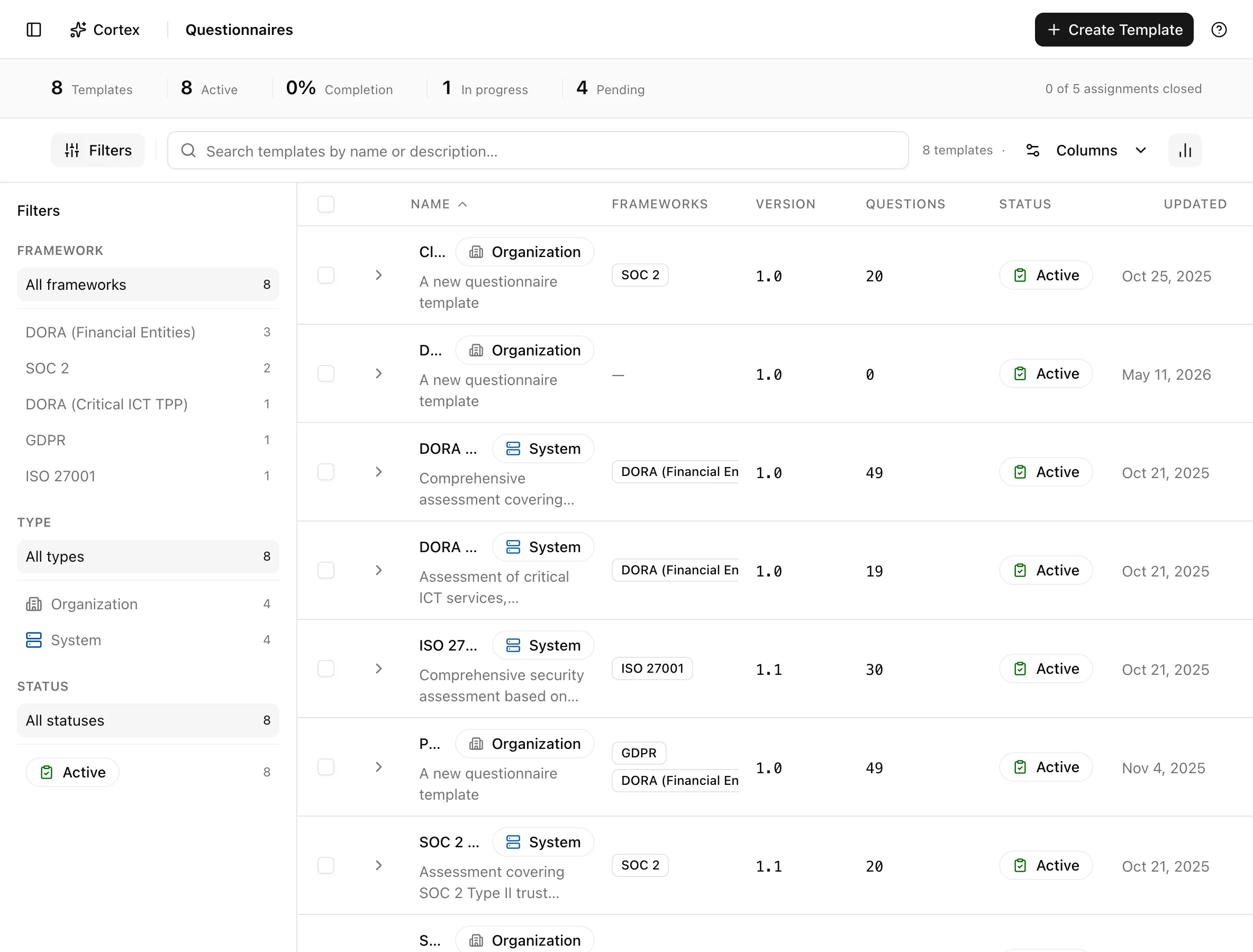
Key actions
Create and build a template
Activate a template
Set the status to Active in Template details and save. Only active templates appear in the assign dialog and in bulk sends. Delete Question removes one question; Delete Template removes the whole template and cannot be undone.
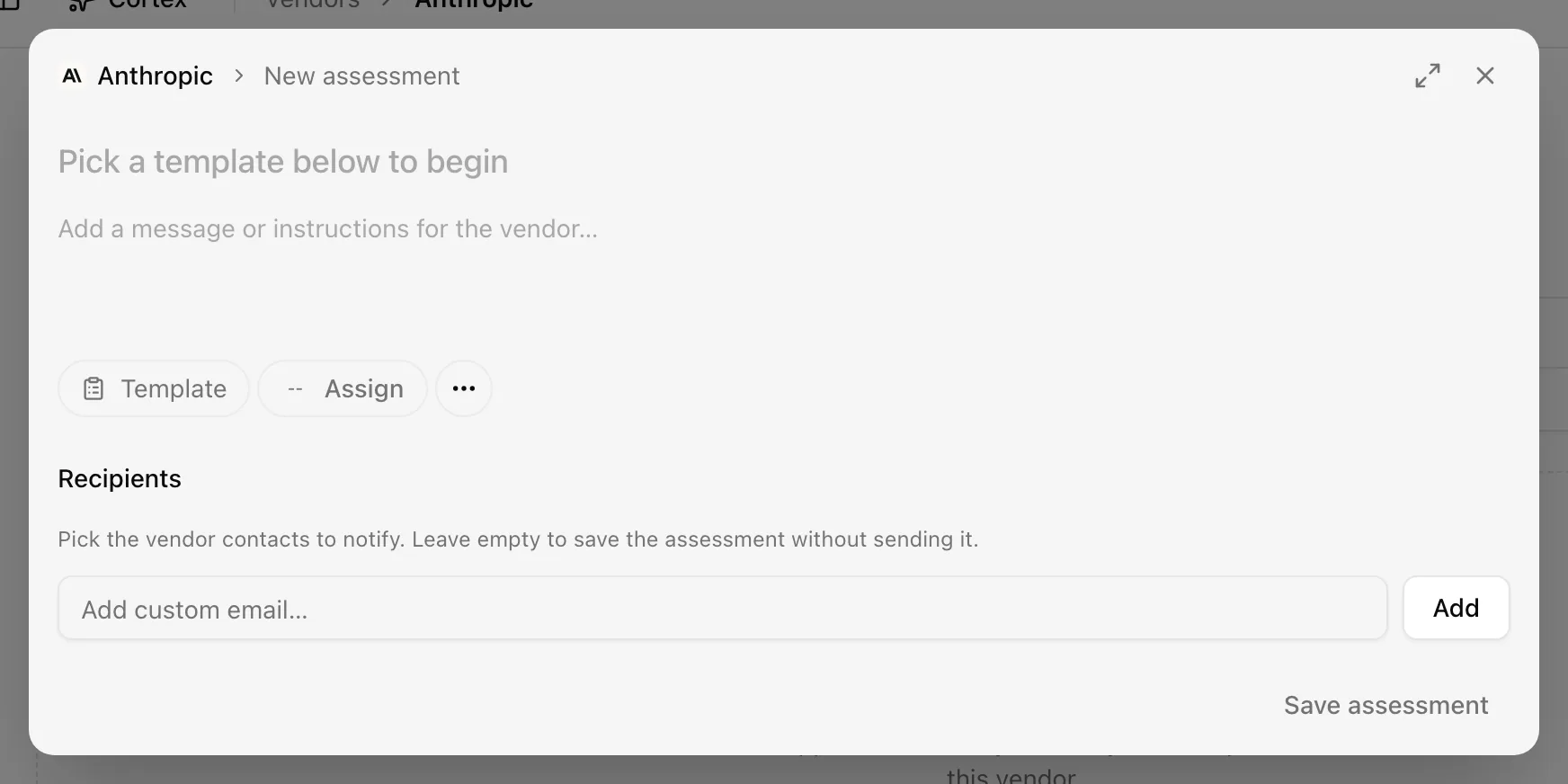
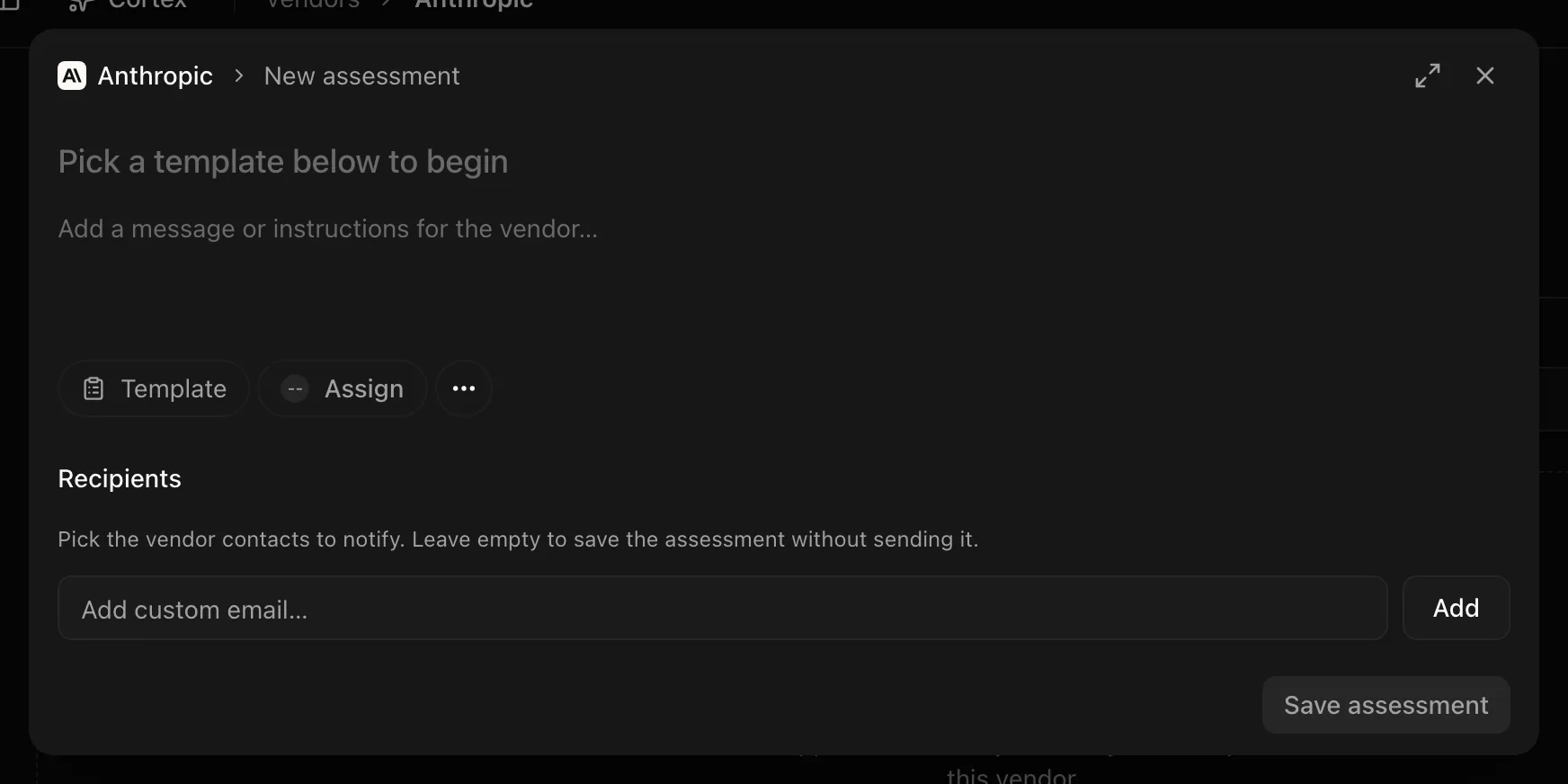
Assign a questionnaire to a vendor
What the vendor sees
The invitation email carries a link that verifies a one-time token and then
opens the portal at /vendor/assessment/[assignmentId]. The vendor sees the
questions, any "AI-suggested answers" drawn from their public documents, and
can attach files. Submit is blocked until every required question is
answered. Errors the vendor may meet: Access denied (missing, invalid, or
expired link, or the wrong assessment), Assessment submitted (already
done), and No questions found.
Review responses
Clarify emails the vendor and moves the assessment back to In Progress; when they resubmit, only the clarified questions return to pending.
Use the AI assessment
On submission Noru runs an AI assessment automatically; you can rerun it on demand (toast "AI assessment completed"). It shows a Fulfillment Score, an Analysis, and Concerns. Per question, an AI-Suggested Answer with High, Medium, or Low Confidence and Source Documents points at the gathered vendor documents that support it.
Remind, copy the link, delete
From the vendor's Assessments tab: Send reminder (requires recipients), Copy assessment link, and Delete with the Delete Assessment confirmation.
Statuses and fields
| Status | Meaning | Set by |
|---|---|---|
Pendingpending | Sent or saved; the vendor has not opened it. | Assign |
In Progressin_progress | The vendor has started, or a clarification was requested. | Vendor portal or Clarify |
Submittedsubmitted | All required answers are in; AI assessment has run. | Vendor portal |
Reviewedreviewed | You completed the review. | You |
Expiredexpired | The portal link passed its expiration. | Time |
An Overdue chip appears on any row past its due date.
| Question type | Vendor enters |
|---|---|
| Yes/No | One of two |
| Text | Free text |
| Single Choice | One option |
| Multiple Choice | Several options |
| Date | A date |
| Number | A number |
| File Upload | A file, stored as vendor evidence with source Assessment |
| Review decision | Effect |
|---|---|
| Approve | Answer accepted |
| Clarify | Vendor is emailed; assessment returns to In Progress |
| Reject | Answer recorded as unacceptable; nothing is sent |
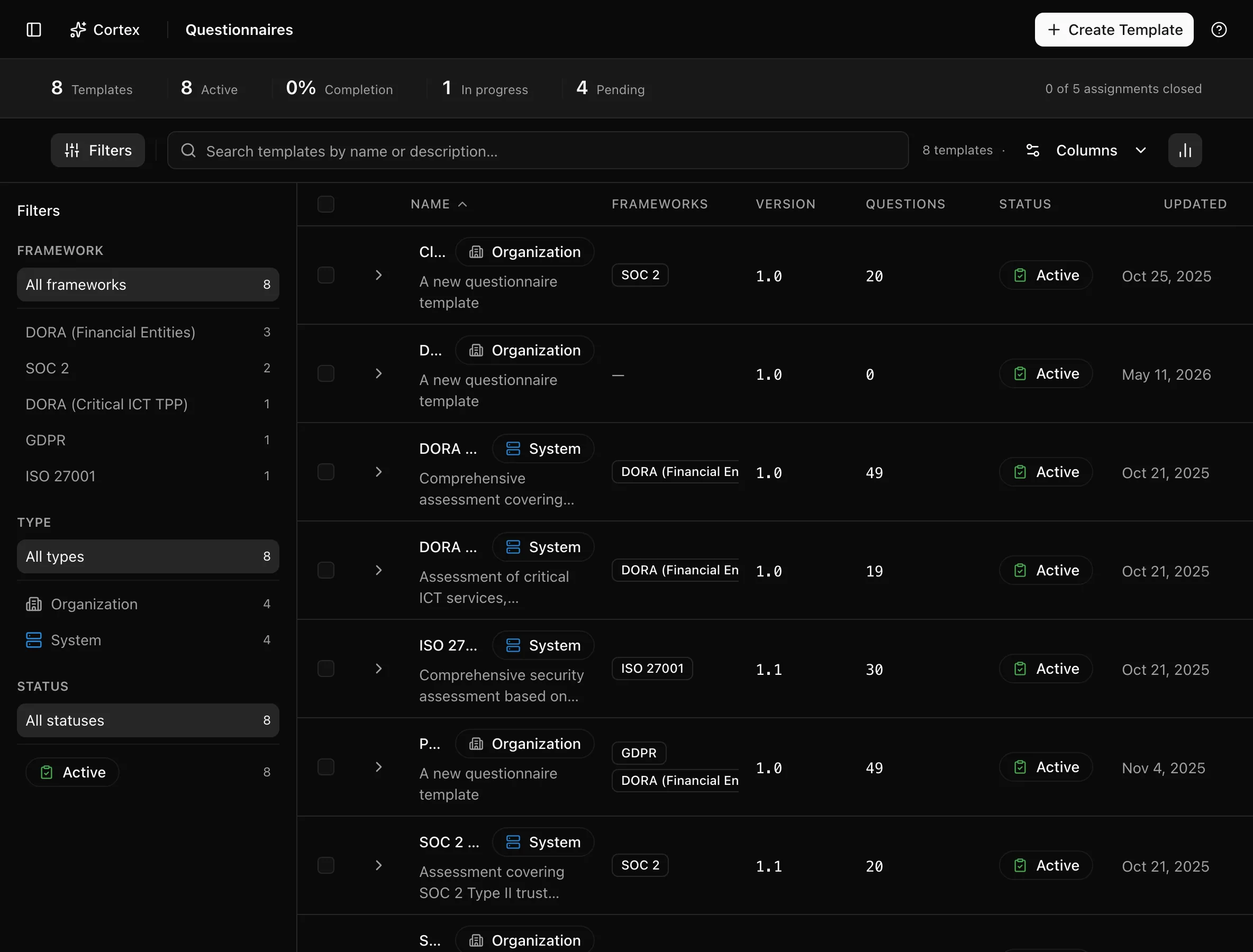
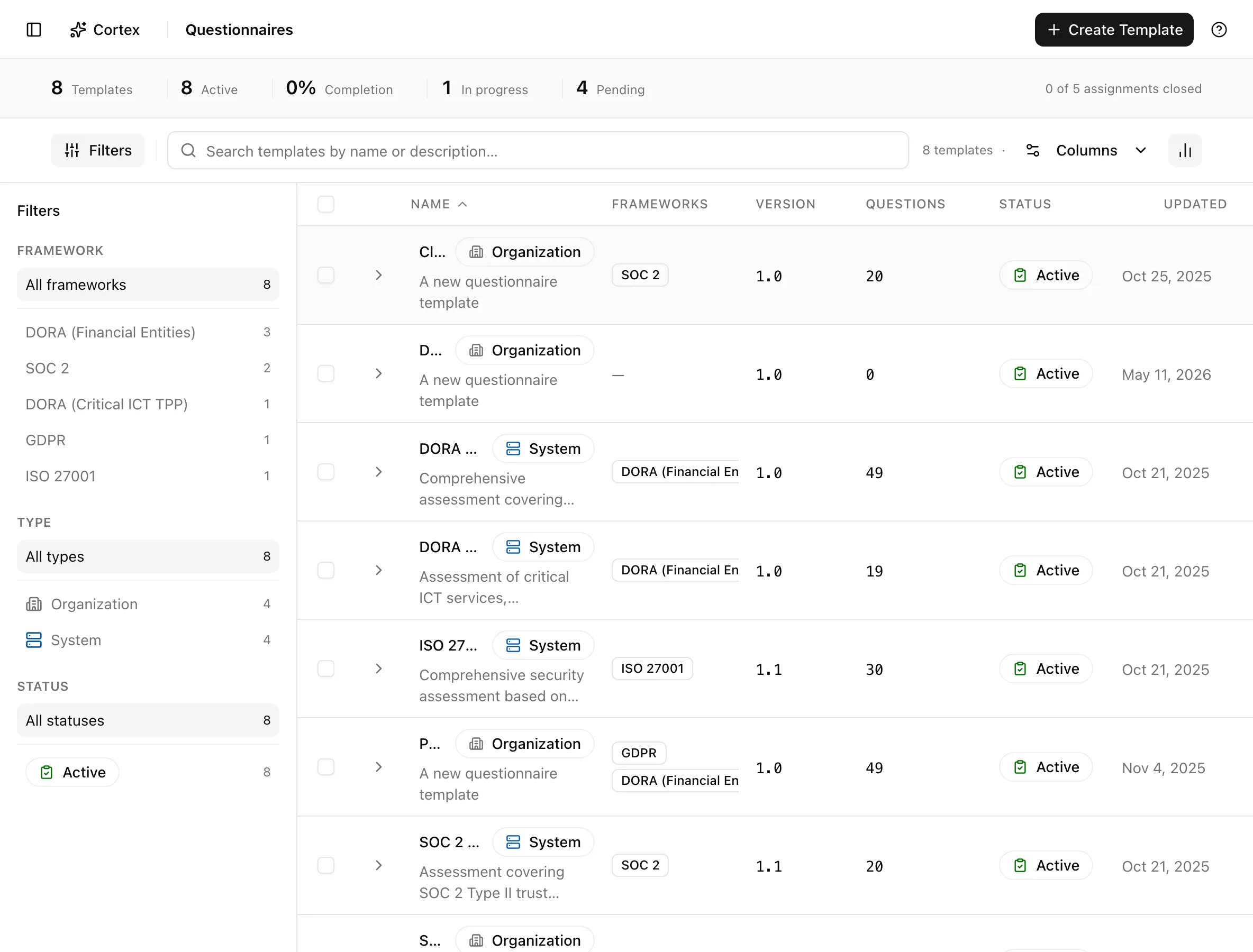
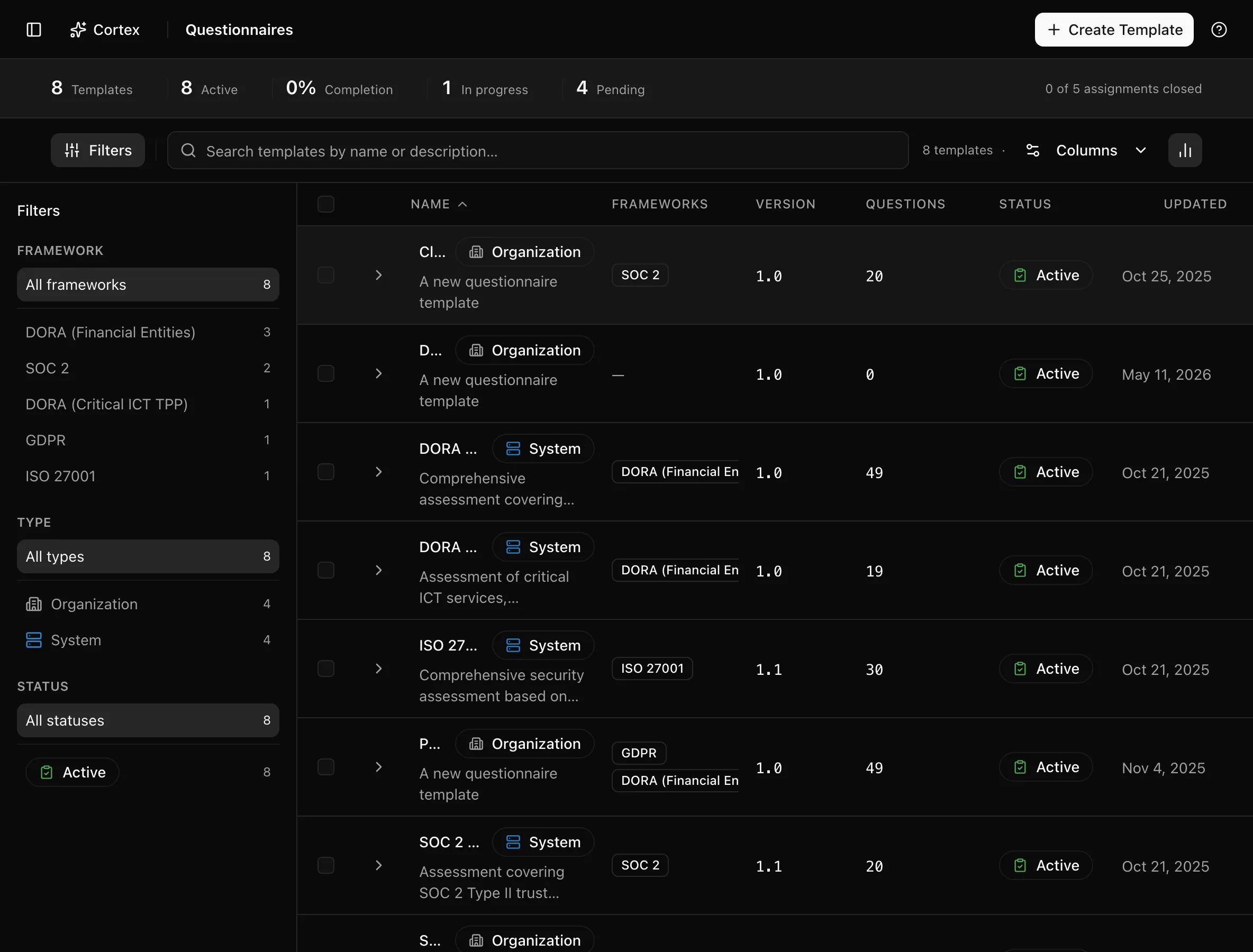
The templates list shows Name, Frameworks, Version, Questions, Status, and Last updated, with filters Framework, Type, and Status. The insight strip counts Templates, Active, Completion, In progress, and Pending. Bulk Delete templates skips System templates.
Tips and gotchas
The portal link is bearer access: whoever has it can answer. Set a short Portal Link Expiration, send to named contacts rather than shared inboxes, and prefer Send reminder over forwarding the link yourself.
Keep templates short and reference a control on every question. Thirty well-referenced questions get answered; two hundred generic ones get ignored, and the control reference is what turns an answer into evidence.
System templates are maintained by Noru. Base your own template on one to customise it; the original stays available to every organization.
What Noru does not do
The AI assessment scores how completely the answers address the questions against the documents it found; it does not verify that the answers are true, and it has not read the contract. AI-suggested answers are offered to the vendor as a convenience; check the Source Documents before you approve one. Noru does not chase vendors on its own: reminders go out when you click Send reminder.
Related
Last updated on