

Policy editor
Edit policy content, manage versions and review cadence, link controls, and act on Cortex change proposals.
What it is
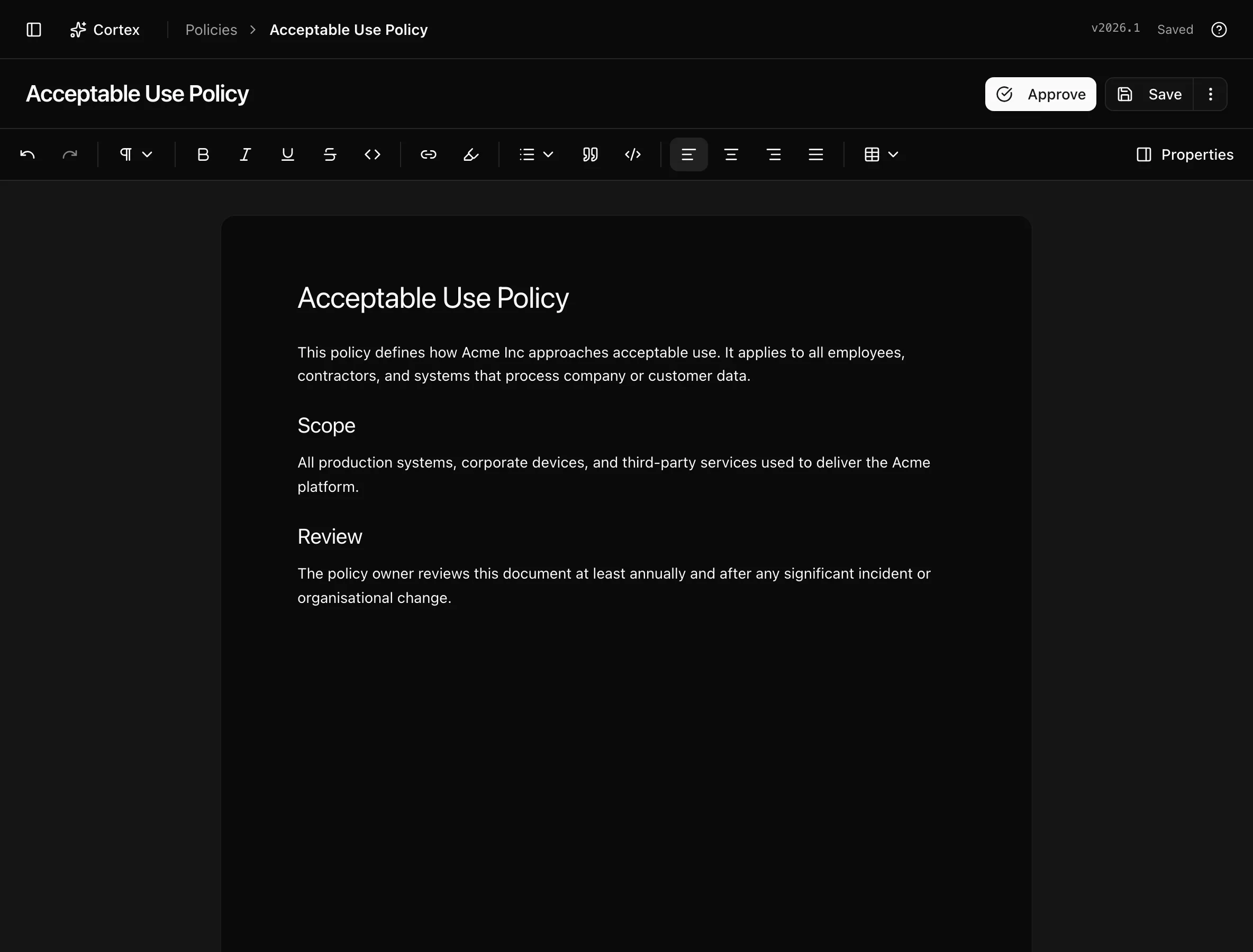
The policy editor is where a policy is written, revised, versioned, and approved. The document itself is a rich-text editor that saves as you type. Beside it sit the properties an auditor reads (status, owner, version, review cadence), the controls the policy satisfies, and a history of every change. Approved policies are locked; revising one means creating a new draft version so the approved text stays intact until the draft is approved in turn.
Where to find it
EvidencePoliciesany row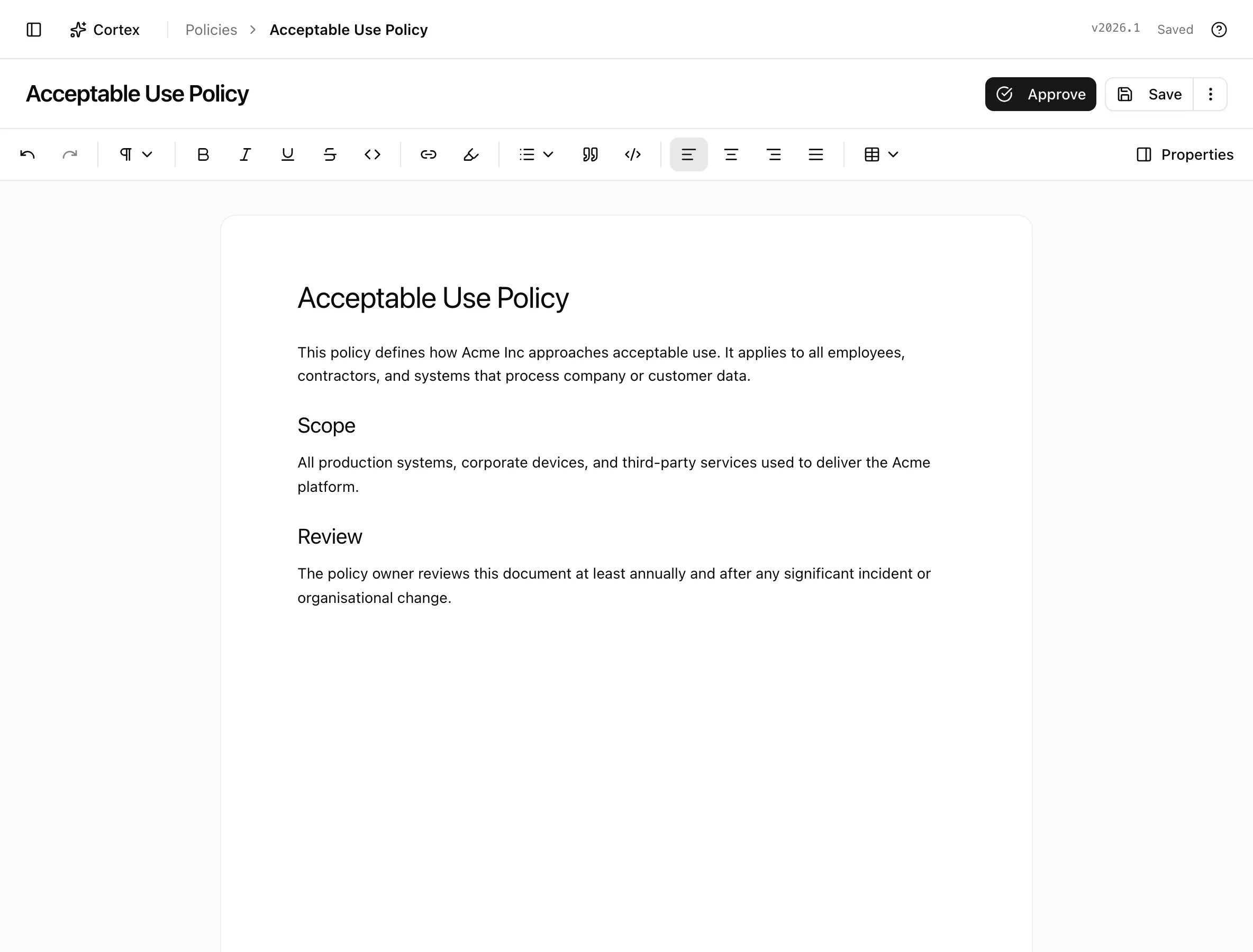
Key actions
Edit and save
Type in the editor. The indicator cycles through "Unsaved changes", "Saving…", and "Saved". Nothing else is needed for a draft, but a save does not create a version; see below.
Set properties
The Properties panel holds Status, Type, Owner, Frameworks, Version, Review cadence (Monthly, Quarterly, Yearly, or As needed), and Next review, which is computed from the cadence. Description is the summary shown on the list page. None of these change the version number.
Link controls
Under Linked controls, Suggest with Cortex asks the assistant for the controls this policy's text supports, and Add manually lets you search and pick. A linked, approved policy fills the "Required policy" slot on each of those controls and raises their coverage.
Approve a policy
Open the action menu and click Approve. The status becomes Approved, the document becomes read-only, and the next review date is set from the cadence. Save as Version before approving if you want the exact approved text pinned as a numbered version.
Create a new draft of an approved policy
Versions and history
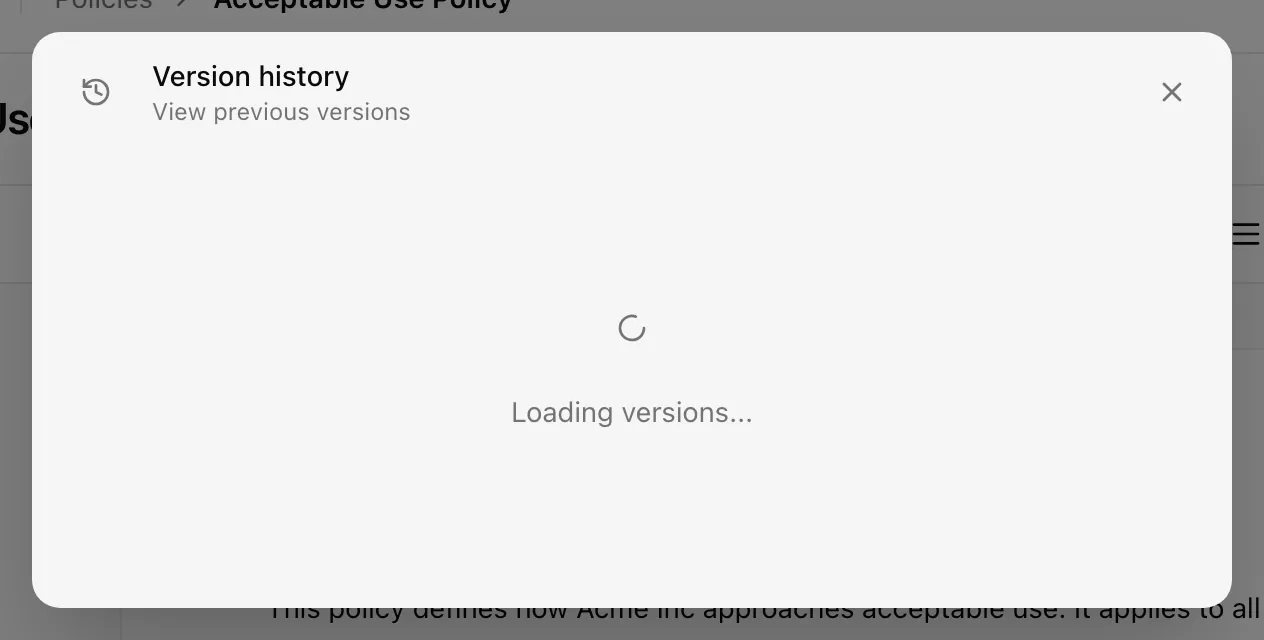
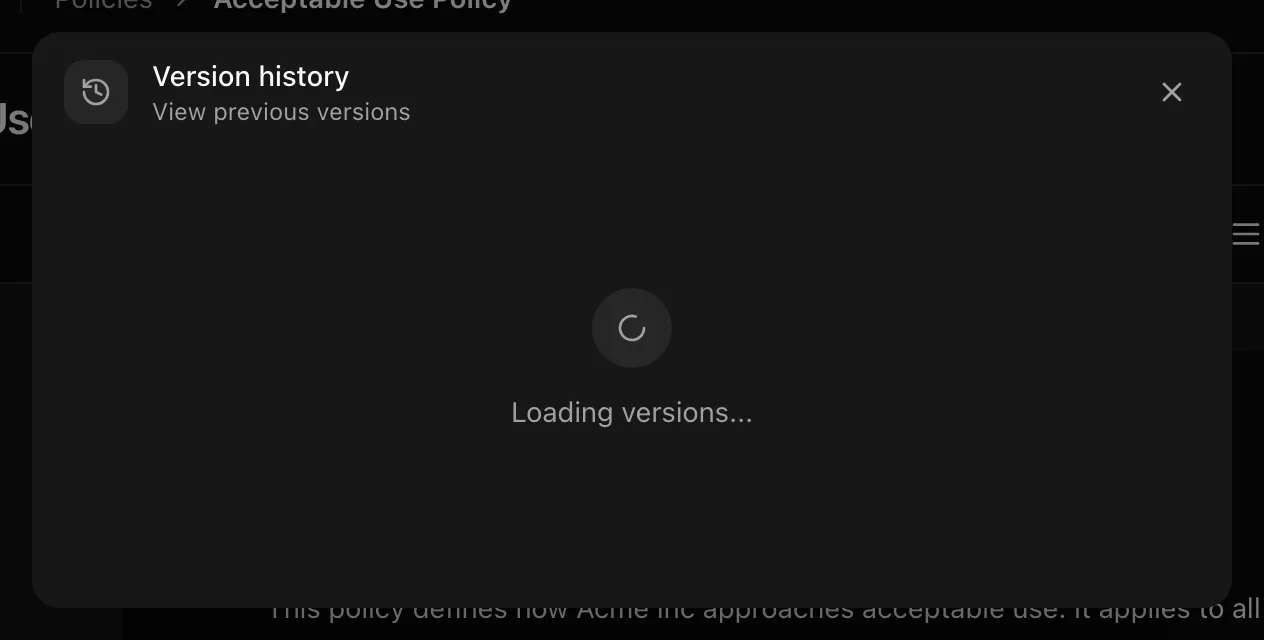
View Versions opens the list ("View previous versions of this policy.") including any "Unsaved draft". Open one to read it, then Restore This Version to make it the current content or Back to Current Version to return. Save as Version pins the current content as a new number. The Policy History dialog lists Created, Updated, Status Changed, Content Updated, and Version Updated events.
Version numbers take the form year dot number, such as 2026.3. They bump only when content changes. Renaming, changing the description, status, review date, owner, or cadence never bumps the version.
Apply a Cortex change proposal
When you ask Cortex to change a policy, it returns a proposal card rather than editing the document.
If the text a change targeted is gone, the card says "The current policy no longer contains the text this change targeted. Ask Cortex to restage the change against this draft." An approved policy needs a new draft before a proposal can be applied.
Use the action menu
| Item | What it does |
|---|---|
| View Versions | Opens the versions dialog |
| Save as Version | Pins the current content as a new version number |
| Discard changes | Drops unsaved edits and reloads the saved content |
| Discard draft | On a draft of an approved policy, restores the approved version |
| Download as PDF (.pdf) | Renders the current content to PDF |
| Regenerate Policy | Asks AI to rewrite the policy from current context; the result is a draft |
| Delete policy | Removes the policy and its control links |
| Approve | Sets the status to approved |
| Create New Draft | Shown on approved policies instead of editing |
Statuses and fields
| Status | Meaning | Set by |
|---|---|---|
Draftdraft | Editable; autosave applies | Creation, Create New Draft, or Regenerate Policy |
Reviewreview | Waiting for an approver; still editable | You |
Approvedapproved | Read-only; revise through Create New Draft | Approve |
Archivedarchived | Retired; kept for history | You |
Tips and gotchas
Regenerate replaces the text
Regenerate Policy rewrites the whole document. On a draft your edits are replaced; save a version first if you may want them back. On an approved policy it produces a new draft and leaves the approved version alone.
Save a version right before approving and right after a major rewrite. The version list then reads as an approval history an auditor can follow.
Autosave writes the draft, not a version. Two people editing the same draft overwrite each other; the history dialog shows who saved last.
What Noru does not do
Noru does not review a policy's content for accuracy or legal sufficiency, and Approve records your decision rather than checking anything. Cortex proposals are suggestions anchored to text; they are never applied without a click. Approval does not notify staff; run an acknowledgement campaign under Training and acknowledgement.
Related
Last updated on