

Control detail
Own a control: set status, link evidence and policies, add notes, and read guidance and history.
What it is
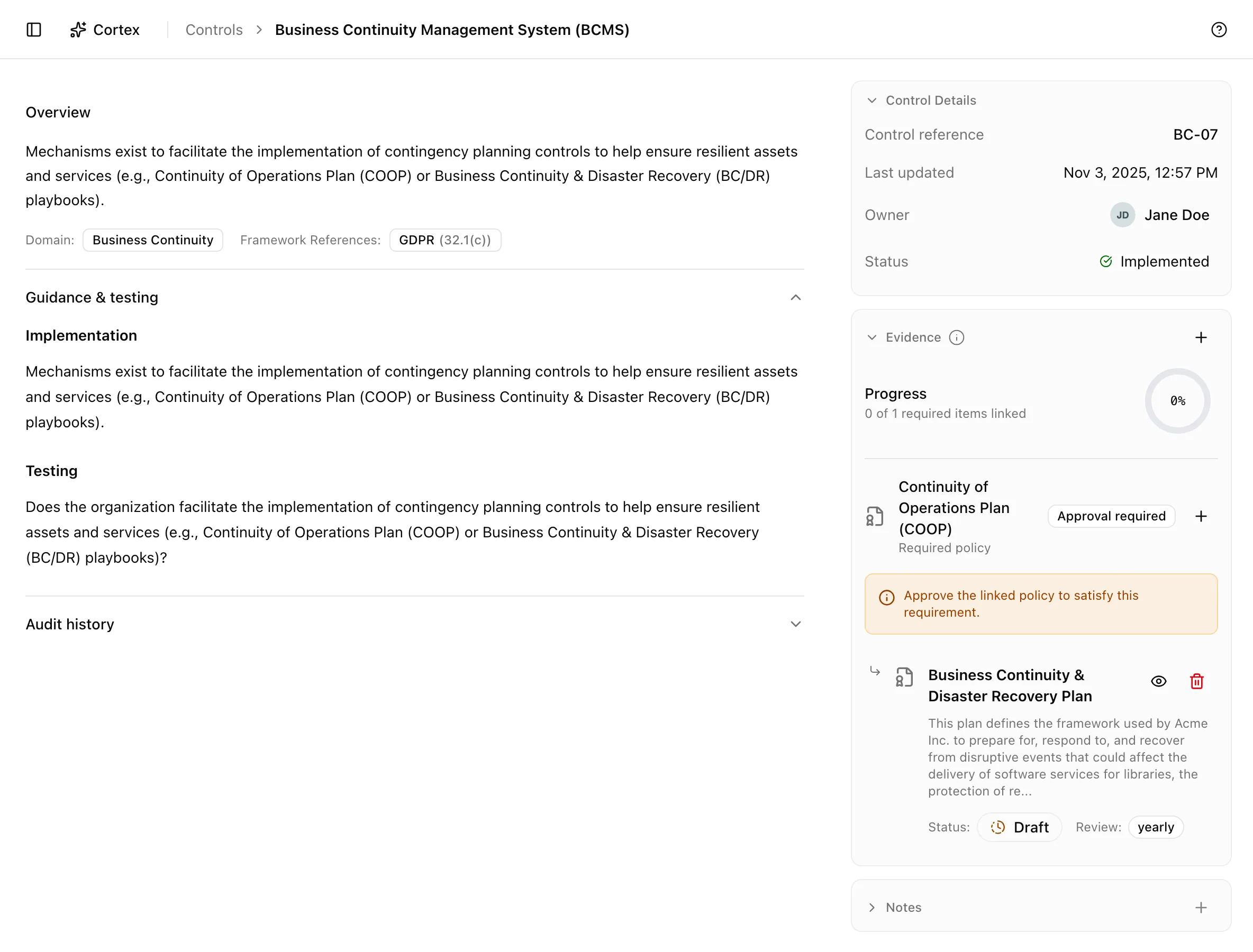
The control page is where one control gets done. It holds the status and owner, the evidence slots the control requires and what fills them, notes for the auditor, implementation and testing guidance, and the history of every status change. Coverage, the number that decides whether a control can be implemented, is computed from what you link here.
Where to find it
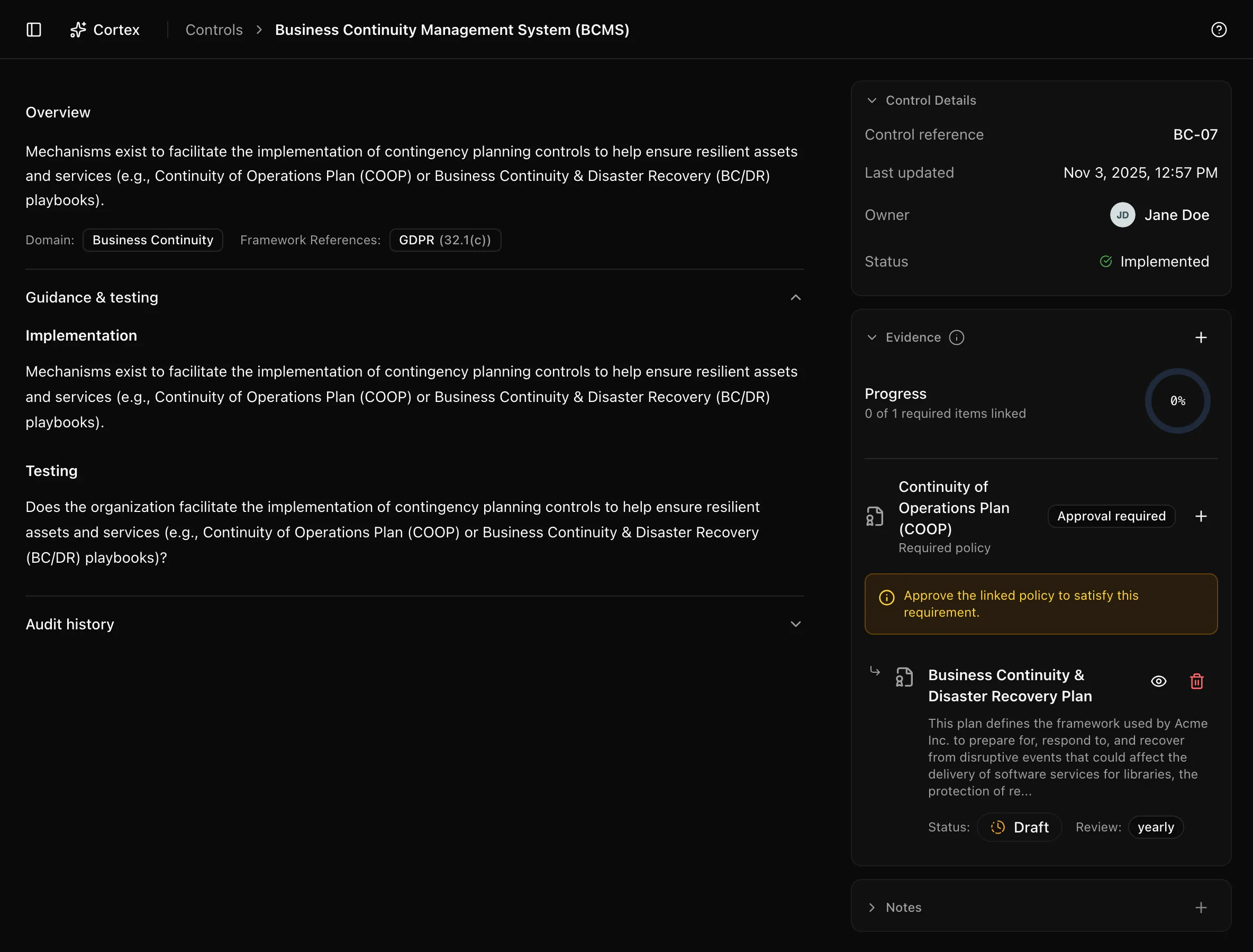
Controlsany rowThe breadcrumb reads Controls followed by the control's name. The page has three sections: Control Details, Evidence, and Notes, plus two accordions, Guidance & testing and Audit history.
Key actions
Set the status
| Status | Use it when |
|---|---|
| Not Implemented | Nothing is in place; the default for a new framework |
| In Progress | Someone owns it and work has started |
| Implemented | The control operates and every required evidence item is linked and valid |
| Pending Review | Evidence lapsed or changed; also set by the coverage engine when coverage drops |
| Not Applicable | The control is out of scope; record the justification in Notes, it feeds the SoA |
Assign an owner
Open the Owner row and pick a member. Owners see the control in Tasks and are the default recipient of review reminders. The Control reference and Last updated rows are read-only.
Link evidence to a slot
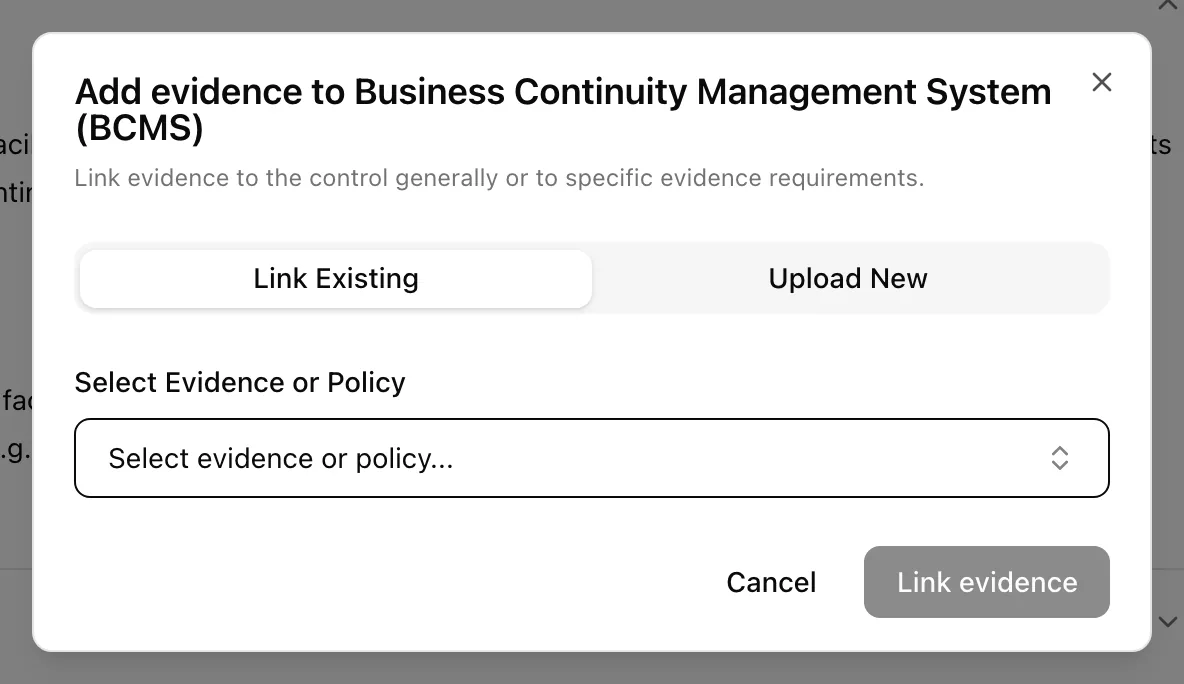
The Evidence section lists the control's required items. Each slot says what it expects; a "Required policy" slot is satisfied by an approved policy linked to the control.
Evidence linked as The control generally appears under "General supporting evidence". It is visible to an auditor but does not count toward coverage.
Write notes
The Notes textarea is free text saved with Save. Use it for implementation detail, the applicability justification, or pointers an auditor will want.
Read guidance and history
Guidance & testing holds implementation guidance, testing guidance, and an applicability note for the control. Audit history lists the review log: who changed the status, when, and from what.
Statuses and fields
| Row | Meaning |
|---|---|
| Status | The five values above; Set status until chosen |
| Control reference | The framework clause or criterion this control maps to |
| Last updated | Time of the last change to the control or its links |
| Owner | The accountable member |
| Coverage | Satisfied required items divided by required items; a control with no requirements counts as 100% |
The coverage rule
Coverage counts only qualified evidence. Uploaded files, links, and notes qualify. Evidence synced from data sources qualifies. Platform register rows, such as the personnel directory appearing as evidence, do not, with one exception: the assets register satisfies the asset inventory control once at least one asset exists. Links from other modules never qualify. When coverage hits 100% the control becomes Implemented on its own; when an implemented control's coverage drops, it becomes Pending Review. Archived and not applicable controls are never changed automatically.
Tips and gotchas
Approve the policy before chasing the rest. One approved policy can fill the "Required policy" slot on every control that expects it.
Deleting evidence from the vault removes it from every control it was linked to, and coverage drops on each of them. Check Linked controls in the evidence drawer first.
Viewers can open the page, read notes, and expand the accordions, but every control is disabled for them.
What Noru does not do
Noru does not judge whether linked evidence actually demonstrates the control; it checks that a slot is filled with evidence of the expected kind and that the evidence is valid. A control at 100% coverage is complete in Noru's terms, not necessarily in an auditor's. Notes are not versioned.
Related
ISO 27001 Statement of Applicability
See Statement of Applicability (SoA) for the 93-row Annex A export, how applicability and justification are derived, MCP access, and retaining a reviewed snapshot against RM-10.
Last updated on