

Evidence vault
Upload, import, validate, filter, and inspect evidence, and see how automatic evidence arrives.
What it is
The evidence vault is every artifact that can prove a control operates: files and links you upload, notes you write, and automatic evidence that data sources sync on a schedule. Each item has a status, a type, the controls it is linked to, and an integrity digest recorded at capture. Control coverage is computed from what is here, so the vault is the source of most of the numbers on the dashboard.
Where to find it
EvidenceEvidence Vault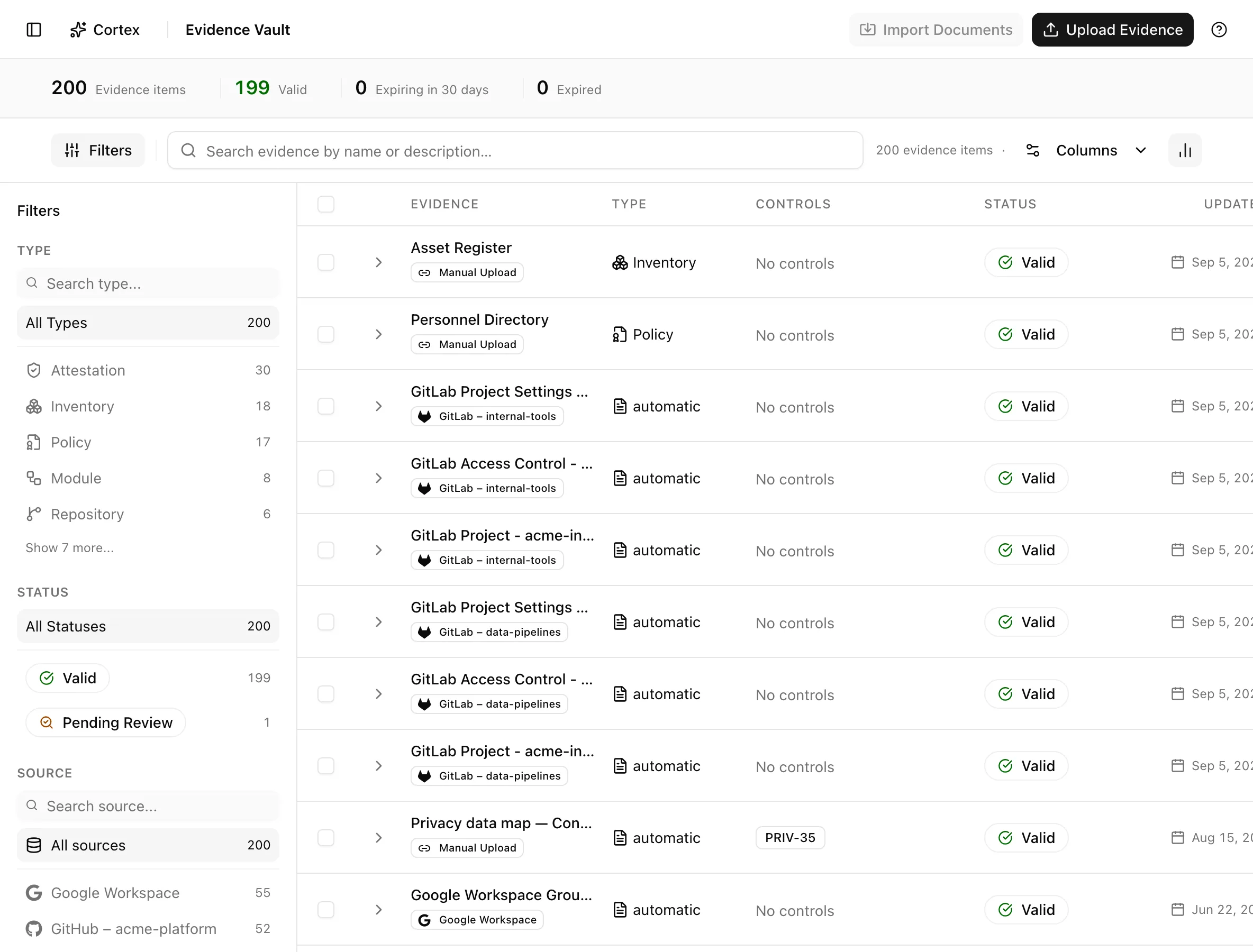
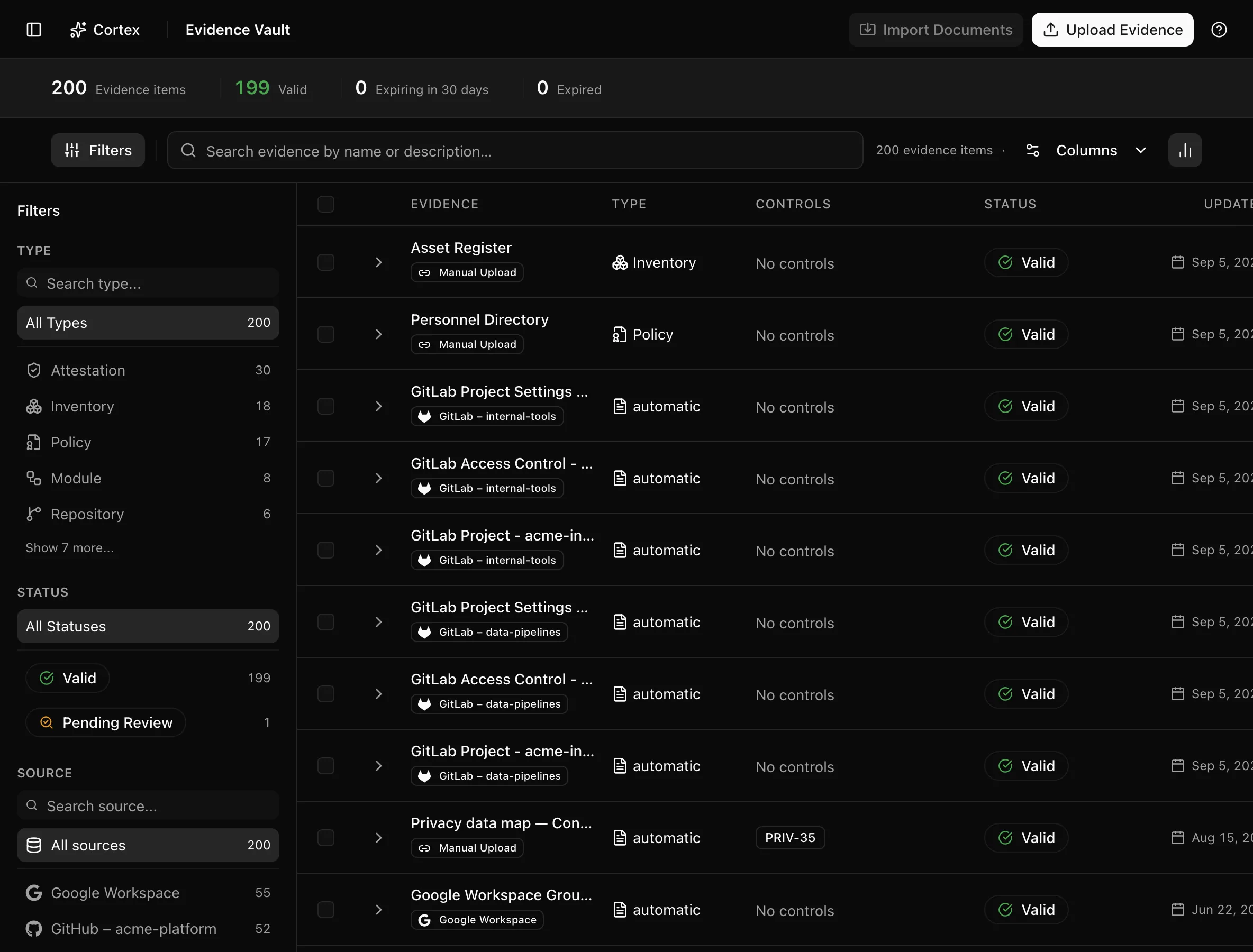
The insight strip counts Evidence items, Valid, Expiring in 30 days, and Expired. The header has Upload evidence; when a document integration has found files, Import documents in its ⋯ menu.
Key actions
Upload a file
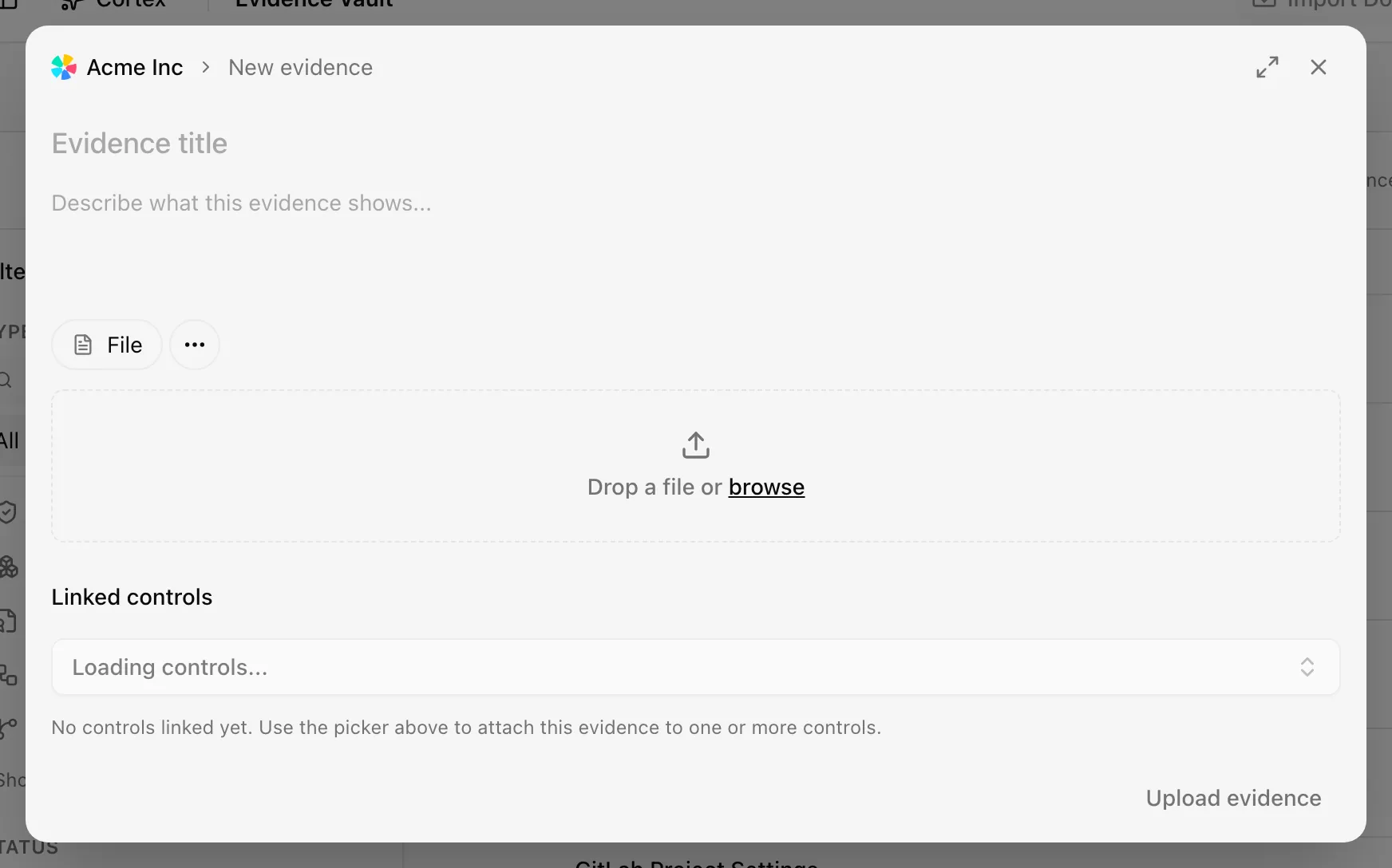
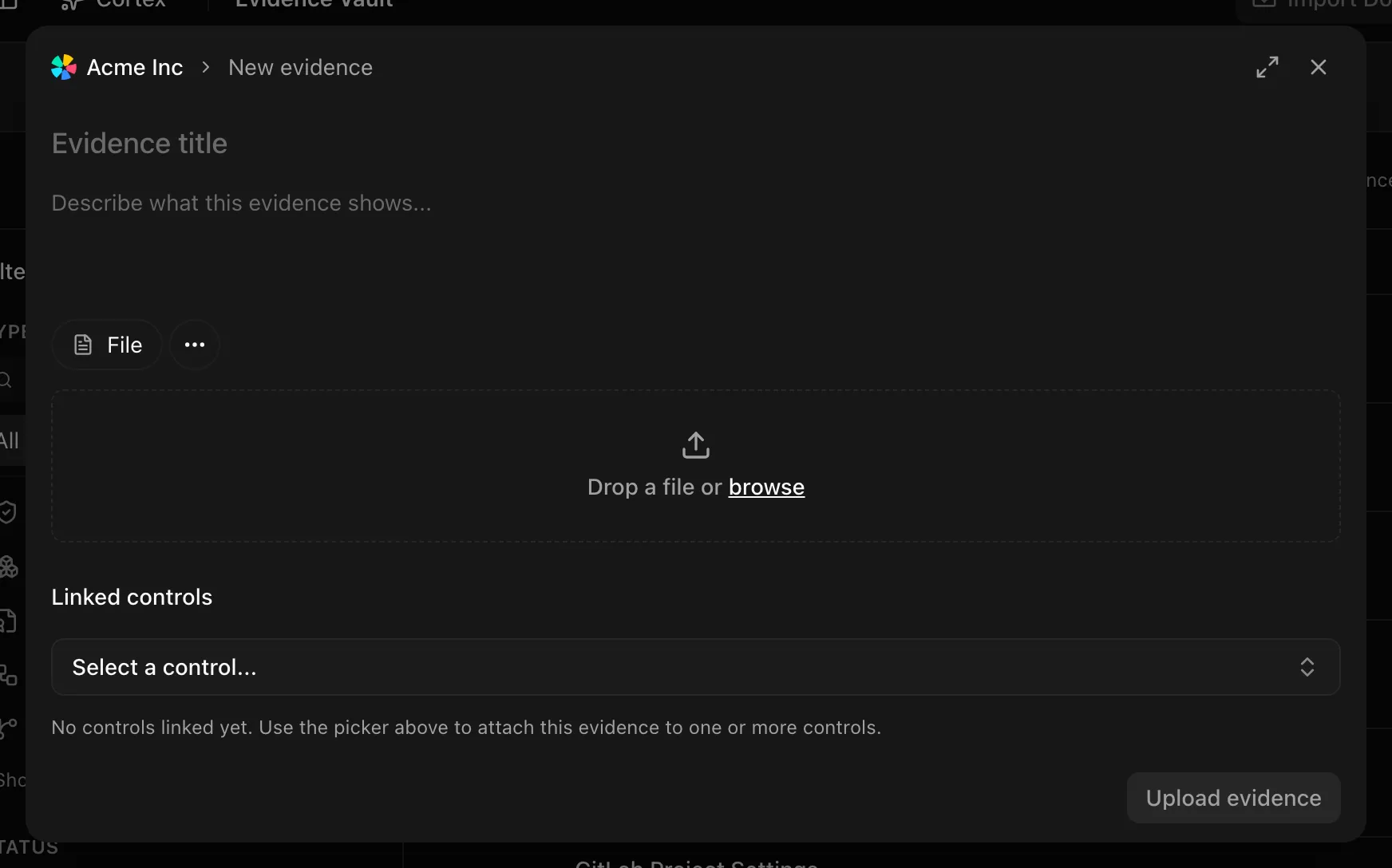
Import detected documents
When a document integration such as Google Drive or SharePoint finds files that look like evidence, a Documents detected banner appears with Import documents, and Import documents in the header's ⋯ menu becomes enabled. Confirm in the Import Documents dialog with Import. Imported rows arrive with their integration named in the Integration column.
Search and filter
Search reads "Search evidence by name or description…". Filters are Type, Status, and Source; columns are Name & Description, Integration, Type, Controls, Status, and Last Updated.
Inspect an item
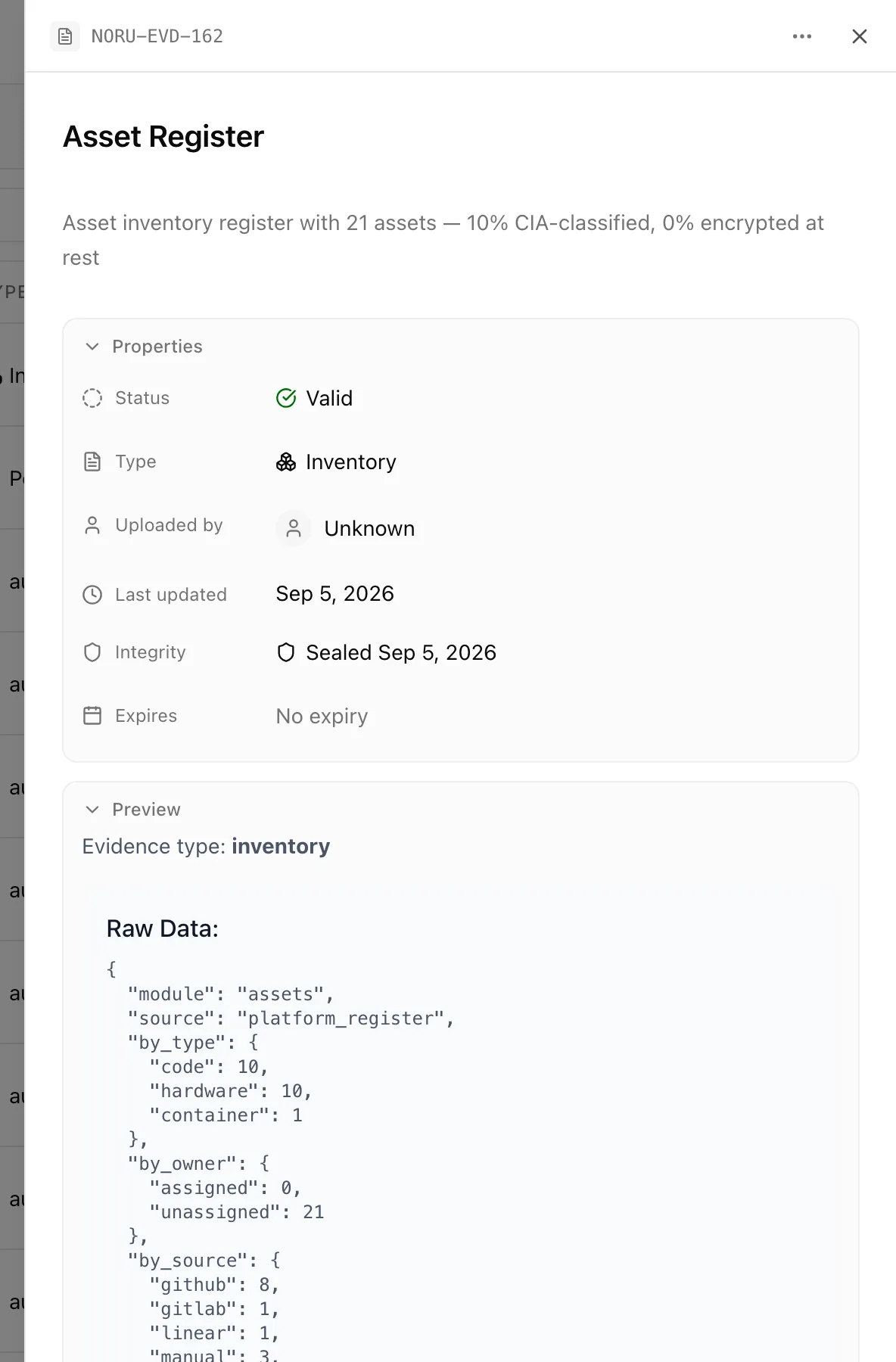
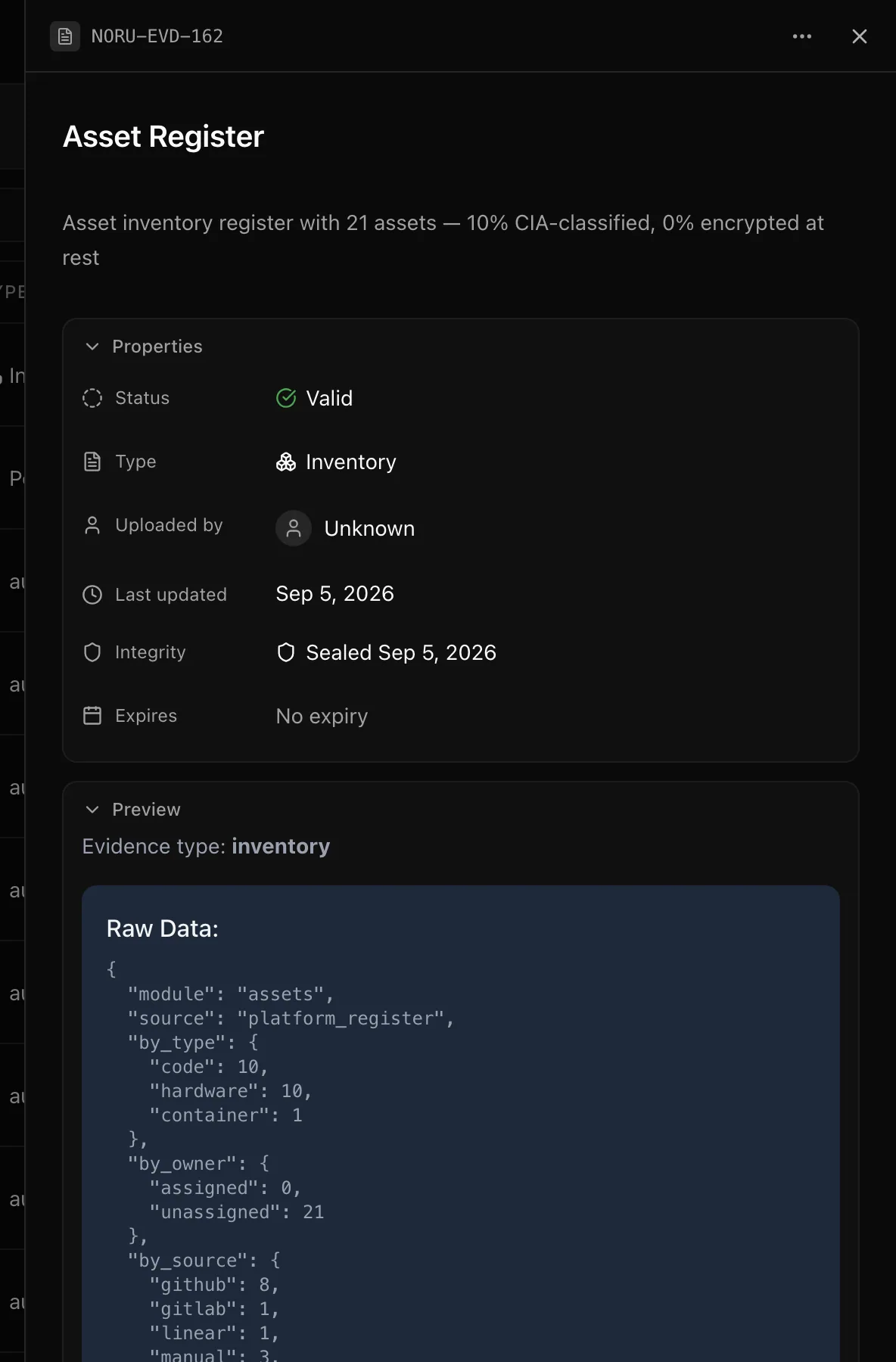
Click a row to open the detail drawer. Its Properties panel shows Status, Type, the data source and sync time or who uploaded it, the Evidence link, Last updated, and Expires ("No expiry" when unset). Below sit the Integrity row, a Preview rendered for the type (PDF, image, JSON, text note, URL, GitHub and GitLab payloads, rich text), Linked controls, a notes section ("Implementation notes", or "Text content & notes" for notes), and a timeline starting at Uploaded. The menu has Copy ID and Delete, which reads Delete automatic evidence on synced rows.
Check integrity
Every item captured since integrity was introduced carries a SHA-256 digest over its canonical content, and a second digest over the stored file where there is one, with a Captured time. Click Check it hasn't changed to recompute and compare. A mismatch reads "The evidence content no longer hashes to the digest recorded at capture." Older rows have no digest and say so.
Validate or delete in bulk
Select rows, or Select all followed by the total count. Validate
asks for confirmation in Validate Evidence and marks every selected row
valid, uploaded and synced alike. Delete asks for confirmation in
Delete Evidence. Viewers see the text Read-only access instead of the
bulk bar.
Create tickets for evidence
If an admin has switched on Evidence in SettingsTask tracker, an evidence item's detail panel has a Tickets section. Choose Create ticket to ask someone in your own tracker (Linear or GitHub) to review the item, for example when it has expired. A ticket links back to the item, and the item shows the ticket's key and status. Closing the ticket never changes the evidence. Admins can also have tickets created automatically for evidence that expires from now on, and have Noru close an evidence item's ticket, however it was created, once the evidence is valid again. See Create tickets in Linear or GitHub.
Statuses and fields
| Status | Meaning | Set by |
|---|---|---|
Validvalid | Accepted as current proof; counts toward coverage | You, bulk Validate, or a sync |
Pending Reviewpending_review | Needs a person to confirm it before it counts | Upload, a sync, or expiry logic |
Expiredexpired | Past its expiry date; no longer counts | Expiry date |
Draftdraft | Filter label for evidence not yet submitted | Filter only |
AI Inferredinferred | Filter label for evidence proposed by AI | Filter only |
Archivedarchived | Filter label for retired evidence | Filter only |
Only Valid, Pending Review, and Expired are stored on an evidence row. The other three appear in the status option list and filters but are not lifecycle values Noru stores on an item.
| Type | What it is | Qualifies for coverage |
|---|---|---|
| File | An uploaded document or image | Yes, when valid |
| Link | A URL you entered | Yes, when valid |
| Note | Text written in the dialog | Yes, when valid |
| Automatic | A row synced from a data source; the provider's own kind is kept alongside it | Yes, when valid |
| Platform register | The assets register or personnel directory surfaced as evidence | Only the assets register, for the asset inventory control |
Tips and gotchas
Delete cascades to controls
Deleting evidence unlinks it from every control and drops their coverage. An implemented control whose evidence you delete moves to pending review. Check Linked controls in the drawer before confirming Delete Evidence.
Set an expiry on evidence that ages, such as pentest reports and access reviews. Expiring in 30 days in the insight strip then becomes a worklist instead of a surprise.
Old links to /evidence-vault/[id] still work: they redirect to the vault
with the drawer open for that item.
What Noru does not do
Noru does not read your uploads to decide whether they prove anything; a valid file in the right slot is enough for coverage. Integrity checks show that content has not changed since capture, not that it was correct at capture. Automatic evidence is a snapshot of a provider at sync time and is replaced by the next sync rather than kept as a history.
Related
Last updated on